Reverse Engineering(Recommended)
→ Analyze Existing Code.
- Category: Code →Understanding
- Best For: Developers or team leads taking over an existing codebase or needing high-level system architectural visualization.
- Function: Automatically parses your existing repository to generate a visual, reviewable map of system components and dependencies.
- Action: Click Analyze a project → to proceed.

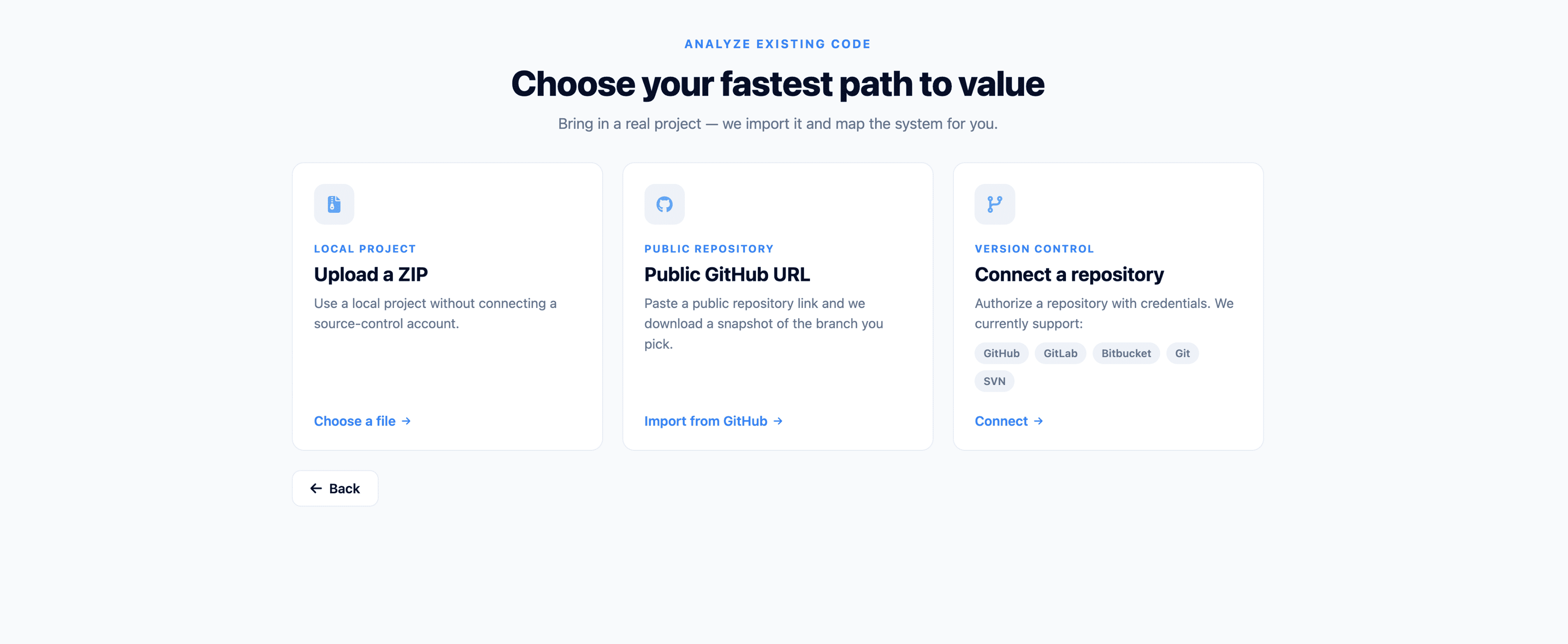
After selecting Analyze existing code from the onboarding menu, you are prompted to choose your preferred method for importing source code into Think4ever. The system will automatically ingest the codebase and build a visual map of the system architecture.
Source Code Import Methods
Select one of three methods to bring your application code into the workspace:
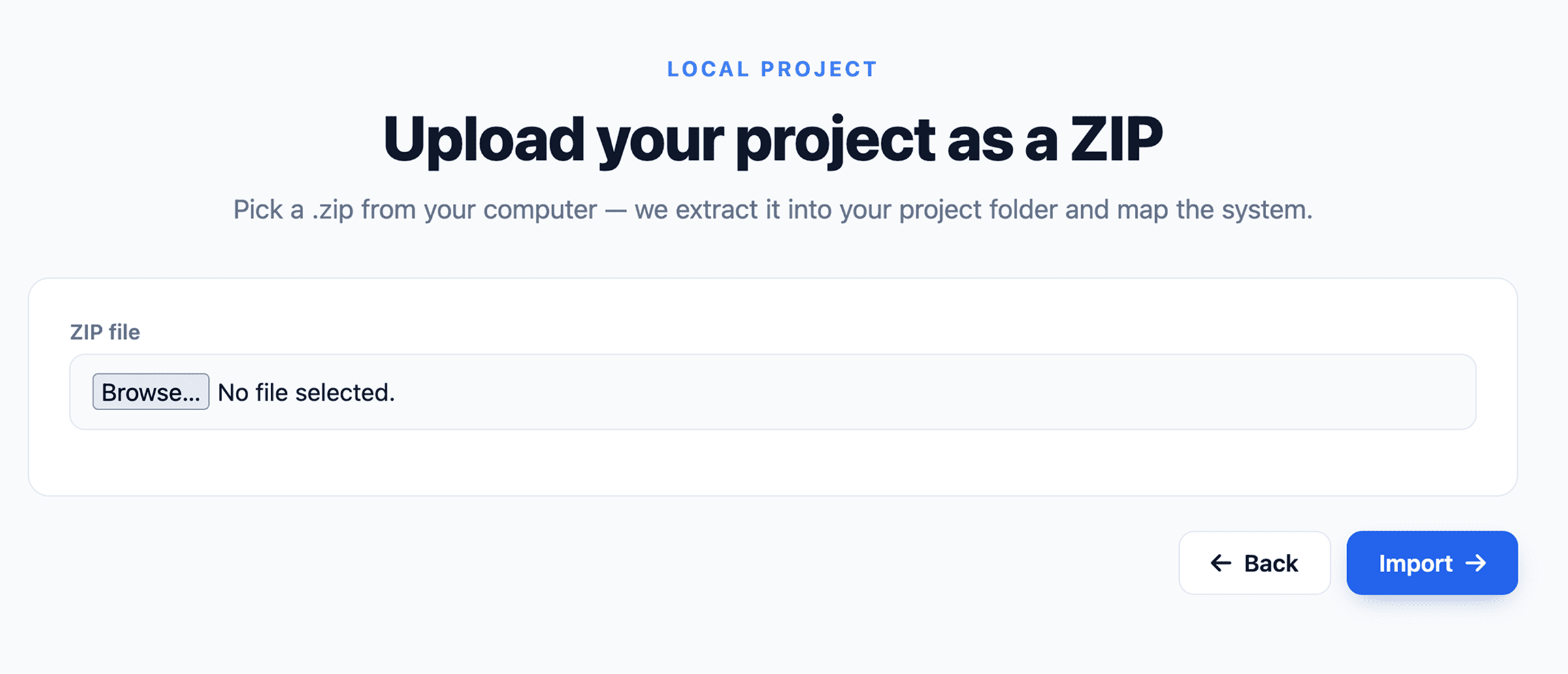
Method A: Local Project (Upload a ZIP)
- Category: LOCAL PROJECT
- Description: Upload a local archive (.zip) containing your project files directly from your computer.
- Best Used For: Quick evaluations, offline codebases, or testing projects without linking a version control account.
- Action: Click Choose a file -> to launch the file picker and select your .zip archive.
Method B: Public Repository (Public GitHub URL)
- Category: PUBLIC REPOSITORY
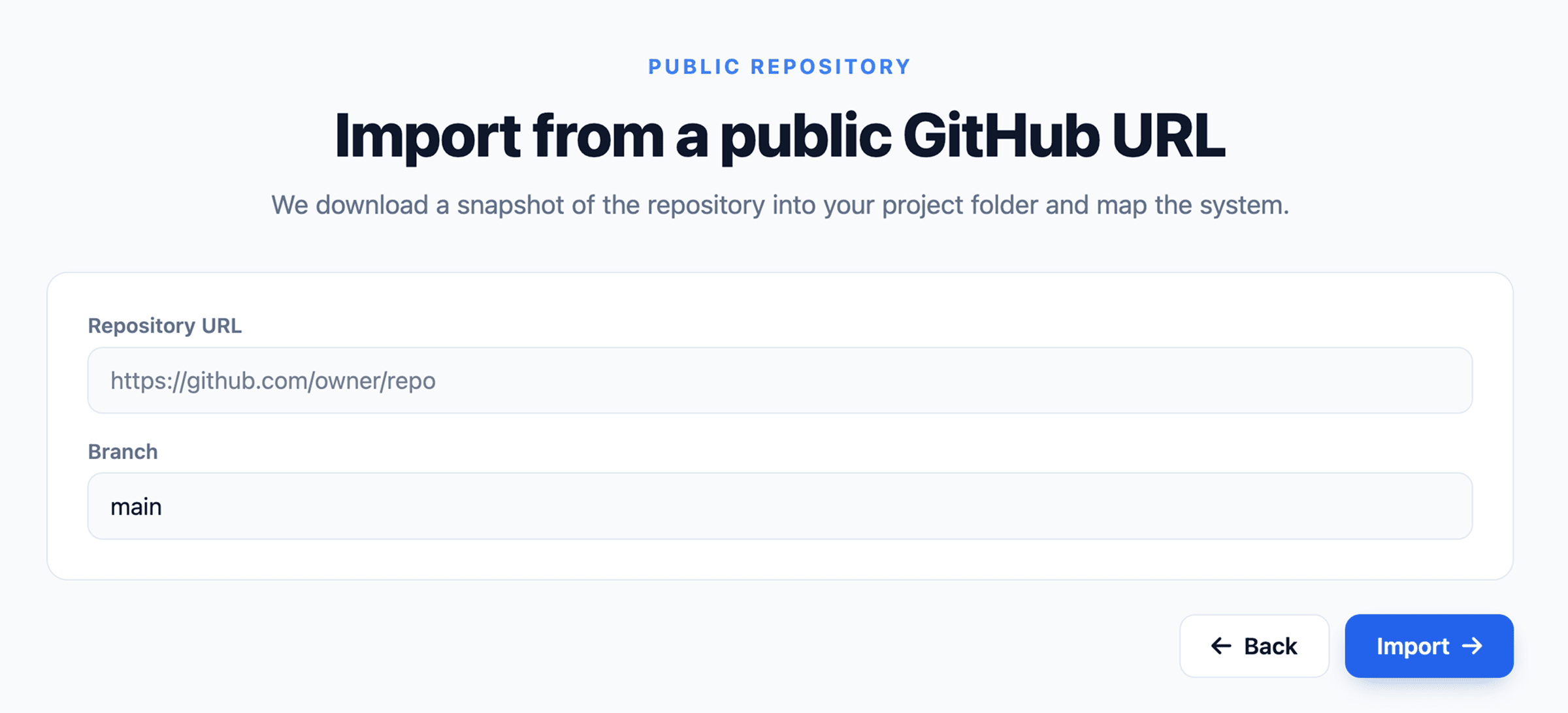
- Description: Paste a URL to any publicly accessible GitHub repository. Think4ever downloads a snapshot of the selected repository branch for analysis.
- Best Used For: Analyzing open-source libraries, public frameworks, or accessible team repositories without authentication.
- Action: Click Import from GitHub -> to enter the repository URL and target branch name.
Method C: Version Control (Connect a Repository)
- Category: VERSION CONTROL
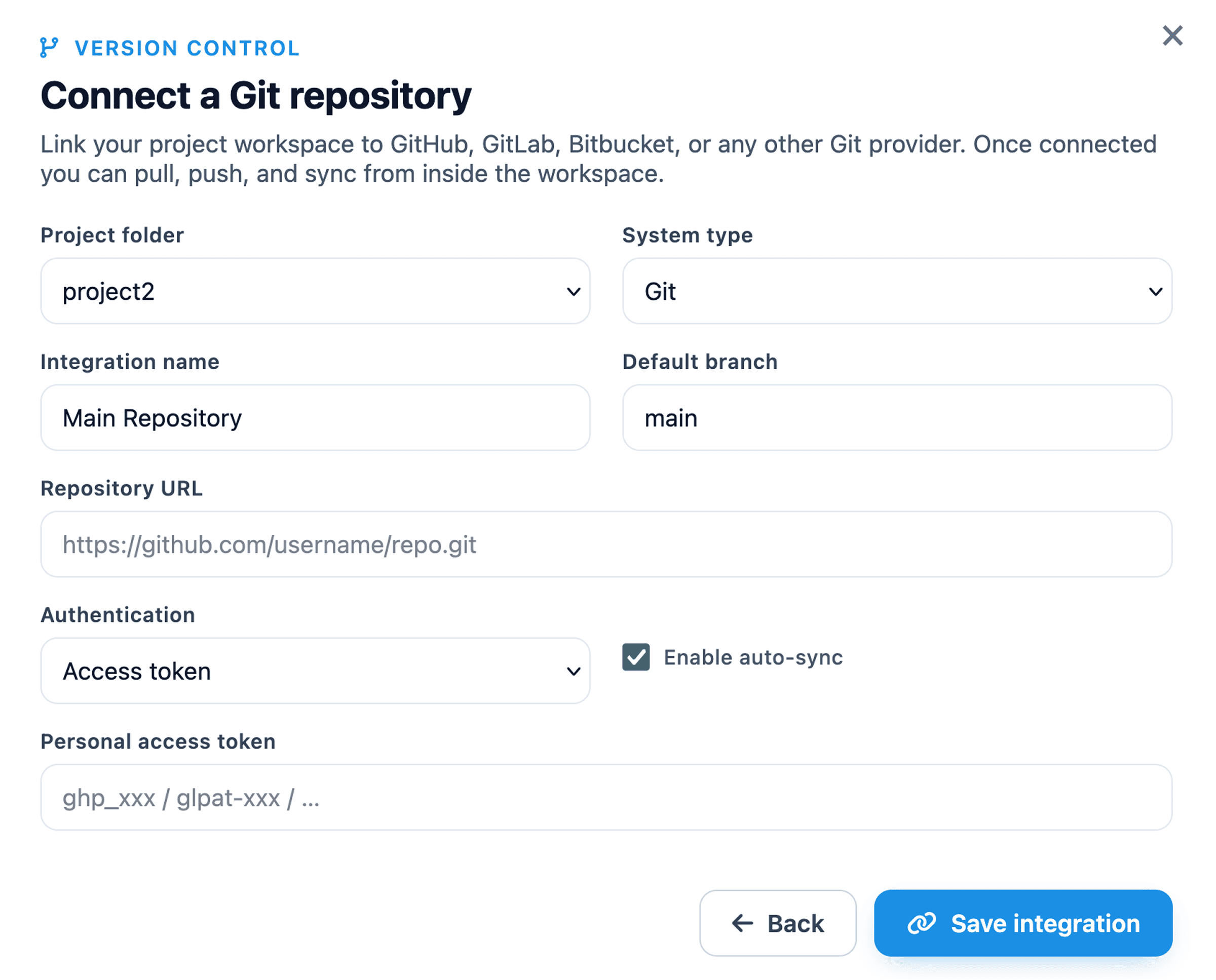
- Description: Authenticate using provider credentials to import private or organizational repositories.
- Supported Integrations: GitHub, GitLab, Bitbucket, Git, and SVN.
- Best Used For: Enterprise projects, private repositories, and continuous architecture mapping directly tied to your source control.
- Action: Click Connect -> to authorize your version control provider.
Step-by-Step Instructions
On the Choose your fastest path to value screen, review the three import options.
Choose your preferred import path:
- ZIP Upload: Click Choose a file -> and select your project's .zip file.
- Public URL: Click Import from GitHub ->, paste the repository link, and click confirm.
- Git Integration: Click Connect ->, authorize your Git provider, and select your repository from the drop-down menu.
Click Back at any point if you need to return to Step 1 and change your onboarding path.
Once submitted, the system will begin parsing your files and generating your interactive system view.