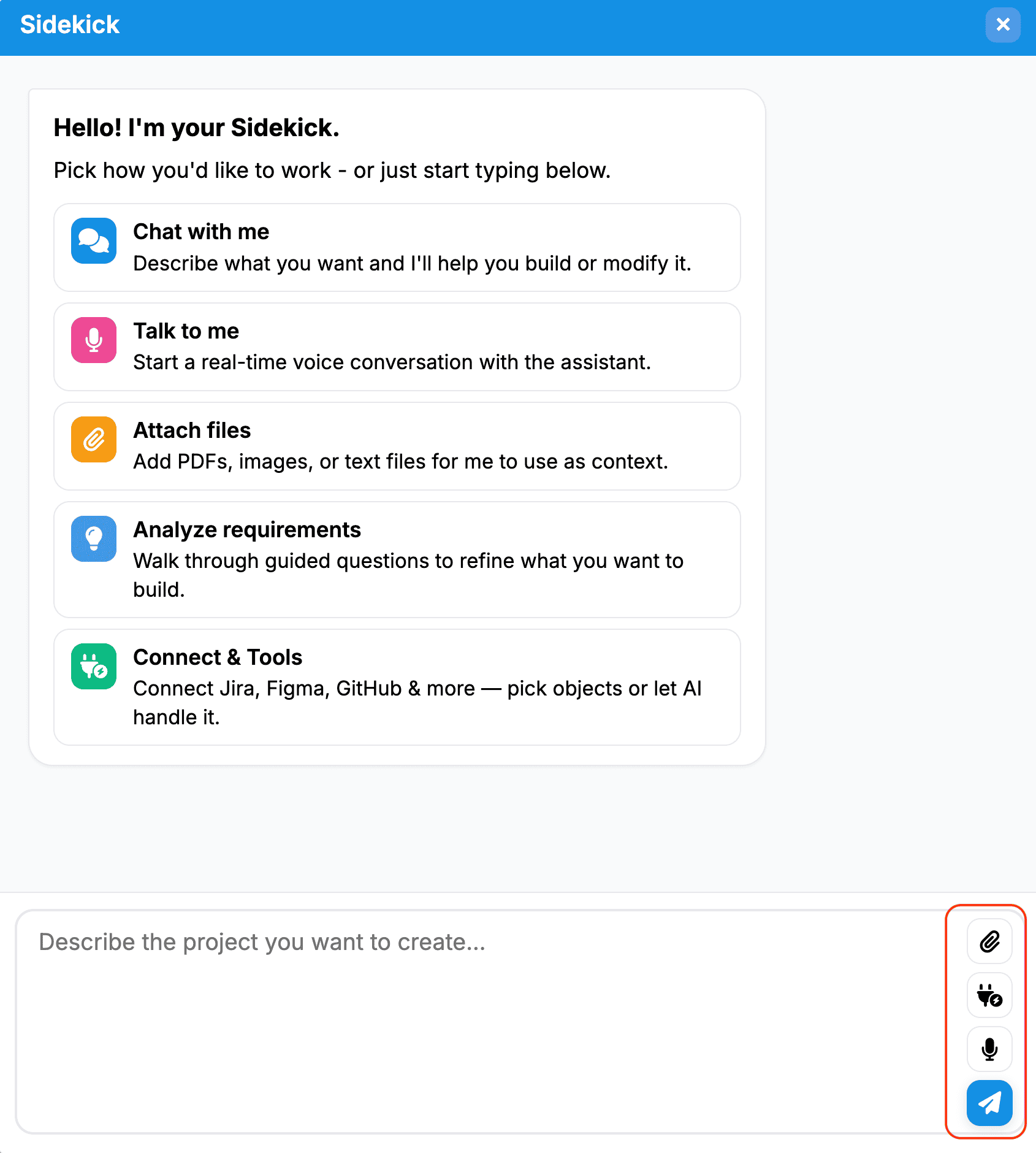
Third-party Ecosystem Integration
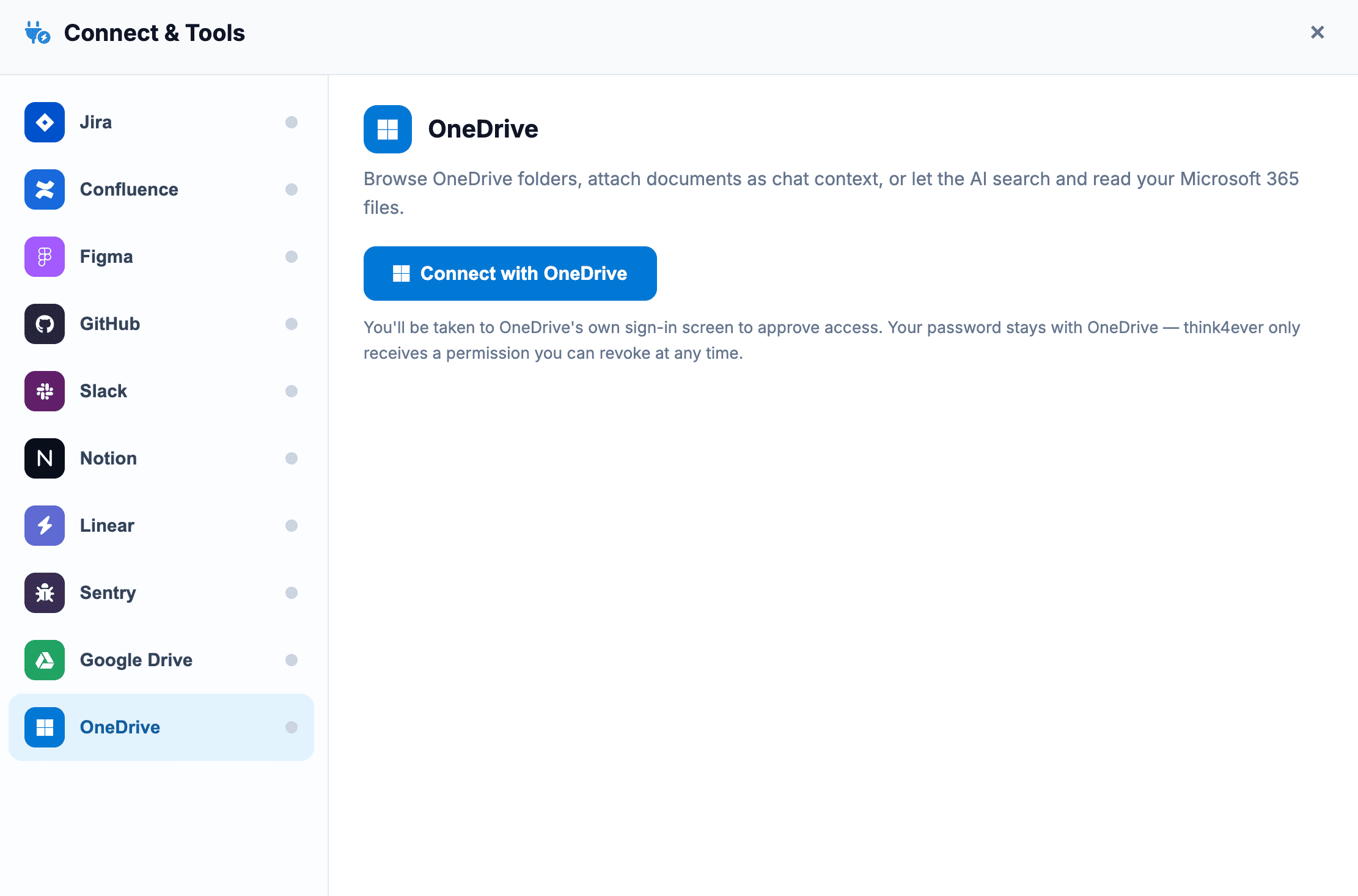
Connect & Tools
- Purpose Third-party ecosystem integration.
- Workflow Link external developer platforms like Jira, Figma, GitHub, and more. Once connected, you can manually map specific objects or let the AI automatically reference and orchestrate data across your external tools.
We need to setup oauth connections in order to connect to Third Party Tools . Provide the Client ID and Client Secret values for each integration.
- Jira + Confluence (one app) - register at https://developer.atlassian.com/console/myapps (OAuth 2.0 integration, add Jira + Confluence scopes and offline_access) — send back Client ID and Client Secret.
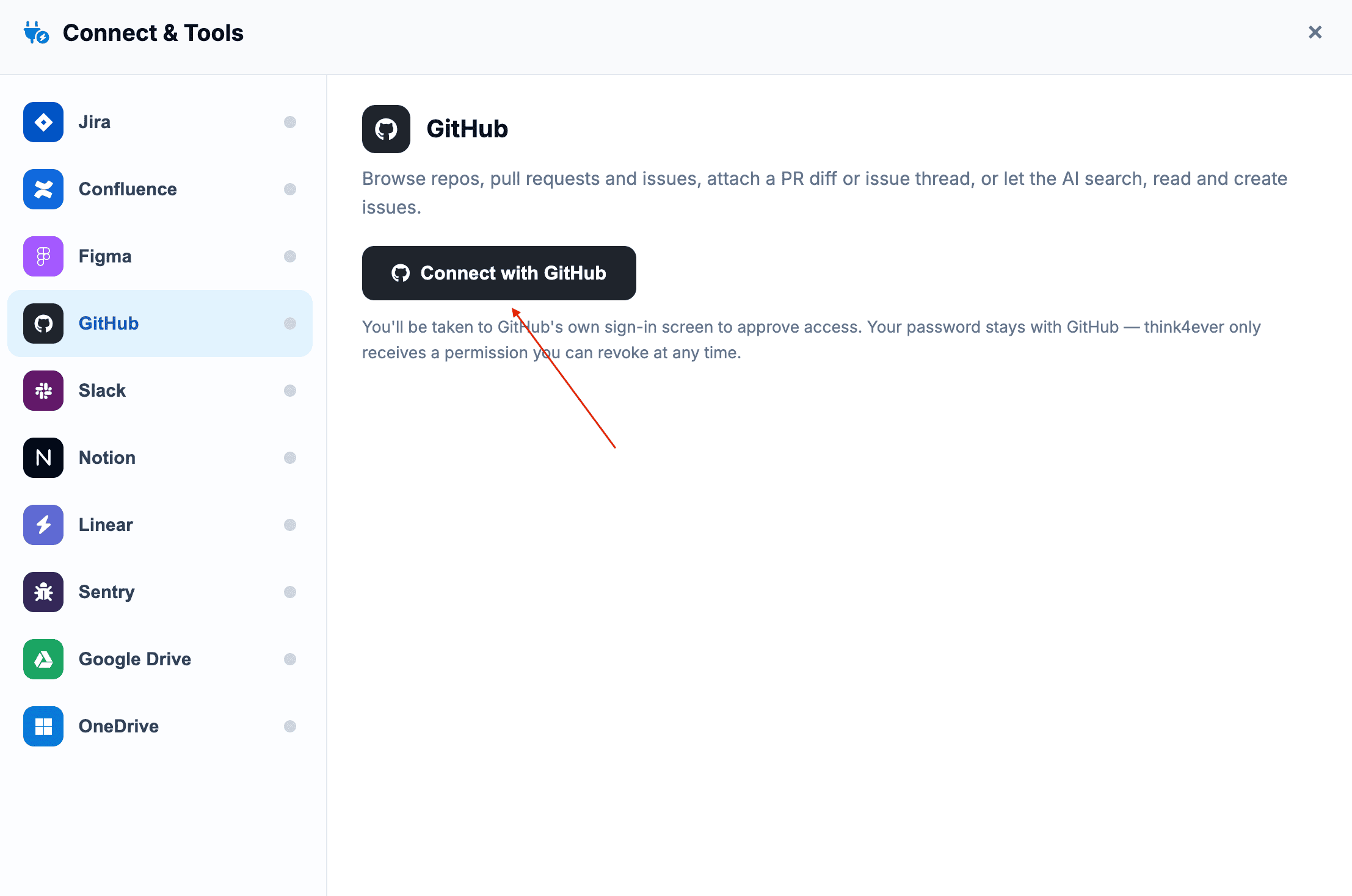
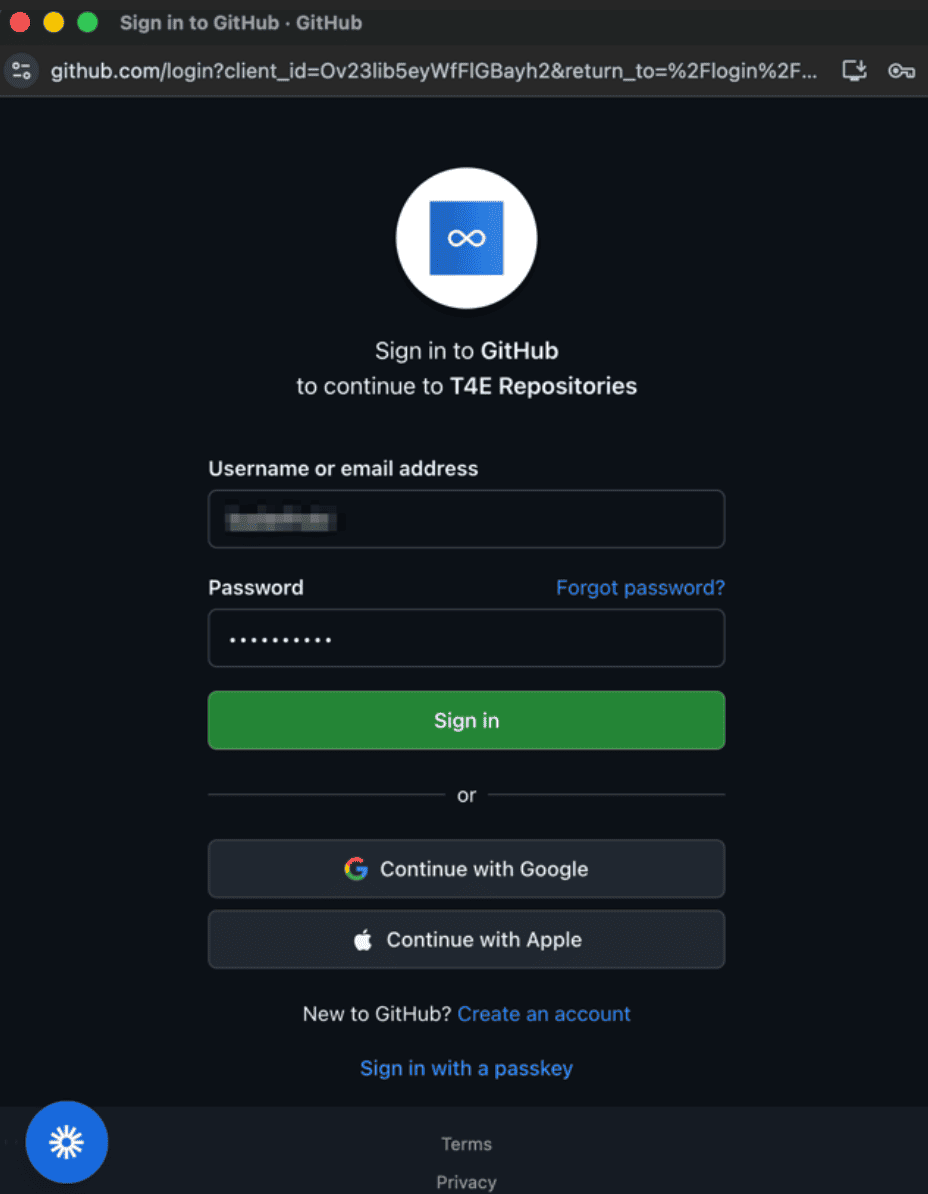
- GitHub - register at github.com → Settings → Developer settings → OAuth Apps — send back Client ID and Client Secret.
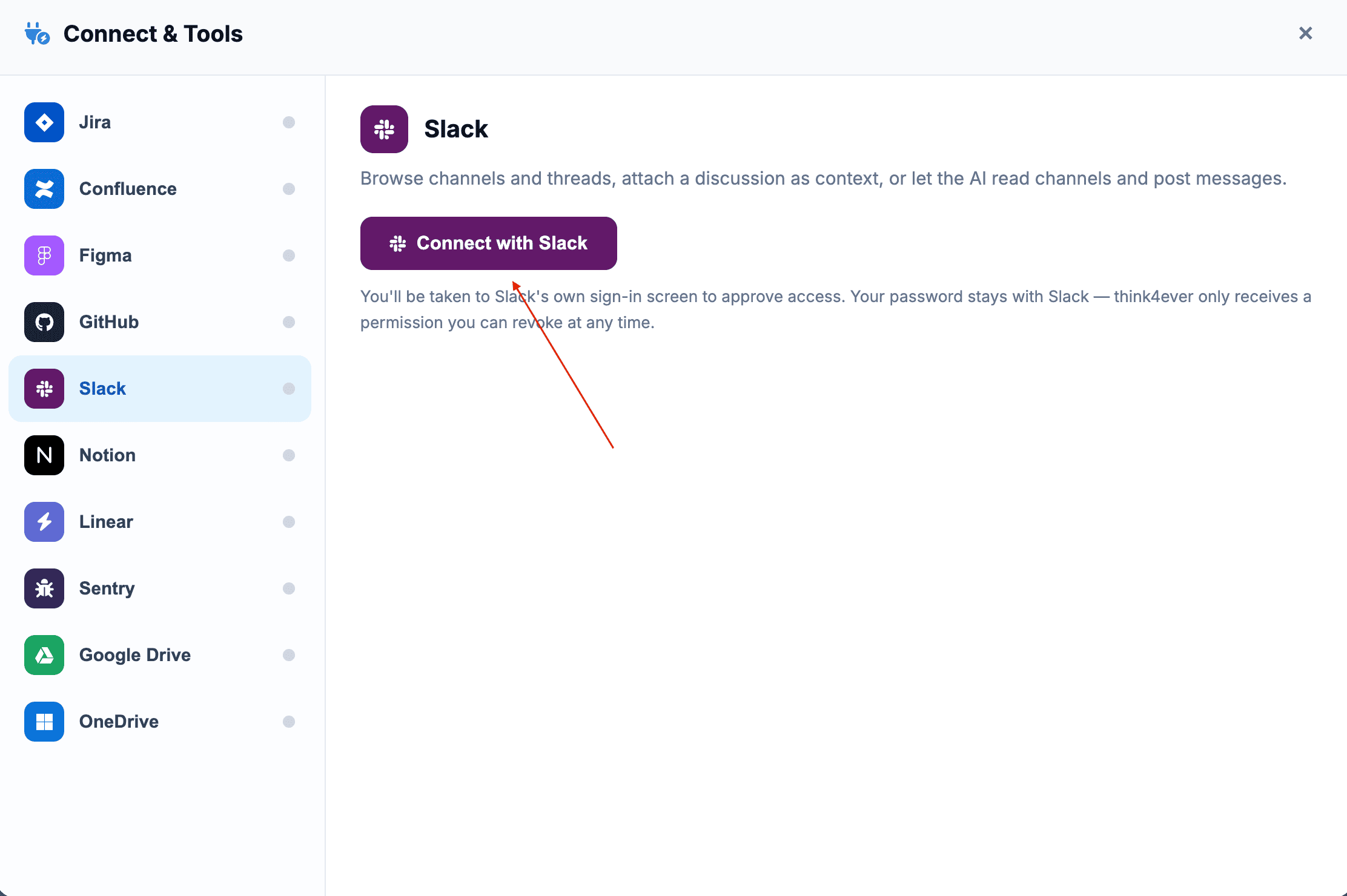
- Slack - register at api.slack.com/apps (add scopes channels:read, channels:history, chat:write) — send back Client ID and Client Secret.
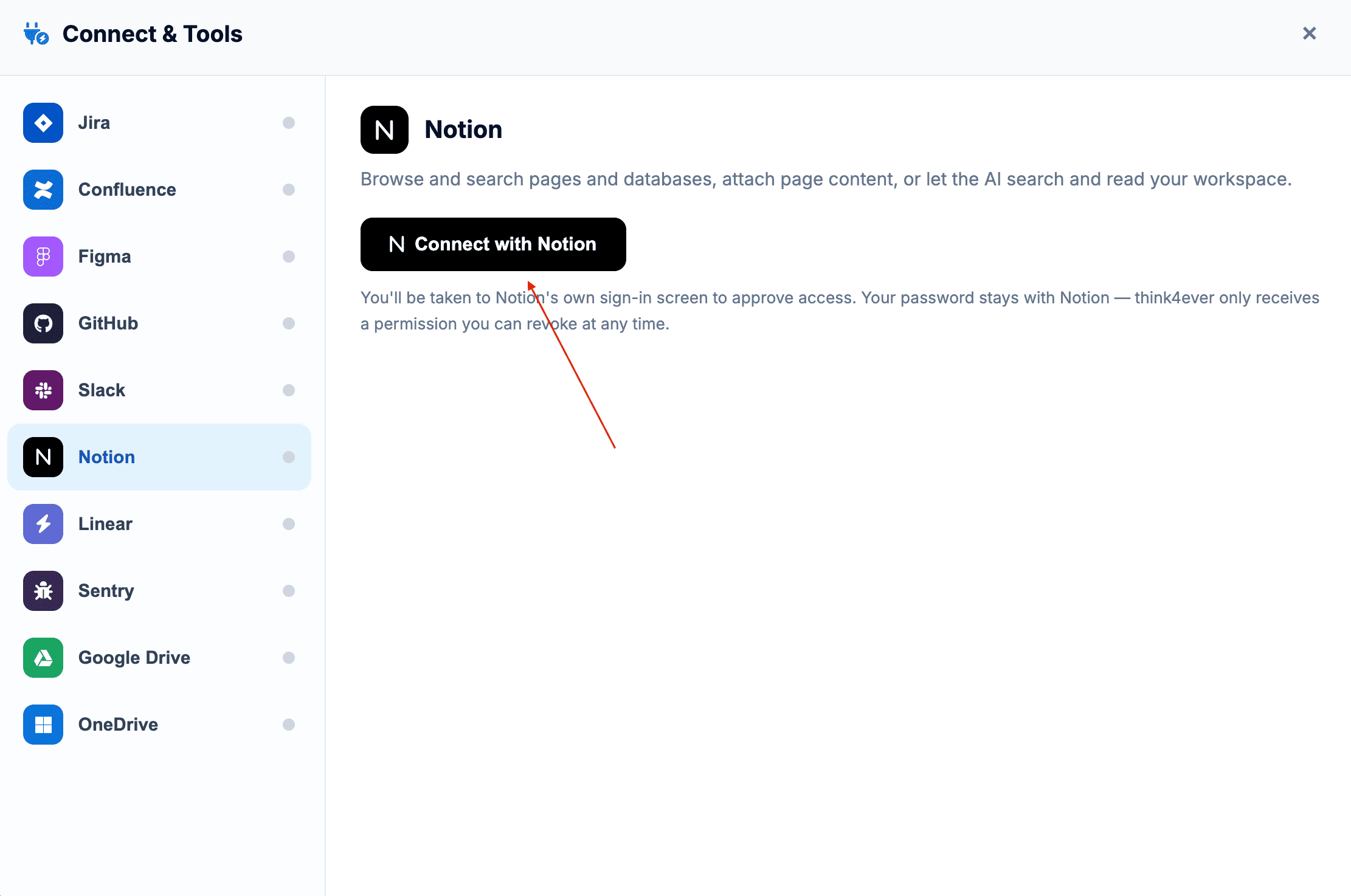
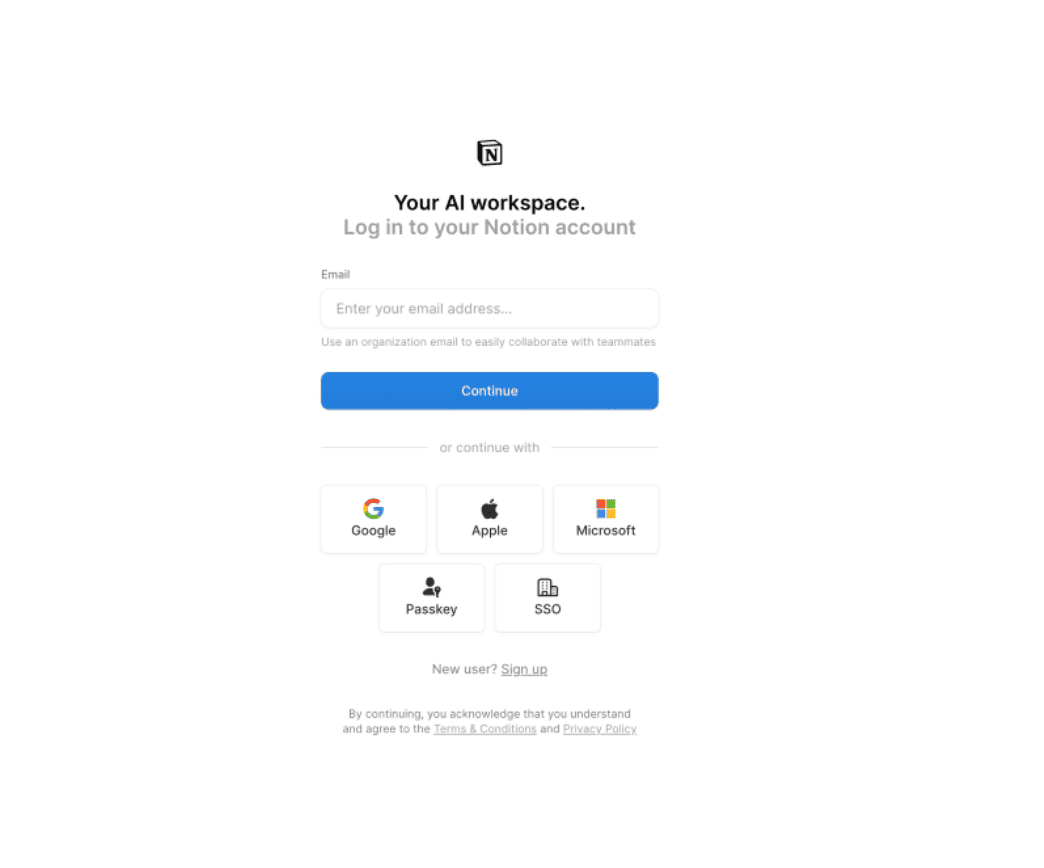
- Notion - register at notion.so/my-integrations (make it a Public integration) — send back Client ID and Client Secret.
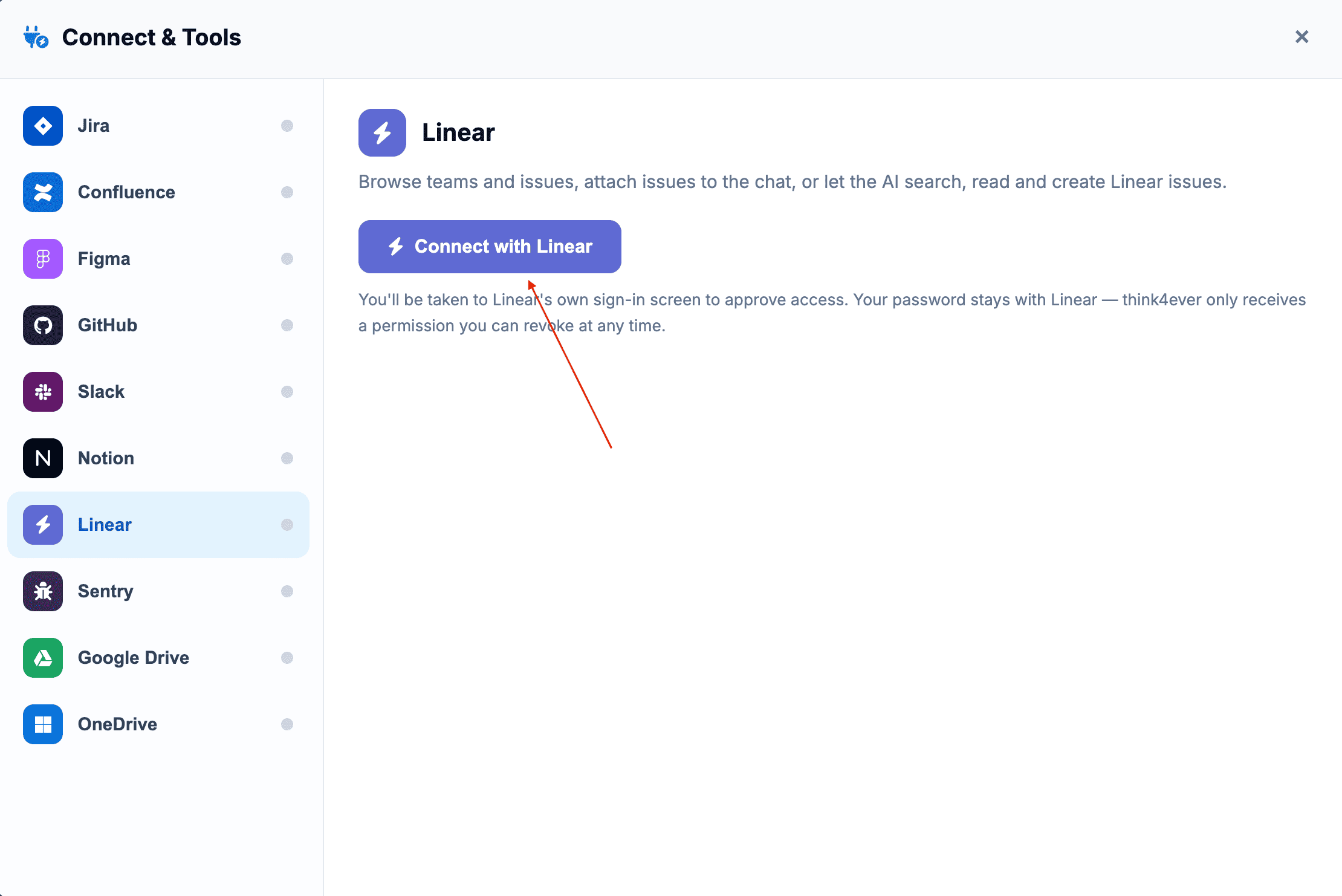
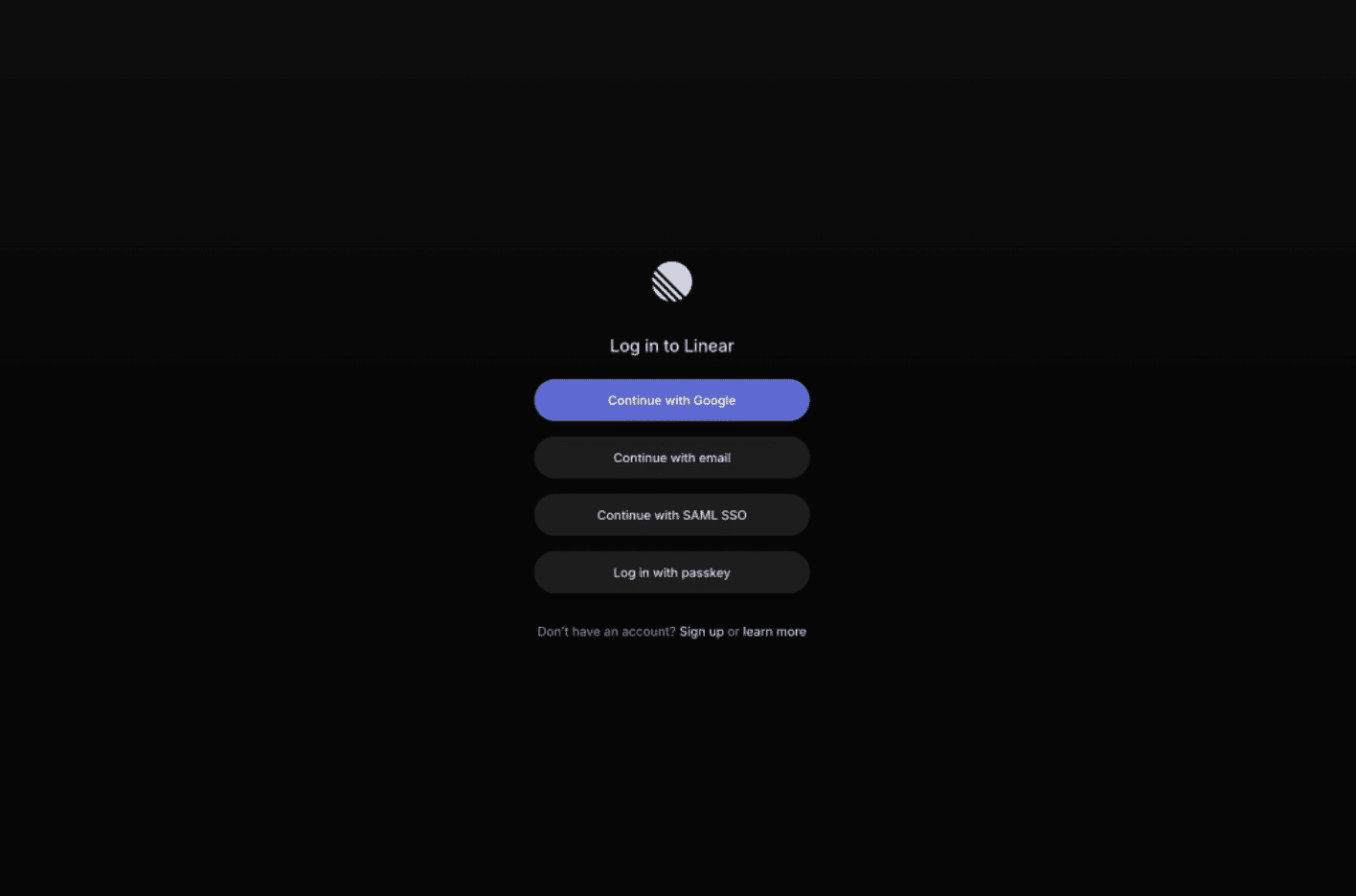
- Linear - register at linear.app → Settings → API → OAuth applications — send back Client ID and Client Secret.
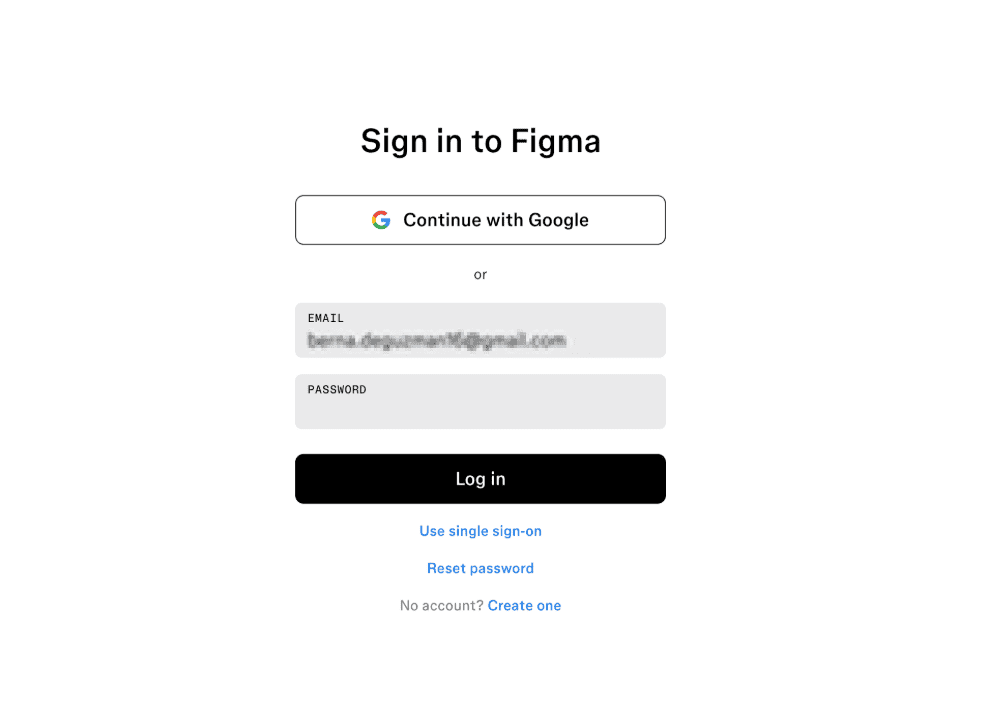
- Figma - register at figma.com/developers/apps — send back Client ID and Client Secret.
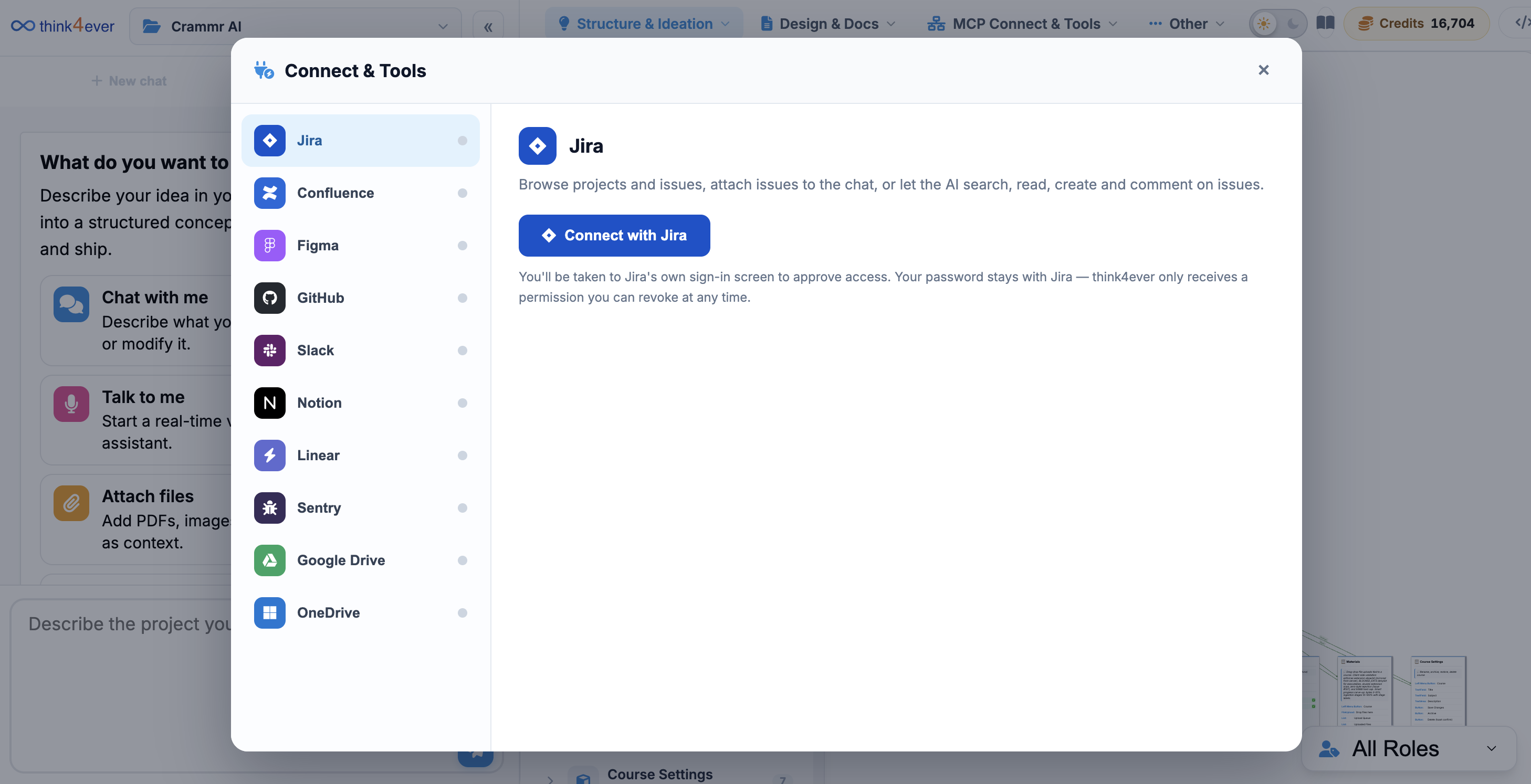
Connect & Tools: Submenu Options
The Connect & Tools integration panel acts as a bridge between Sidekick’s core intelligence and your team's broader tech stack. When authenticated, Sidekick can read across these environments, making it a highly context-aware assistant for everything from product discovery to infrastructure management.
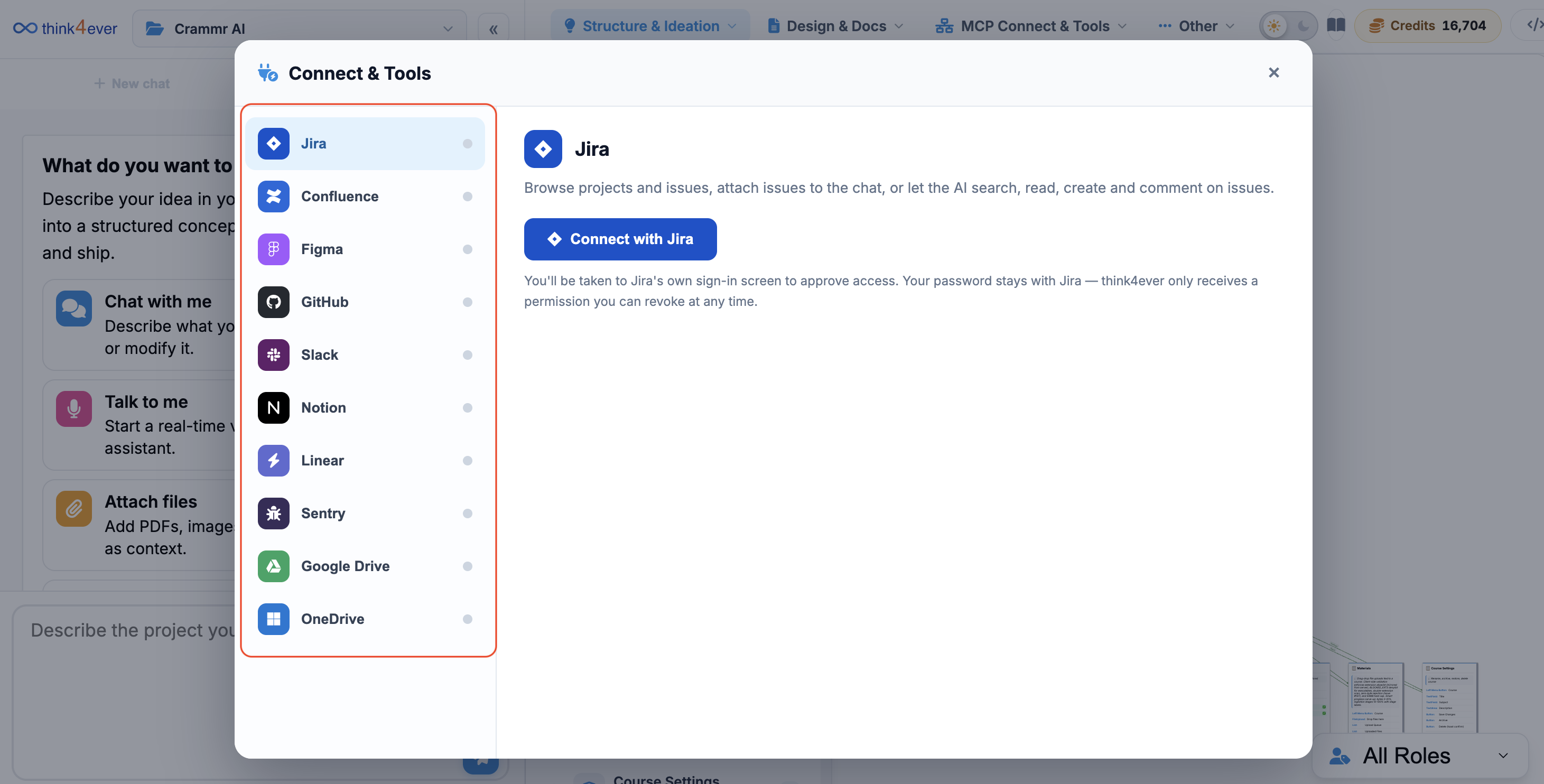
The following sections detail what each individual submenu integration allows Sidekick to do:
Project Management & Issue Tracking
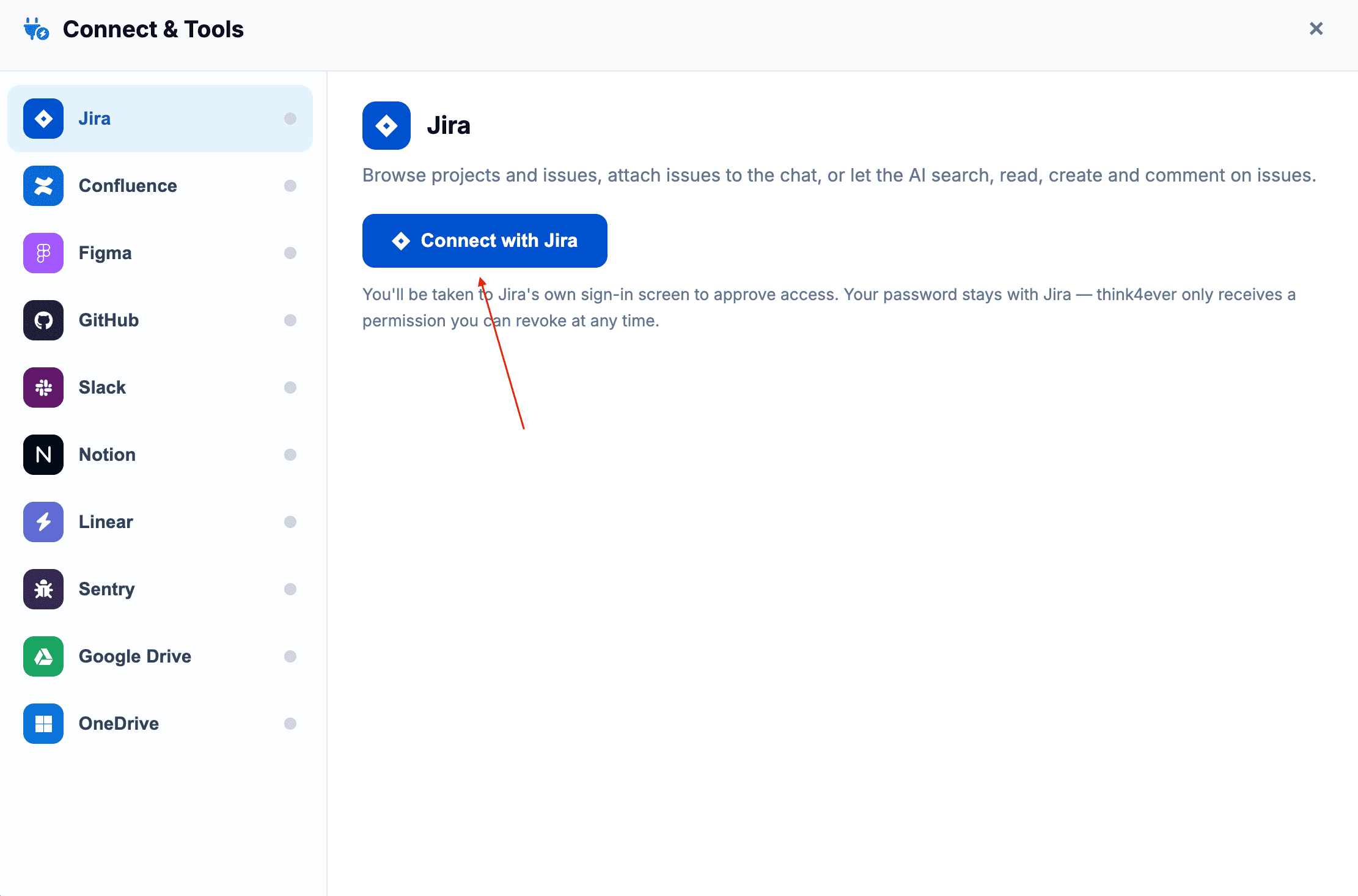
Jira
- Capabilities: Connecting Jira allows Sidekick to browse active engineering projects and epics, attach specific tickets directly into your chat conversation for context, and independently search, read, create, or comment on issues.
- Best Used For: Synchronizing high-level product definitions with real-world development backlogs without manually jumping back and forth between tools.
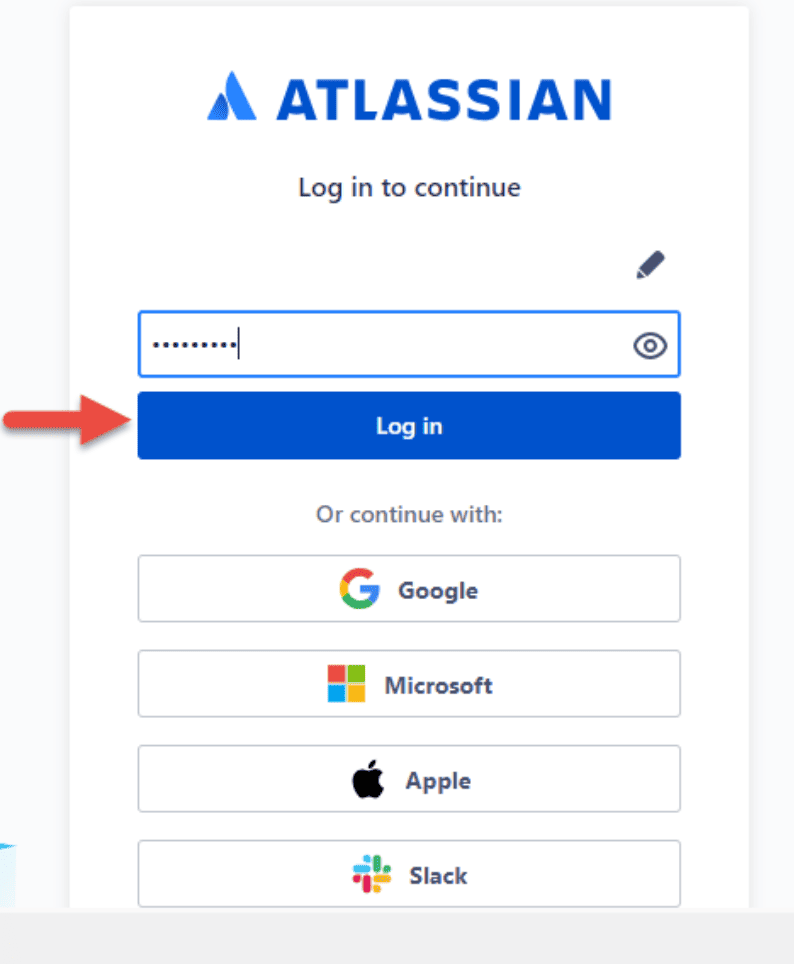
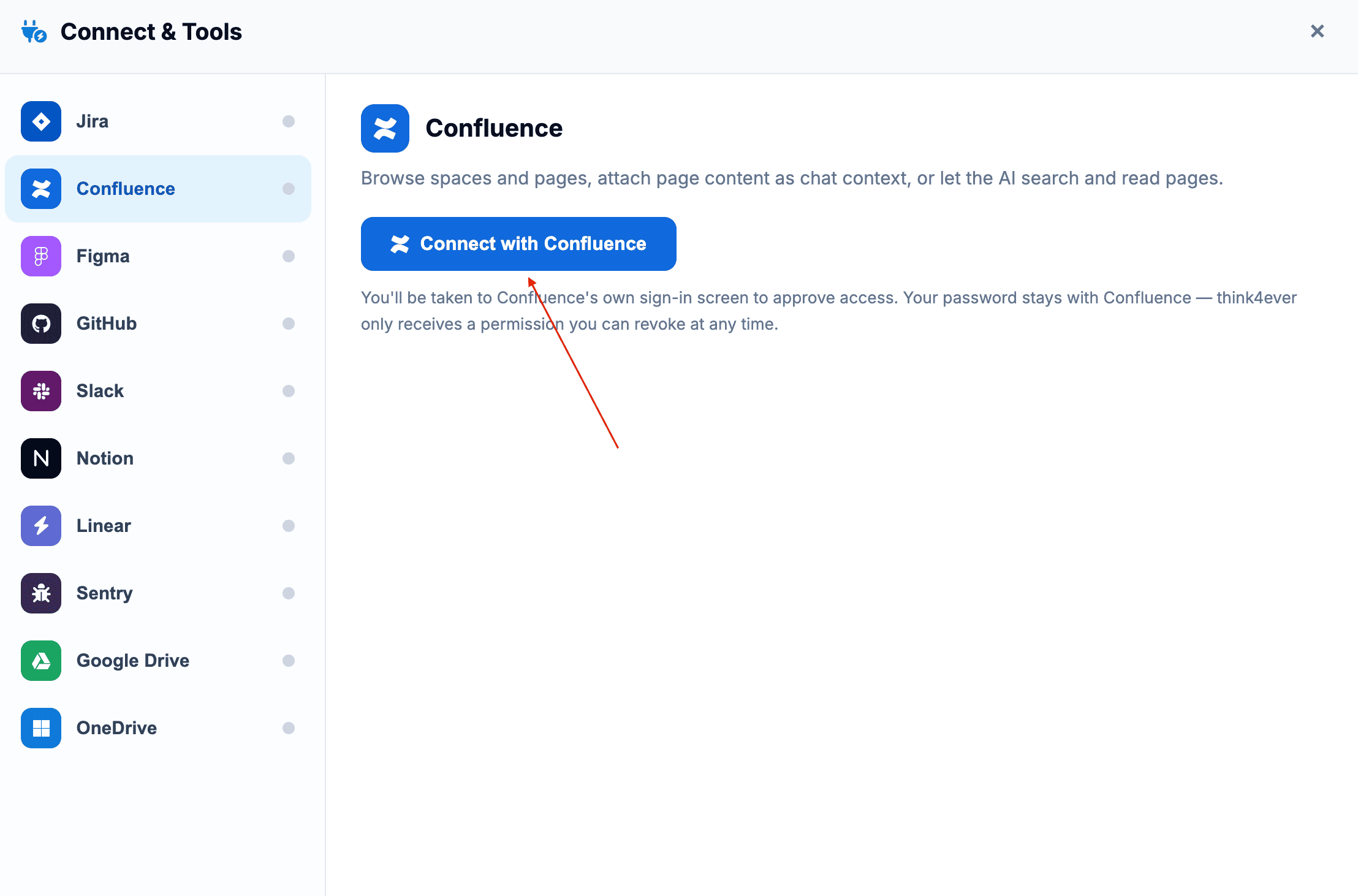
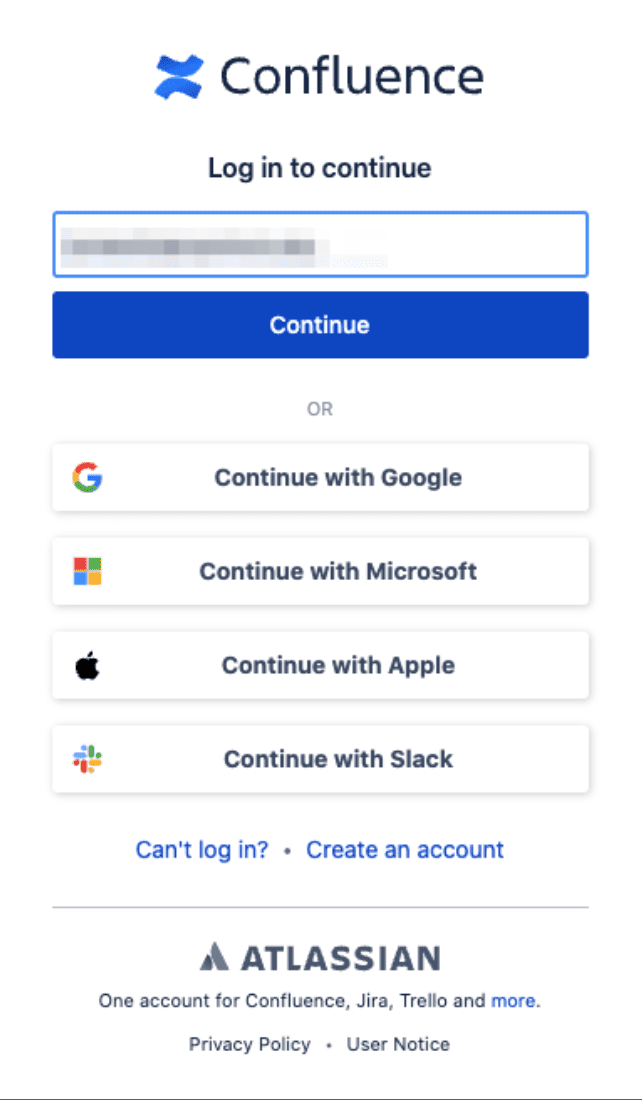
Confluence
- Capabilities: Sidekick can crawl your designated Confluence spaces, pull historical project wiki pages, and map out existing company guidelines.
- Best Used For: Feeding dense internal knowledge bases into the AI's active context window when drafting brand-new system definitions or onboarding onto complex ecosystems.
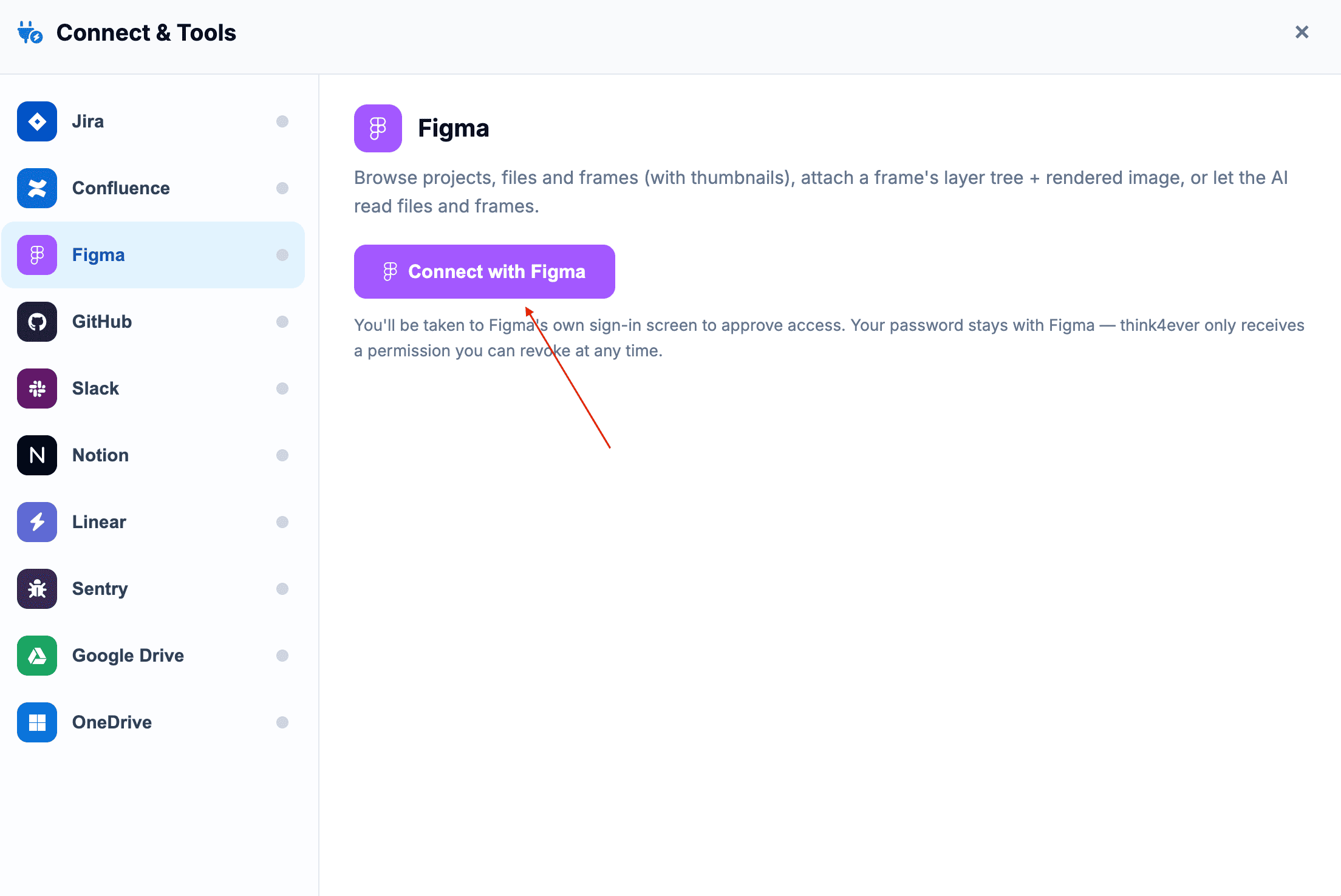
Figma
- Capabilities: Connecting Figma enables Sidekick to read specific canvas components, extract layout details, and pull exact screen blueprints straight into the design phase.
- Best Used For: Validating that your technical specification structures align perfectly with your UI design contracts before code implementation begins.
GitHub
- Capabilities: Sidekick bridges directly into your codebase repositories to inspect file structures, read code, analyze repository configurations, and track structural changes.
- Best Used For: Performing comprehensive "rules vs. reality" audits—checking that live code configurations actually obey your high-level written business rules.
Slack
- Capabilities: This integration allows Sidekick to push workspace notifications, share generated technical summaries, or even receive direct commands from designated Slack channels.
- Best Used For: Keeping non-technical stakeholders updated automatically when core platform requirements or project statuses evolve.
Notion
- Capabilities:Linking Notion grants Sidekick access to your shared team workspaces, project roadmaps, and collaborative research databases.
- Best Used For: Instantly cross-referencing messy product brainstorming notes with your platform's live data models.
Linear
- Capabilities: This integration bridges Linear's high-speed issue tracking into your chat workspace. Sidekick can monitor active sprint cycles, extract task lists, check progress, and modify ticket statuses directly from natural language commands.
- Best Used For: Maintaining continuous, real-time momentum on engineering tasks directly from your development canvas.
Sentry
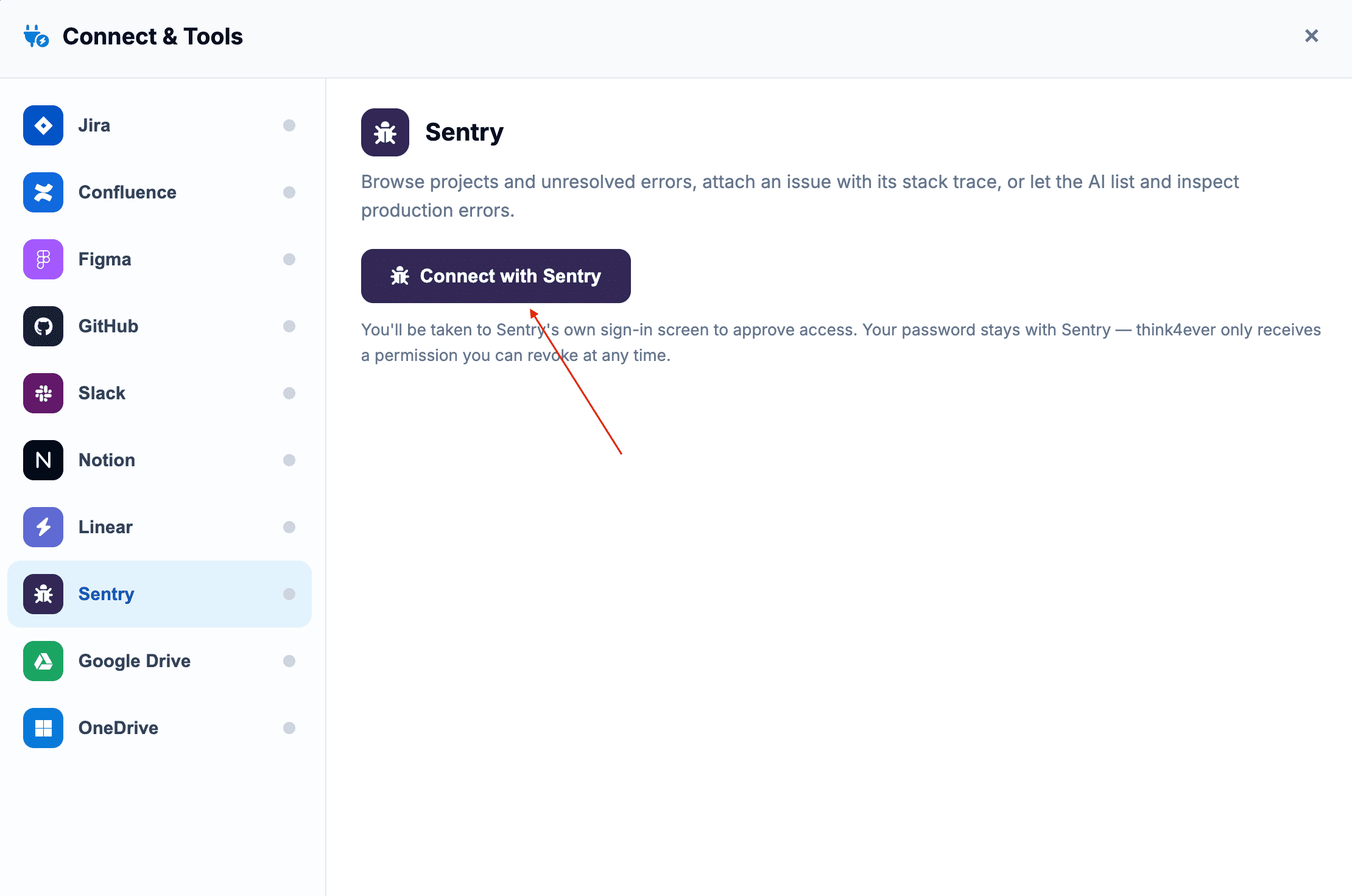
- Capabilities: Sidekick monitors real-time error tracking logs and application crash reports captured by Sentry.
- Best Used For: Issue pattern mining—allowing Sidekick to analyze recurring production bugs and translate them back into explicit, preventative system requirements to guide the next development cycle.
Google Drive & OneDrive
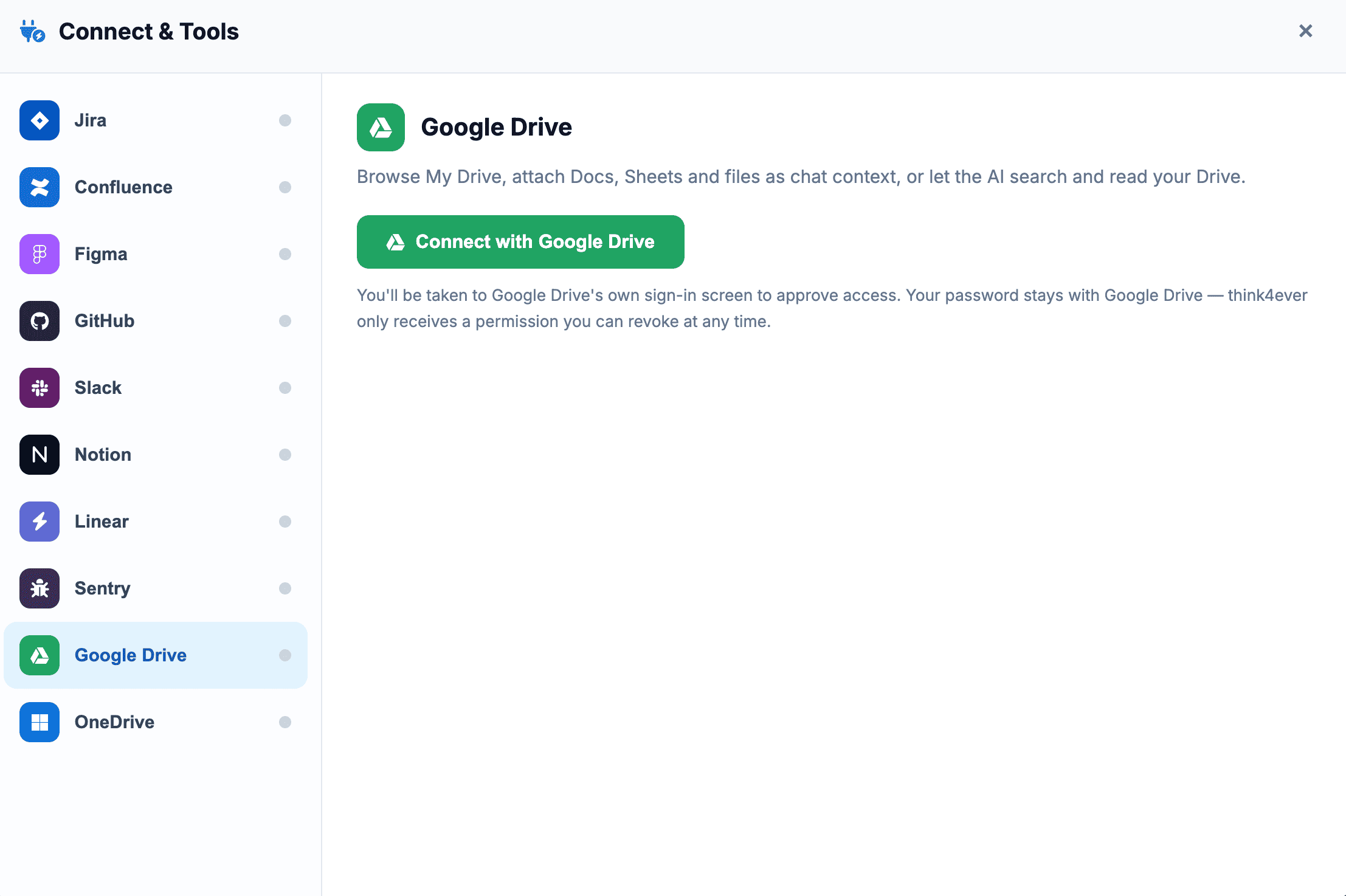
- Capabilities: Both submenus function as external data pipelines, allowing Sidekick to seamlessly pull down and parse PDFs, images, architectural diagrams, spreadsheets, and text documents.
- Best Used For: Injecting large quantities of pre-existing product documentation or client assets into Sidekick's large context window.
Interface Quick Commands
The unified text field at the bottom allows you to pass multi-modal commands directly to Sidekick on the fly:
- Text Input Field:: Type any project objective directly into the prompt box (e.g., "Describe the project you want to create...").
- Paperclip Icon: Quickly attach local context files without exiting your active chat thread.
- Plug/Network Icon: Access and manage external tool integrations and connection scopes.
- Microphone Icon: Toggle instant voice-to-text dictation or switch directly to voice mode.
- Send Arrow: Submit your text prompt, configurations, or uploaded attachments to execute the action.