Workspace
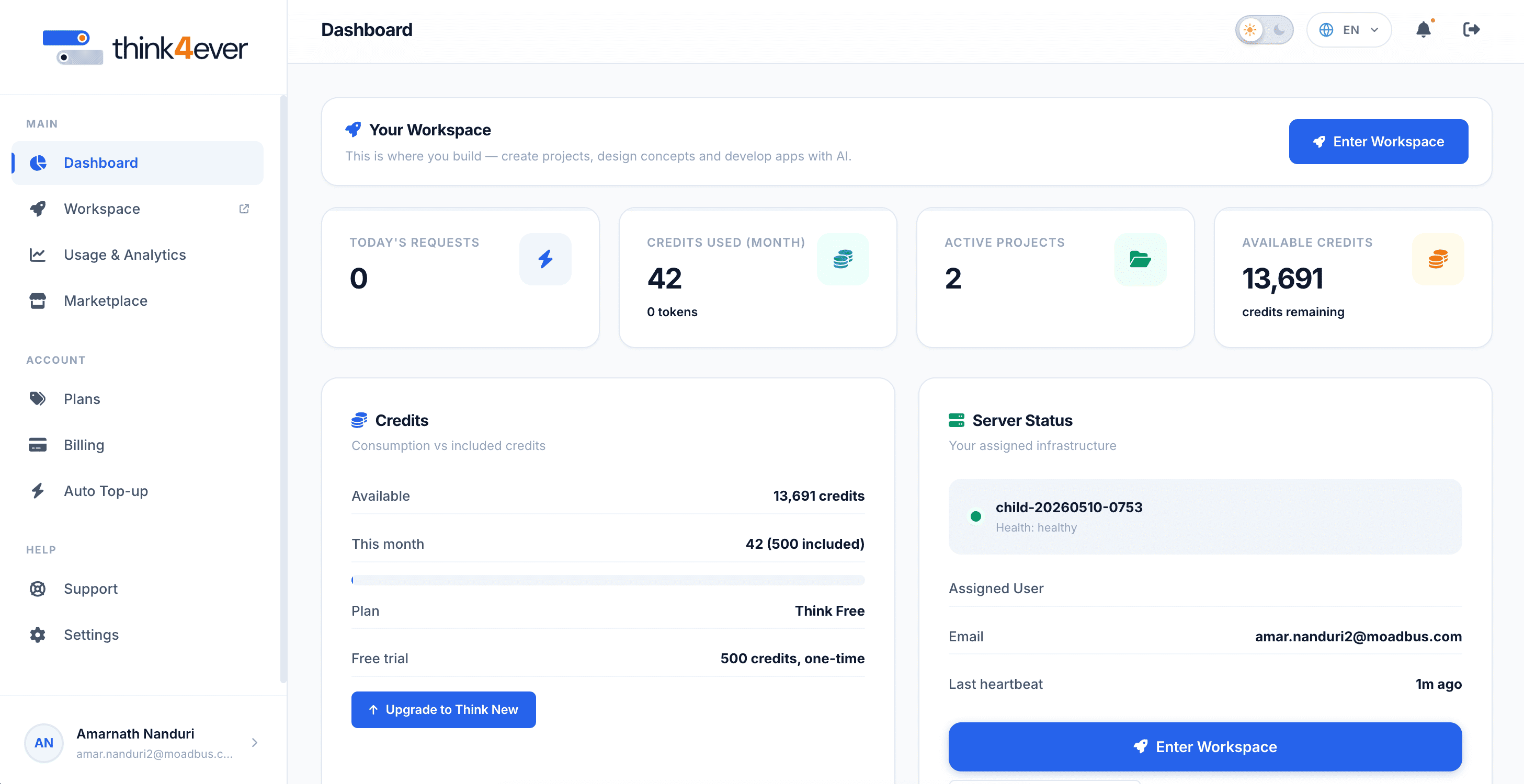
The Workspace serves as the main dashboard for managing ongoing projects, generating API credentials, managing team access, and monitoring account usage metrics.
How to access your workspace:
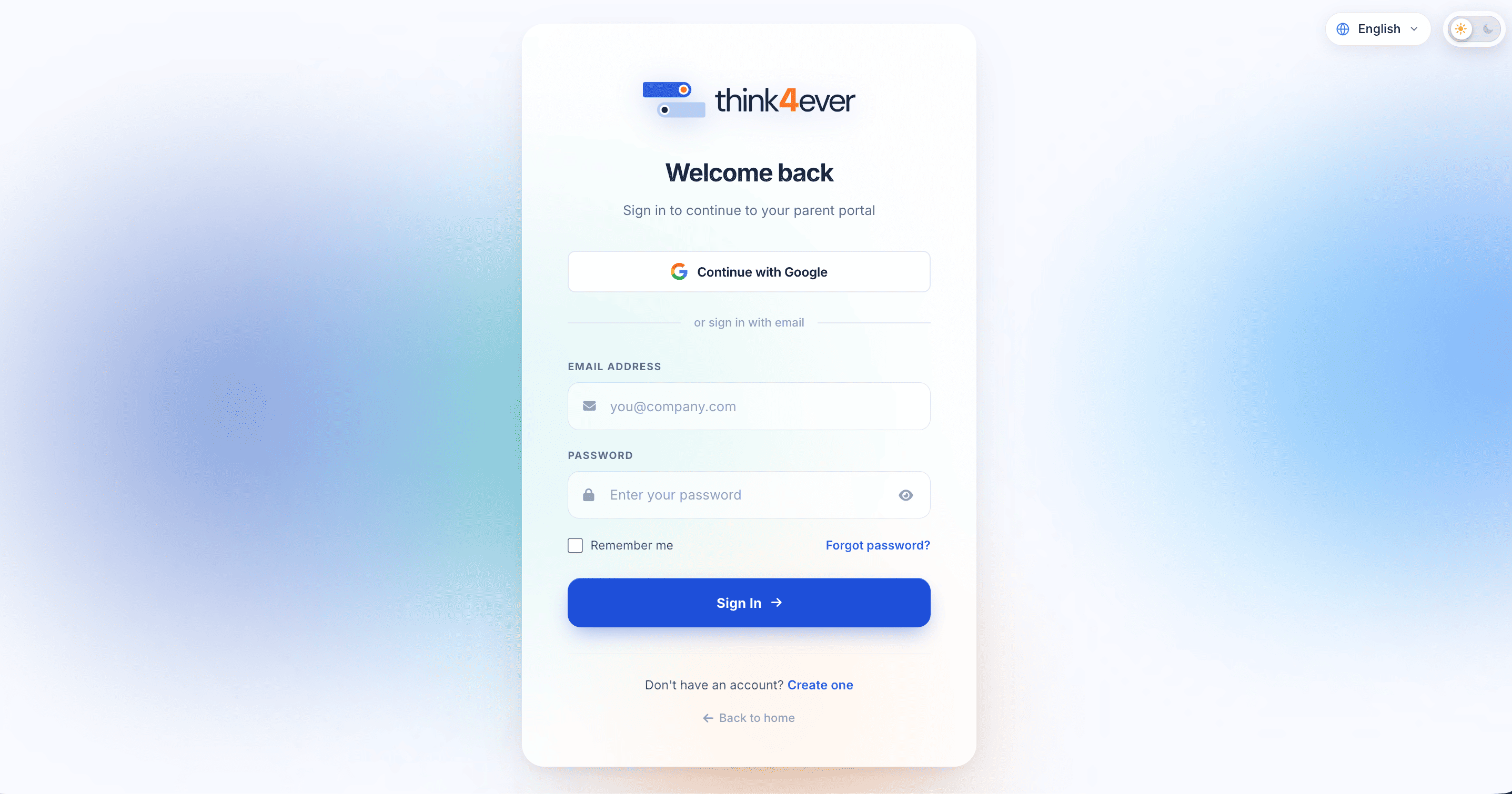
Option 1: Go to Think4ever portal login, use your credentials to sign in.
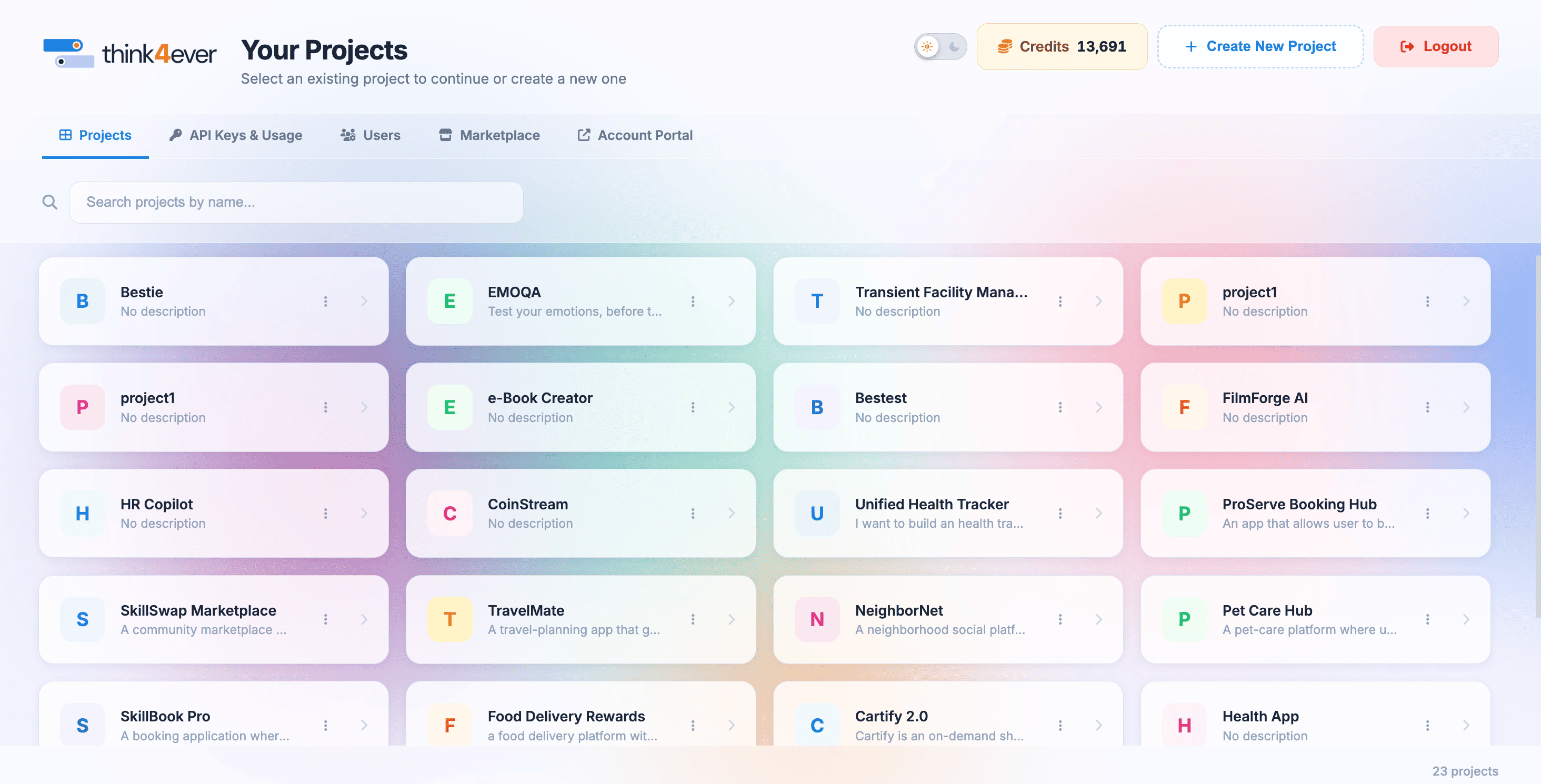
You will be taken to your Workspace or Project Dashboard.
Option 2: From your Think4ever portal, click on Enter Workspace
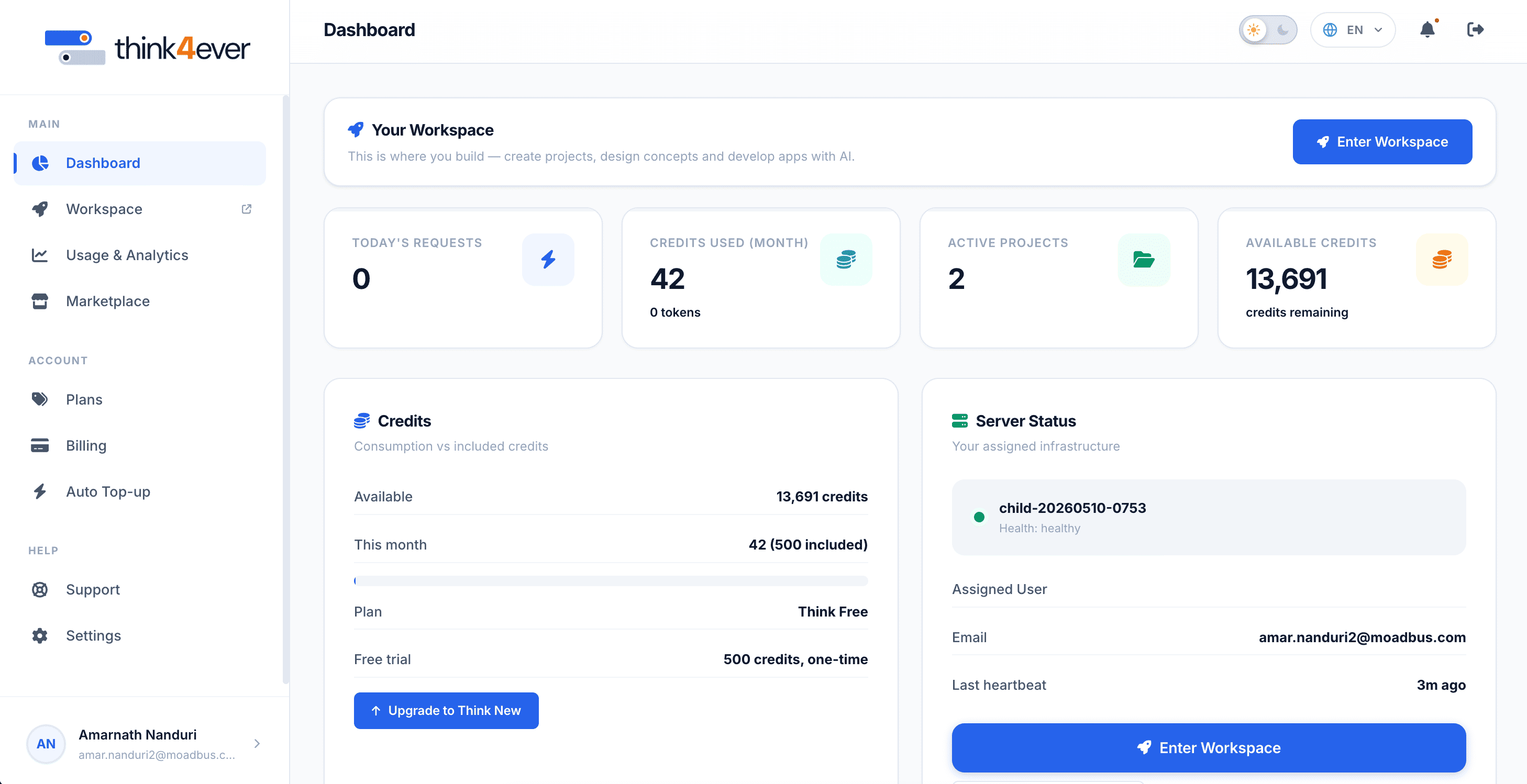
You will be taken to your Workspace or Project Dashboard.
Key Components & Navigation
Projects Tab
Purpose: Serves as your primary workspace directory where you can locate, inspect, and organize all current projects.
Key Capabilities & Responsibilities:
- Workspace Selection: View all active project tiles at a glance, showing titles, descriptions, and workspace avatars.
- Real-time Search: Use the real-time filter input to search through large project directories by title.
- Project Creation: Launch new project environments using the + Create New Project setup flow.
- Quick Management: Access individual project settings via the context menu (⋮) on each card to rename, reconfigure, or archive workspaces.
When to Use:
Whenever you need to open an active project workspace, manage workspace settings, or start a new development effort.
API Keys & Usage Tab
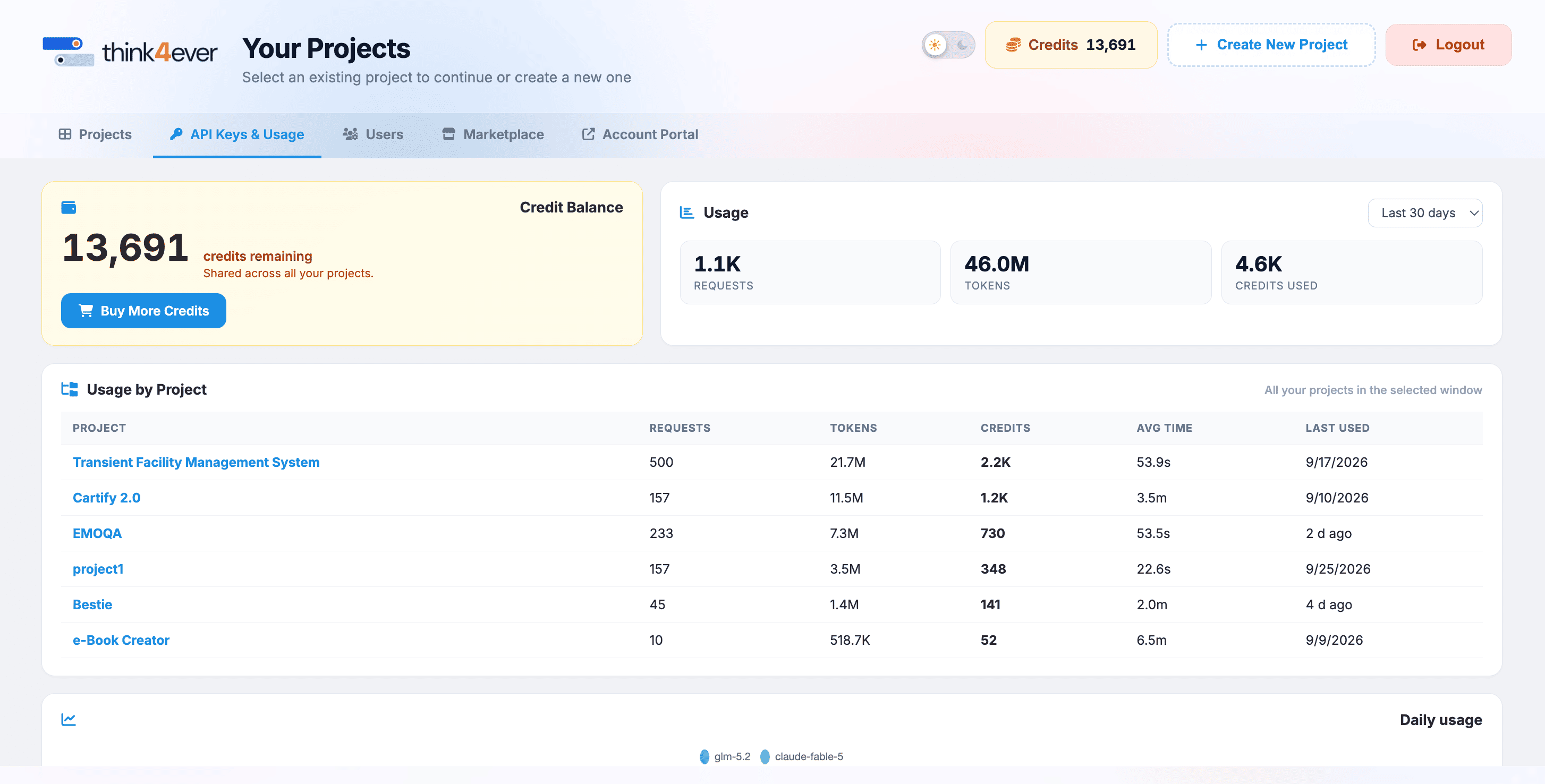
Purpose: Provides security controls for managing programmatic access keys and monitoring system resource consumption.
Key Capabilities & Responsibilities:
- API Key Generation & Security: Create, name, and manage secret API keys used for authenticating external applications, SDKs, or automated pipelines.
- Key Revocation: Instantly revoke or cycle compromised API keys to prevent unauthorized platform access.
- Resource Consumption Monitoring: Track real-time usage metrics, automated execution costs, and credit balance consumption.
- Rate Limits & Quotas: Inspect active rate limits, API call frequency thresholds, and endpoint throughput limits.
When to Use:
When integrating Think4ever with external tools, generating developer credentials, auditing credit usage, or troubleshooting API rate limits.
AI Key Mode
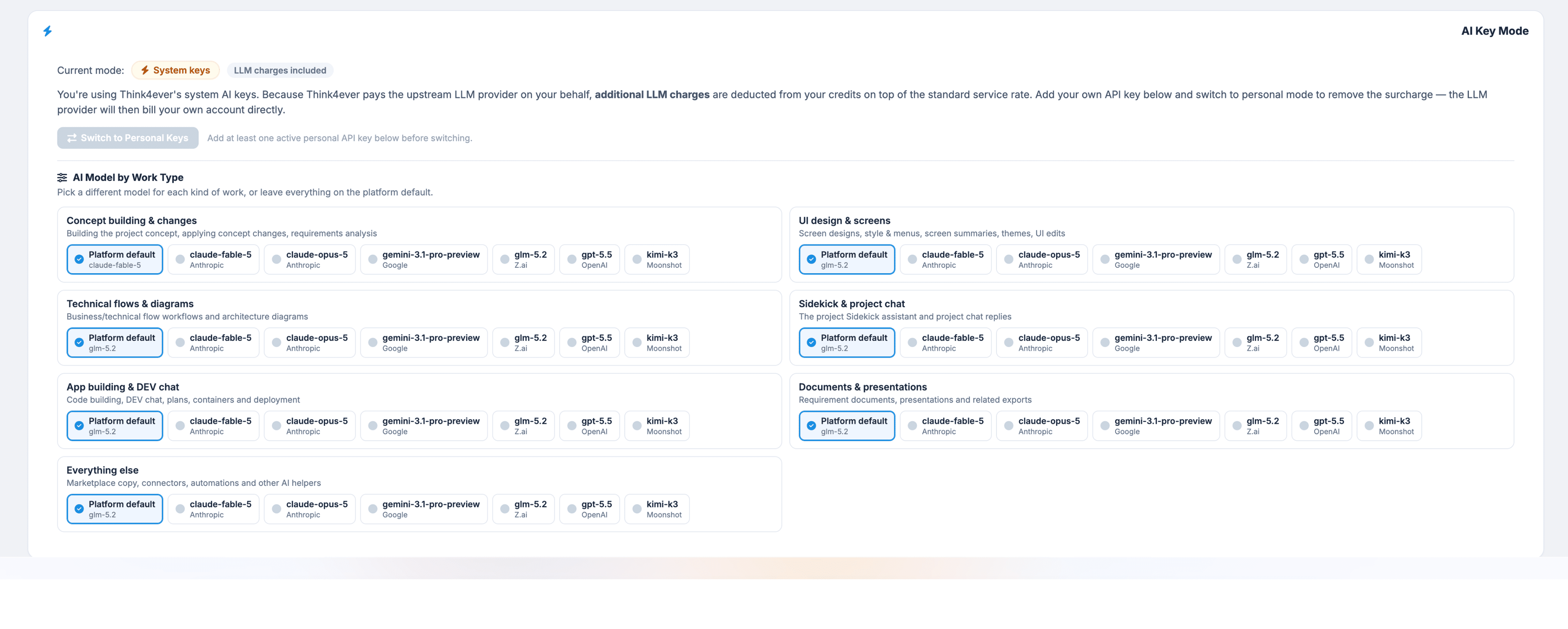
AI Key Mode is a configuration page in Think4ever that lets you control how AI model usage is billed and which specific AI models power different tasks across your project workspace.
Core Functions
Billing & Key Management (System vs. Personal Keys)
- System Keys Mode (Default): Think4ever uses its own API keys to query providers (like Anthropic, OpenAI, or Google). Usage costs are deducted directly from your account's platform credits, which include a standard service rate plus an upstream API surcharge.
-
Personal Keys Mode: You can input your own personal API keys from providers like
Anthropic, OpenAI, Google, or Moonshot. Switching to this mode removes the platform usage surcharge, and
you are billed directly by the model provider.

Choose the Right AI for Every Task
Instead of using the same AI for everything, you can pick the best AI for each step of your project:
- Concept & Ideas: Plan project goals and features.
- System Diagrams: Map out how your app works.
- Coding: Write, test, and fix code.
- App Design: Create screen layouts and visual styles.
- Project Assistant: Answer questions and help with daily work.
- Docs & Decks: Build ready-to-share documents and slides.
- Other Tasks: Handle copy, app connections, and automated workflows.
Importance of this feature:
- Cost Optimization: Use lower-cost or personal API keys for bulk tasks (like general chat or documentation) to avoid platform surcharges.
- Performance Tuning: Assign specialized models where they excel—for instance, using Claude 3.5 for heavy code generation while delegating lighter tasks to Gemini or GPT-4o.
Users
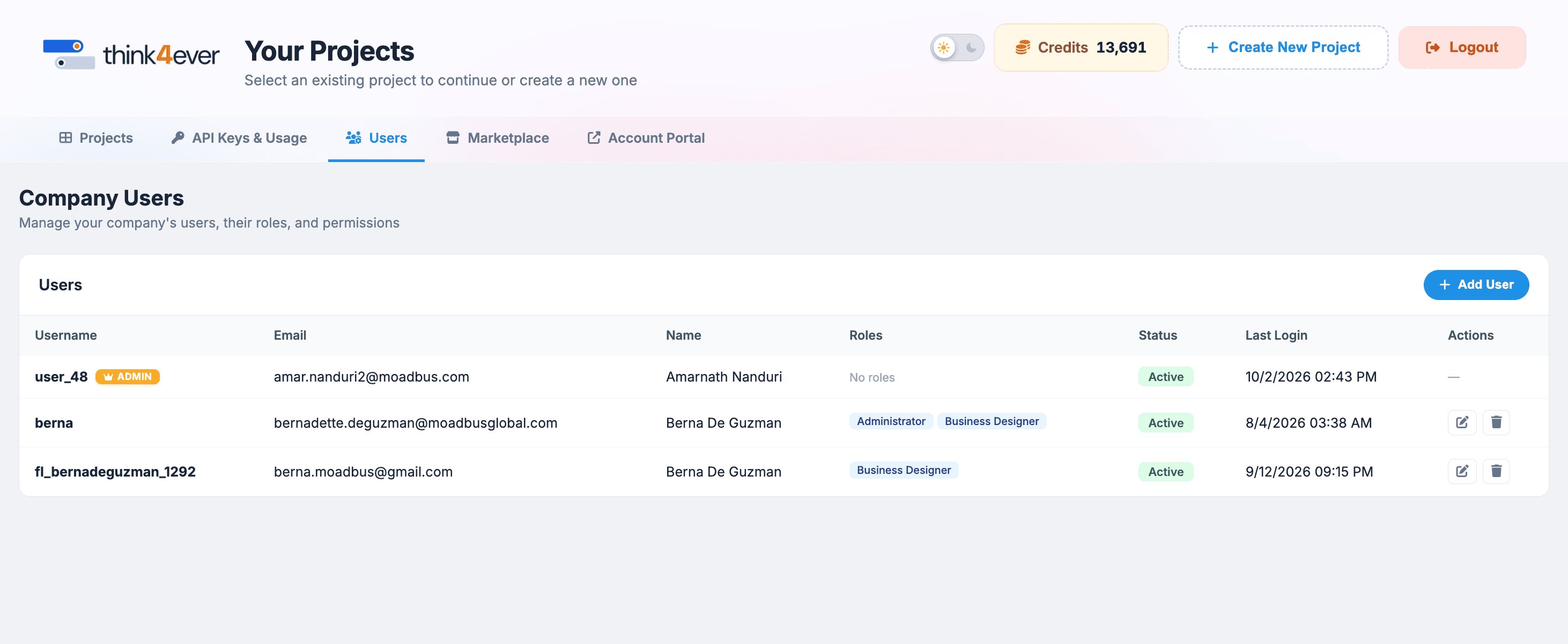
Purpose: Centralizes team governance, access control, and user invitation management across your organization.
Key Capabilities & Responsibilities:
- Team Onboarding: Invite new collaborators, developers, or project managers to your account via email or direct invitation links.
- Role & Permission Assignment: Assign access roles (such as Admin, Developer, Reviewer, or Viewer) to enforce security policies.
- Seat & Access Management: Monitor active seat usage, pending invitations, and revoke permissions for offboarded team members.
- Activity Tracking: Review user activity histories and workspace assignments to maintain security compliance.
When to Use:
When onboarding new staff members, auditing team permissions, or adjusting project access levels for existing collaborators.
Marketplace
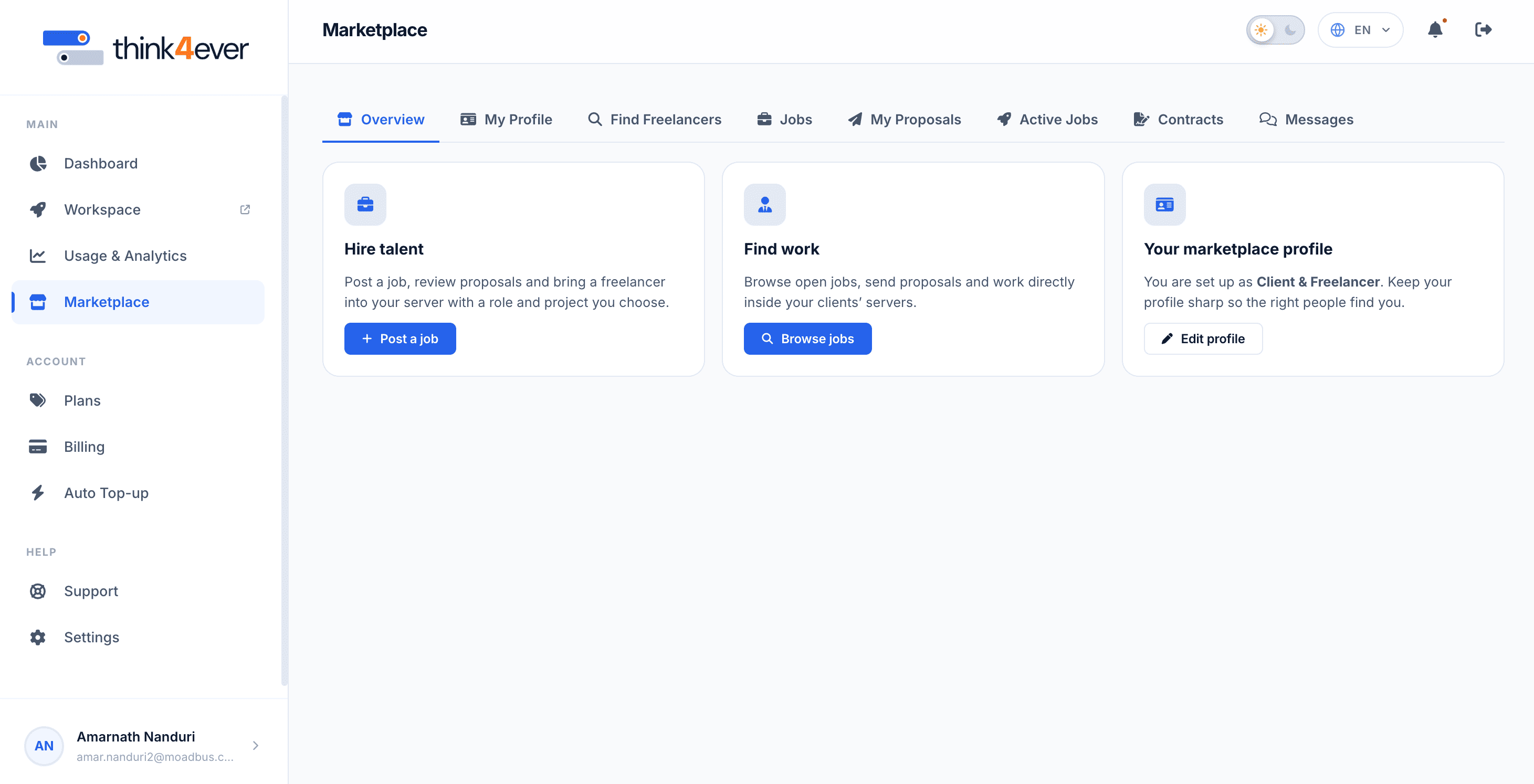
Purpose: Launches the integrated recruitment, job board, and freelance collaboration system. When clicked, the Marketplace opens seamlessly in a new browser tab so your current dashboard context remains open
Key Capabilities & Responsibilities:
- Talent Sourcing: Search, filter, and inspect verified freelancer profiles using criteria like hourly rates, skills, location, and ratings.
- Job Posting Management: Create, publish, and manage job listings with fixed or hourly rate models.
- Proposal Review & Hiring: Process incoming applicant bids, review cover letters, and issue binding contracts.
- Workspace Integration: Onboard hired freelancers directly into dedicated project servers with defined access rights.
When to Use:
When hiring external talent, bidding on client jobs, managing submitted proposals, or checking ongoing freelance contracts.
Account Portal Tab
Purpose: Connects to global organization settings, subscription plan management, and financial billing profiles.
Key Capabilities & Responsibilities:
- Subscription Management: View active subscription tiers, upgrade plans, or adjust billing cycles.
- Credit Refills & Auto Top-Up: Purchase additional processing credits or configure automated credit balance top-ups to prevent workflow interruptions.
- Invoices & Payment Methods: Access historical payment receipts, download tax invoices, and manage credit cards or bank details.
- Organization Details: Update global company info, legal entity details, and primary administrative billing contacts.
When to Use:
When updating payment methods, downloading invoices, modifying your platform subscription tier, or purchasing additional credits.