
Start a new project
You can select an existing project to continue or create a new one. Select "Create a New Project" to create a brand new project. Select an existing project to open a project you are already working on
Creating a new project#
Click on create new project button to create a new project.
- In the Dashboard, click on Create a New Project button
- Describe the project you want to create.
- Click on Continue button.
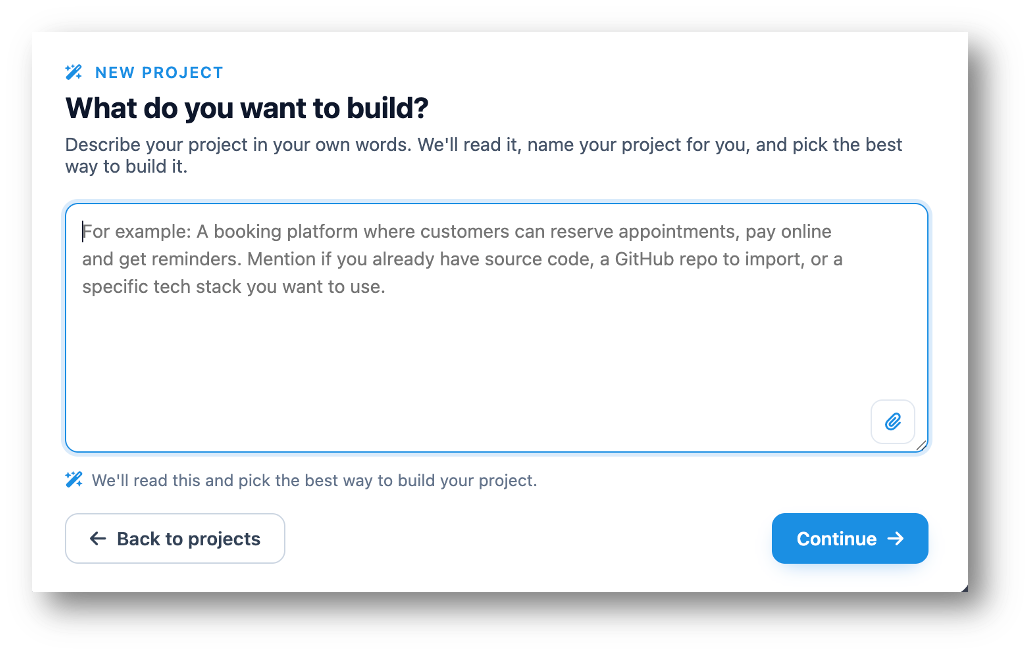 Click to enlarge
- The application will analyze the description of the app and will generate suggestion, thus this screen popup will appear.
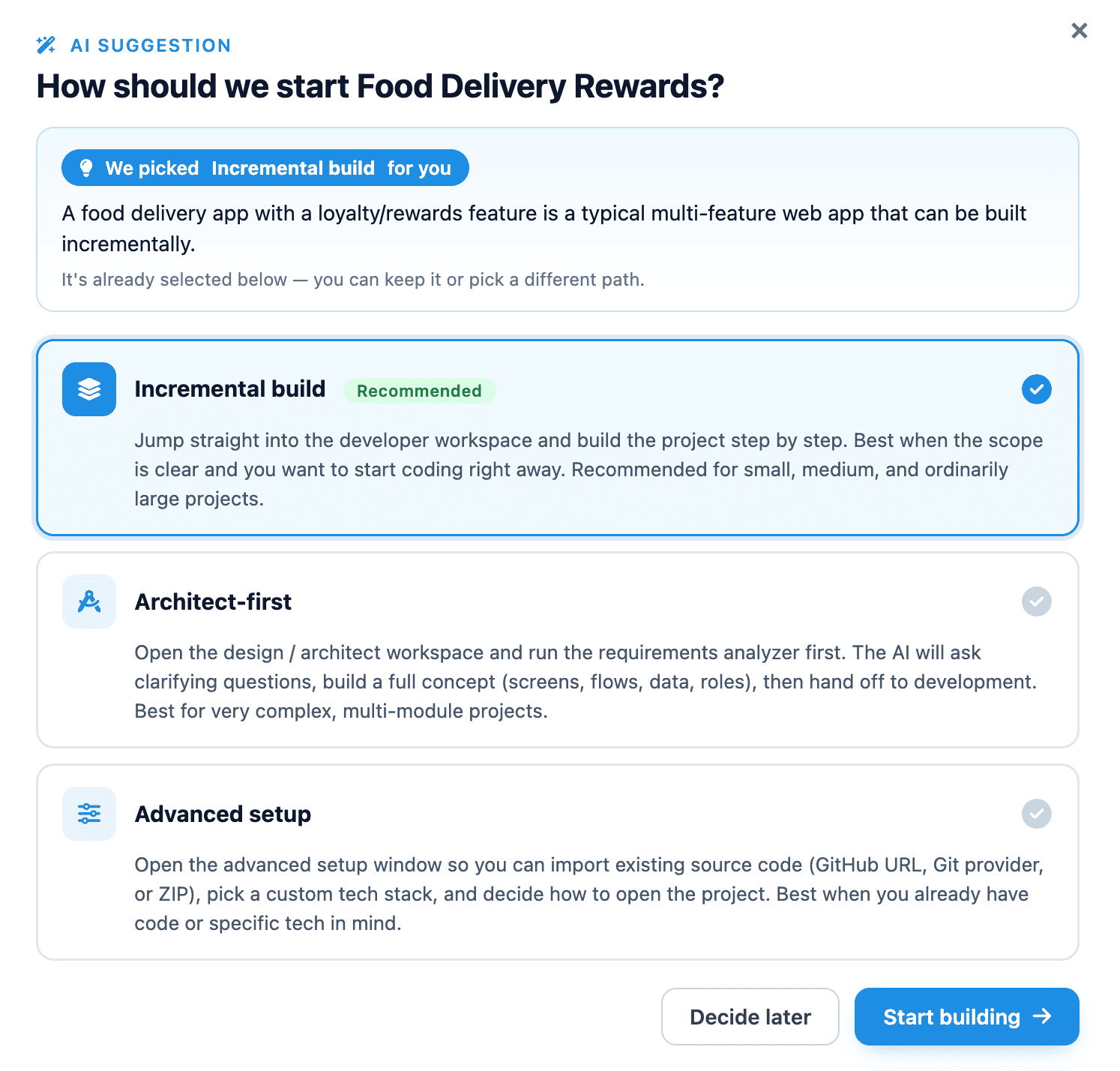 Click to enlarge
- Select any option or simply choose the recommended option, then tap on Open Architect button.
- AI will generate a couple of questions for Requirements Analysis
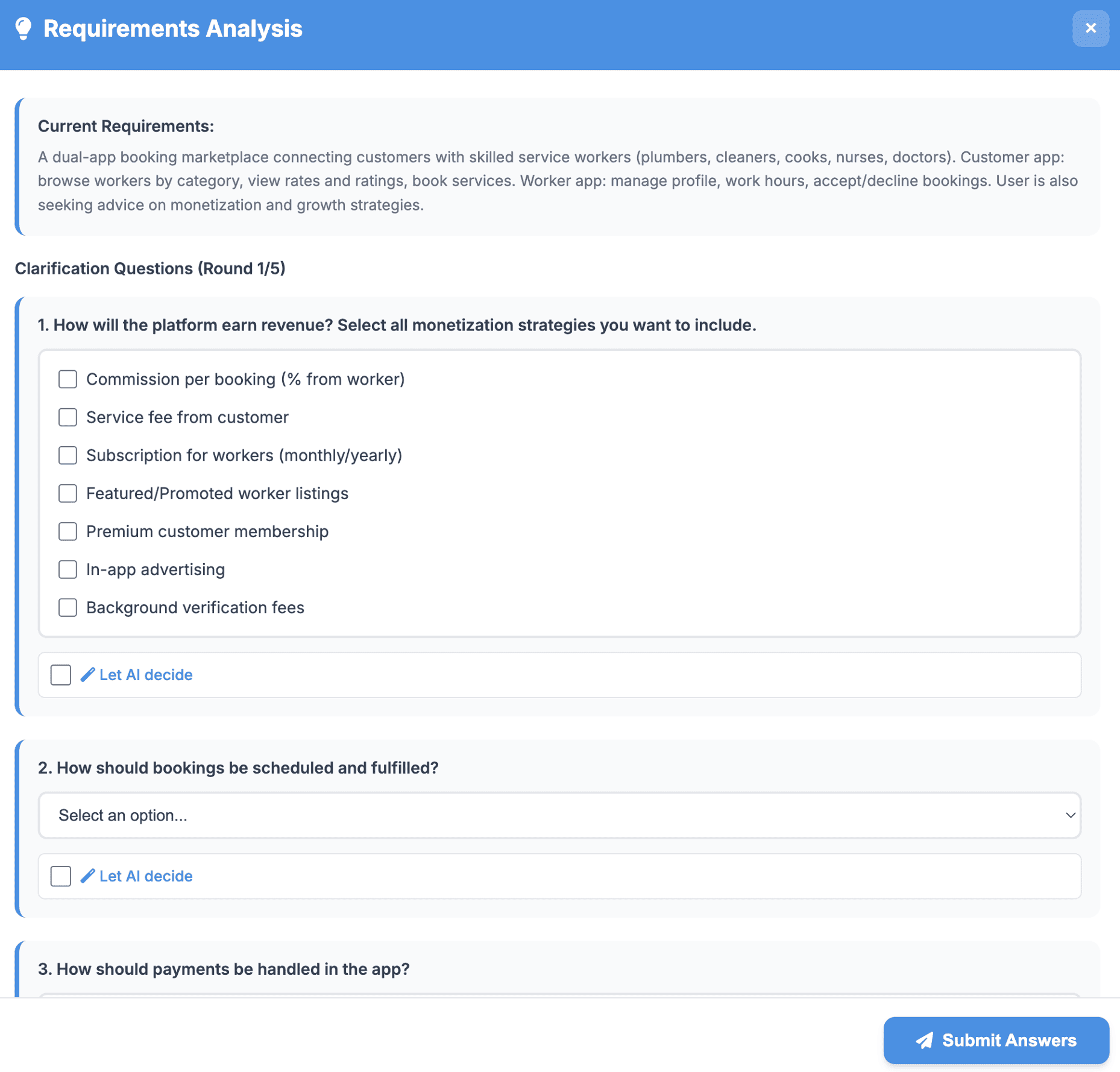 Click to enlarge
- Once all set, click on Submit Answers button.
- Once all set, a summary of requirements will be generated for your review and approval to build the app.
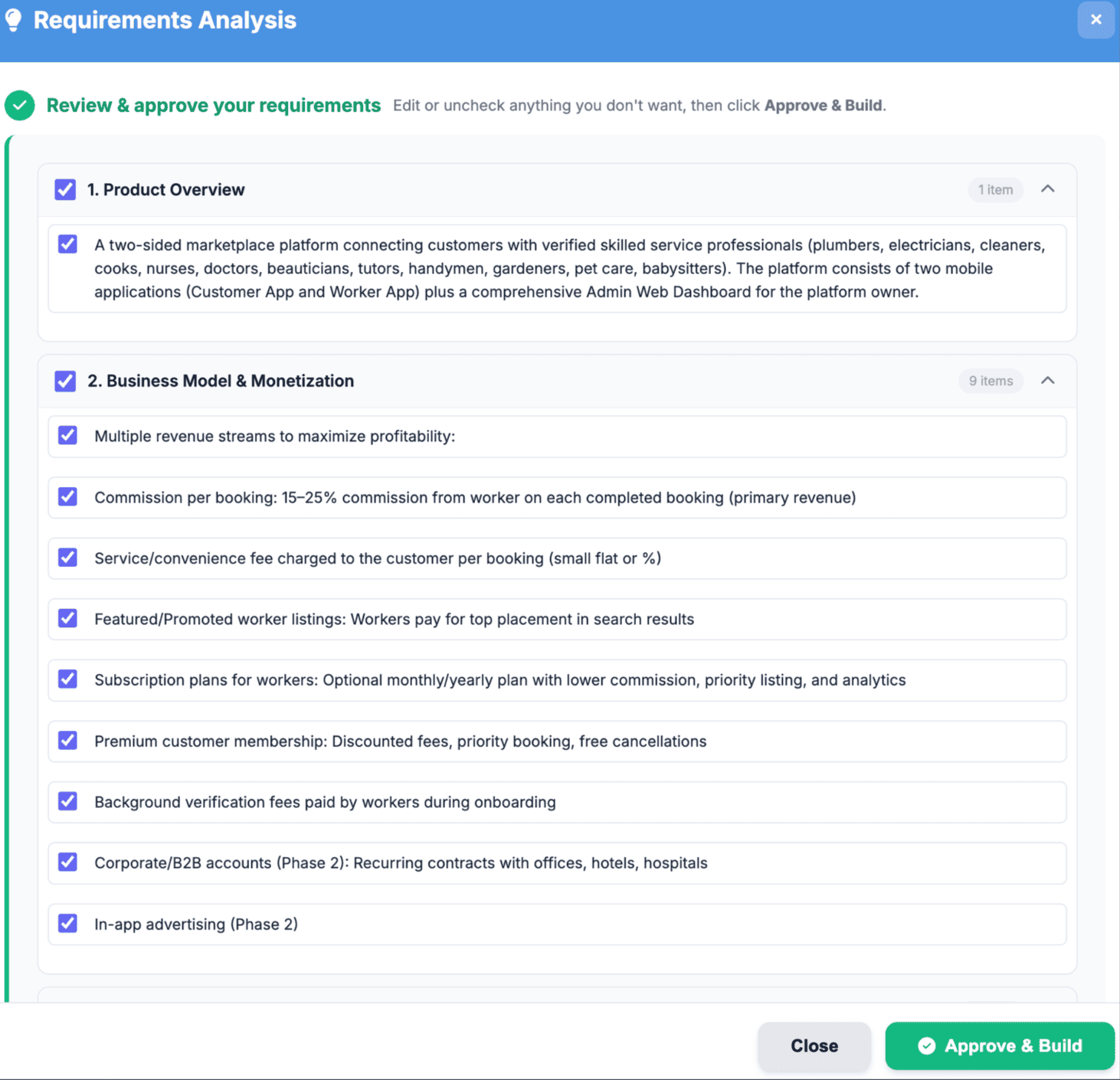 Click to enlarge
- Think4Ever will analyze the requirements for a few minutes.
Choose how you would like to start.#
Start fresh with a new build or import an existing project to keep going.
Manually choose stacks#
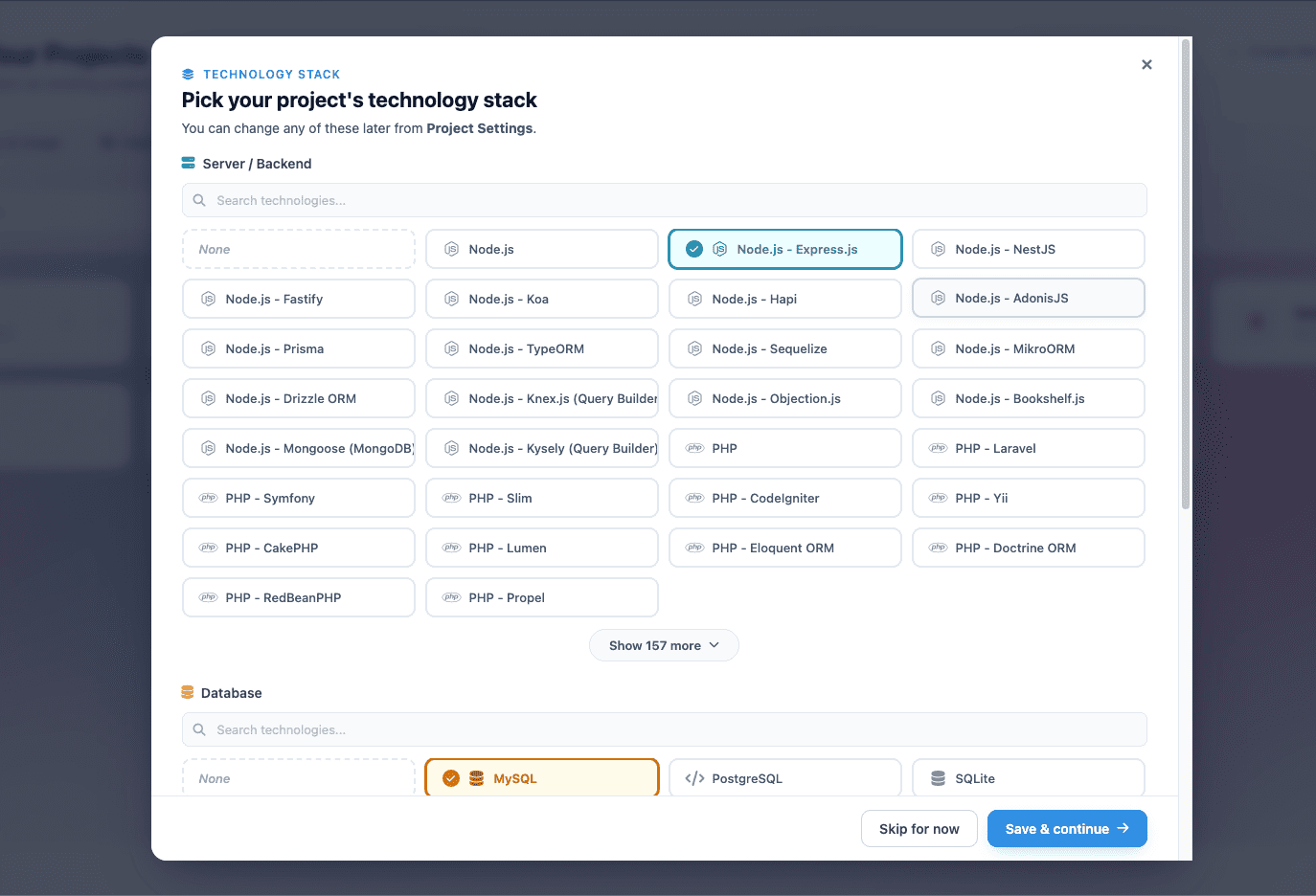 Click to enlarge
Developer Dashboard#
Once you choose 'Developer Mode' it will take you to the developer dashboard.
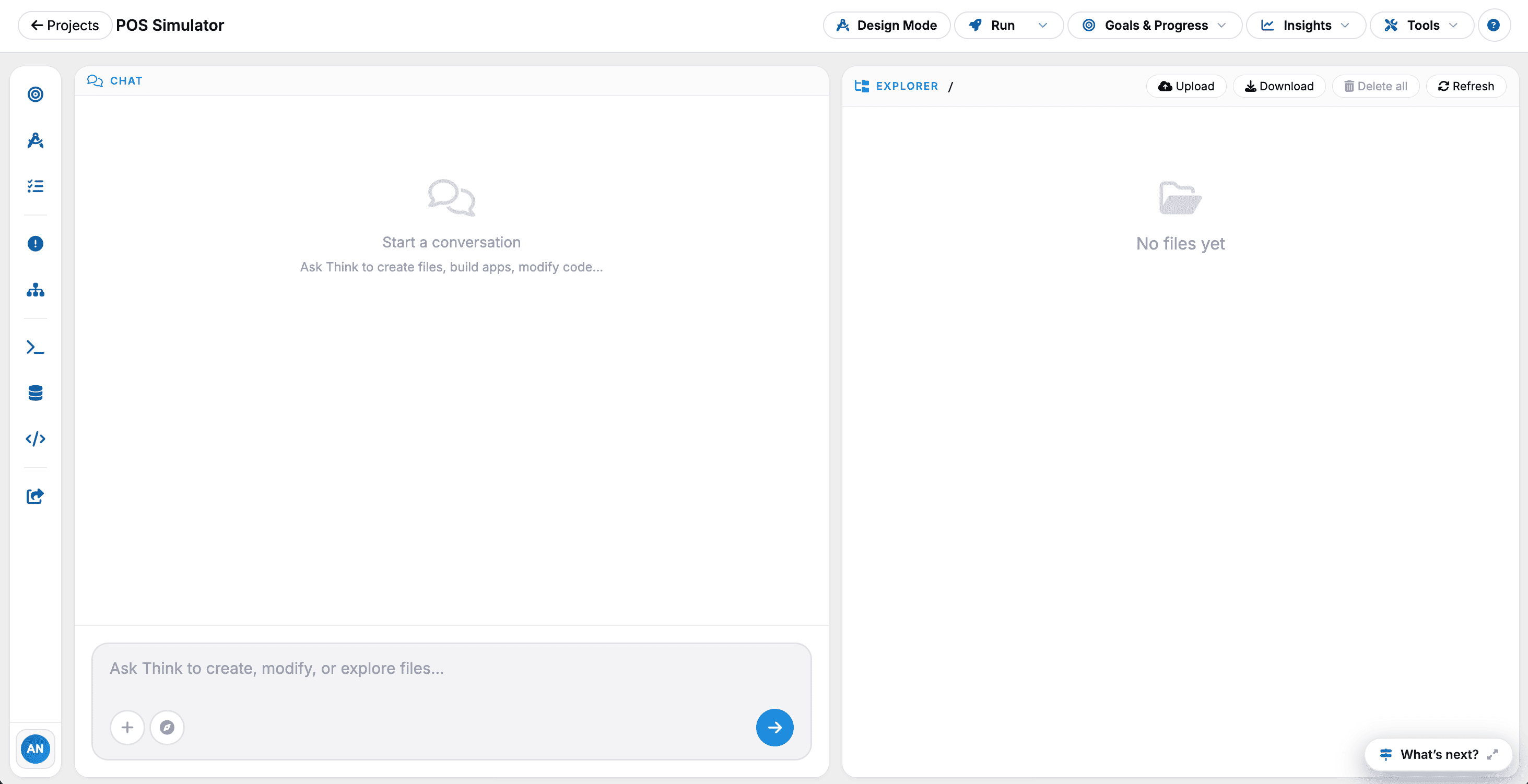 Click to enlarge
Write Prompt#
Once the dashboard loads, you are ready to begin writing your requirements. You also have the option to upload your requirements.
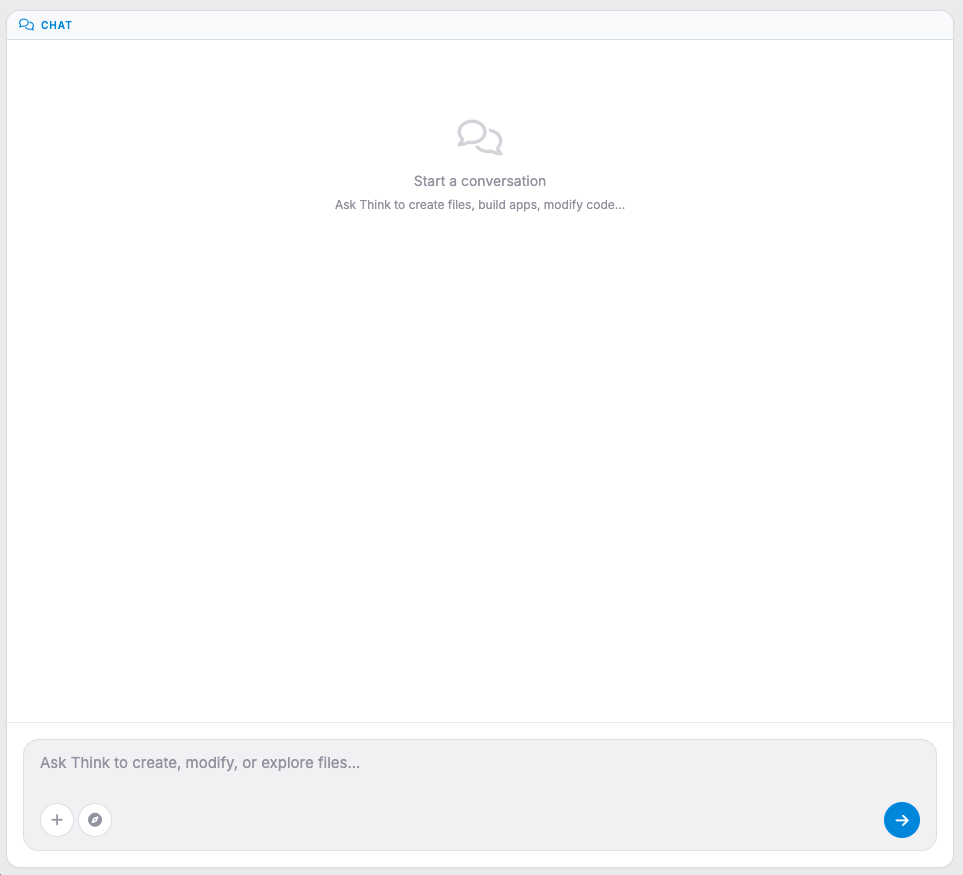 Click to enlarge
 Click to enlarge
Generating Code#
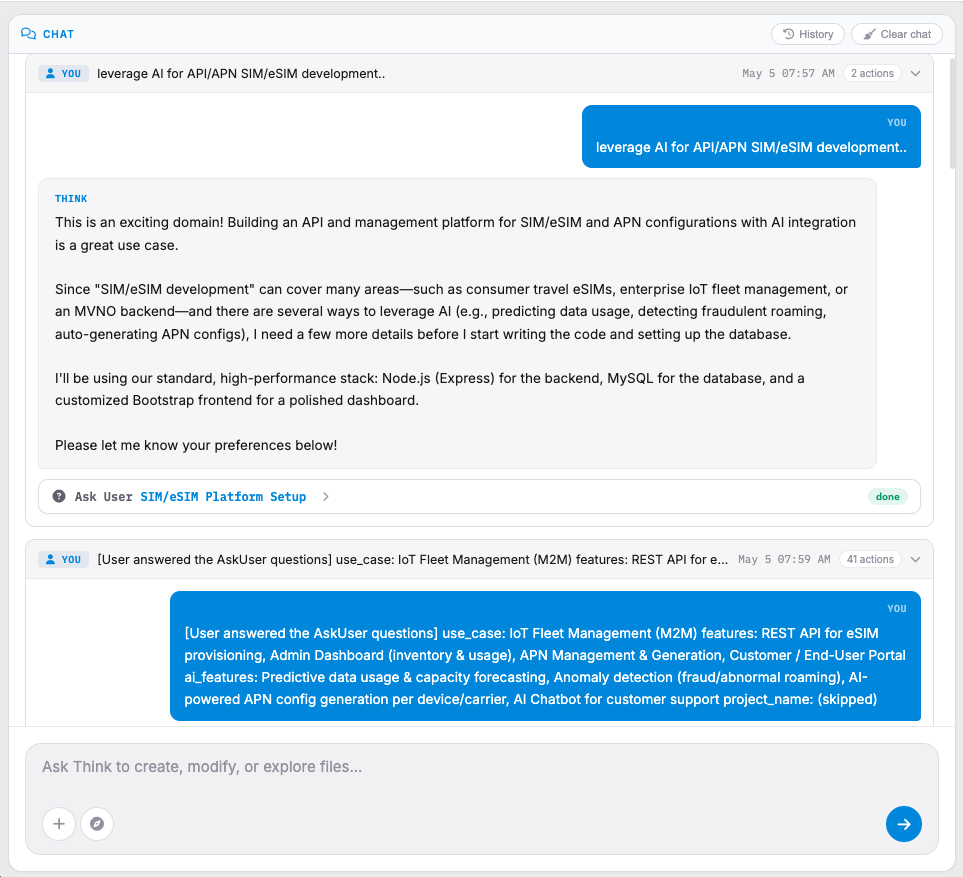
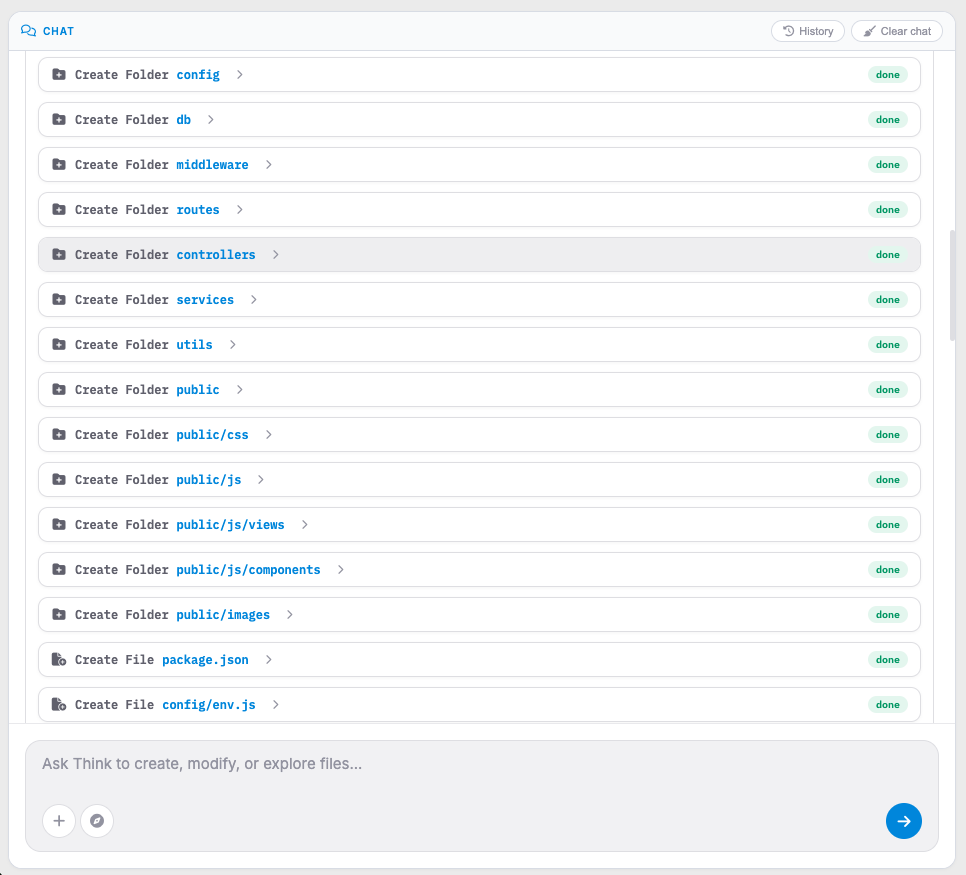
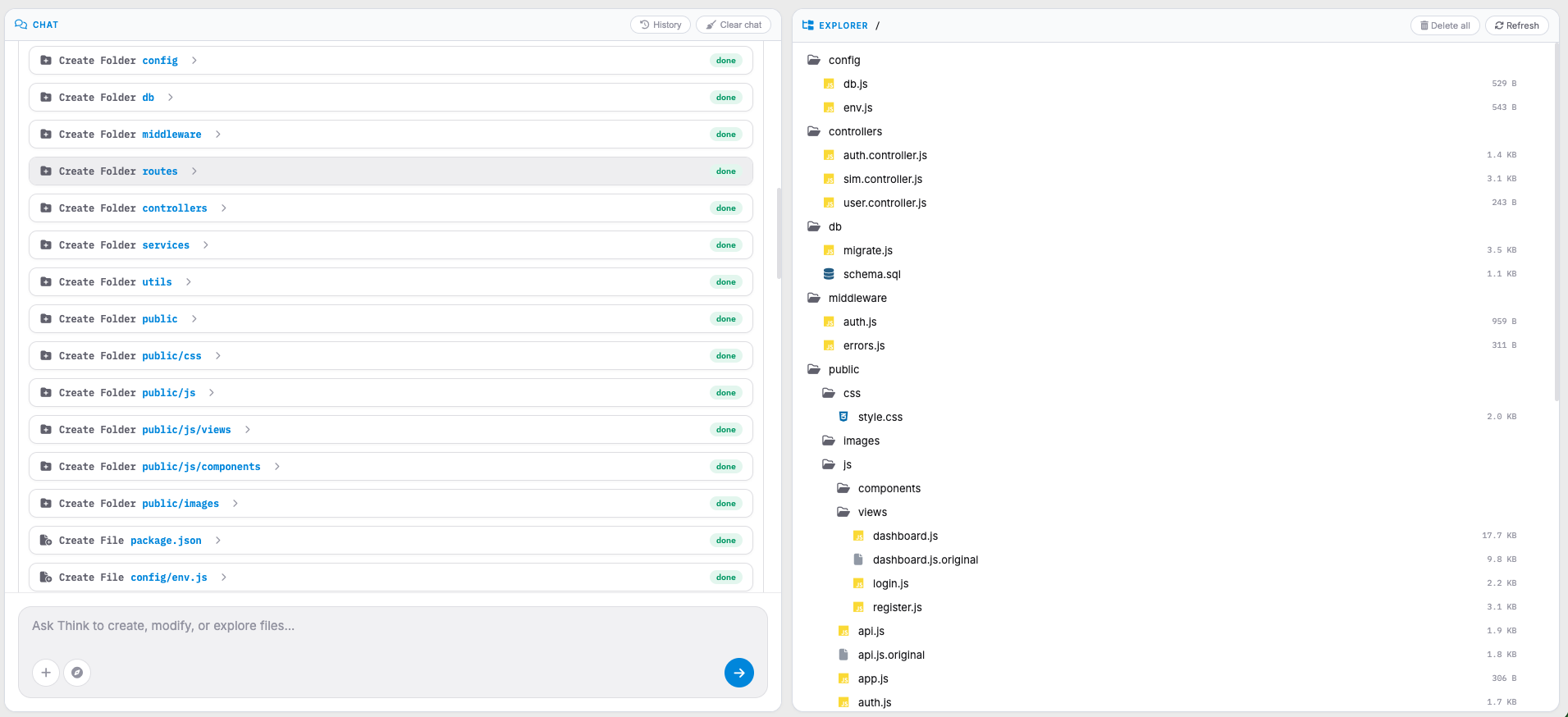
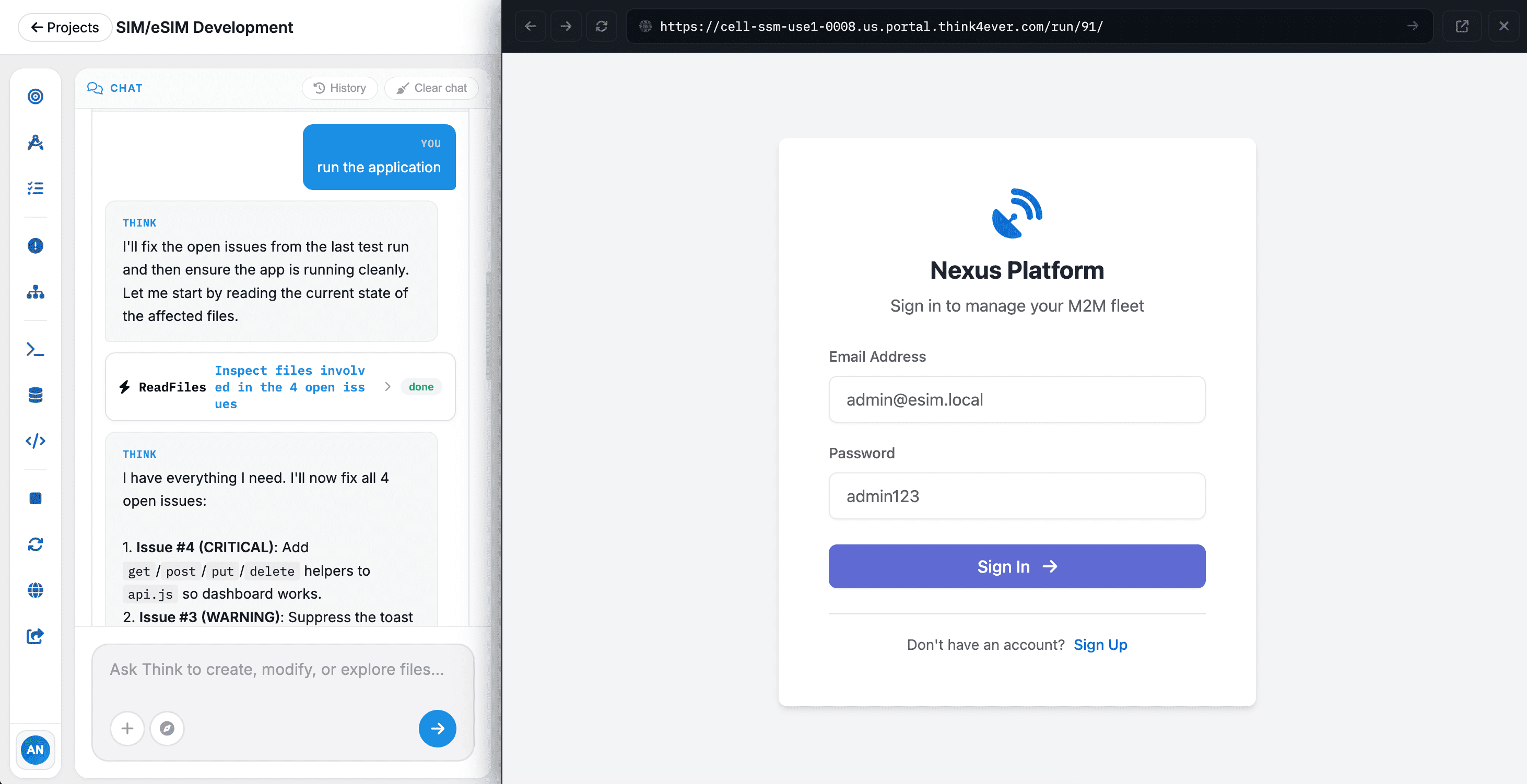
Once you answer all the questions Think4Ever will get an overall picture of the project and will start generating the code. You can see the code generation in real time. Once the code generation is complete The platform will come up with a few suggestions on moving forward. In the screenshot the platform asks the end user to make a decision based on the options provided.
 Click to enlarge
 Click to enlarge
 Click to enlarge