
Connect your project to VS Code (Visual Studio Code)
 Click to enlarge
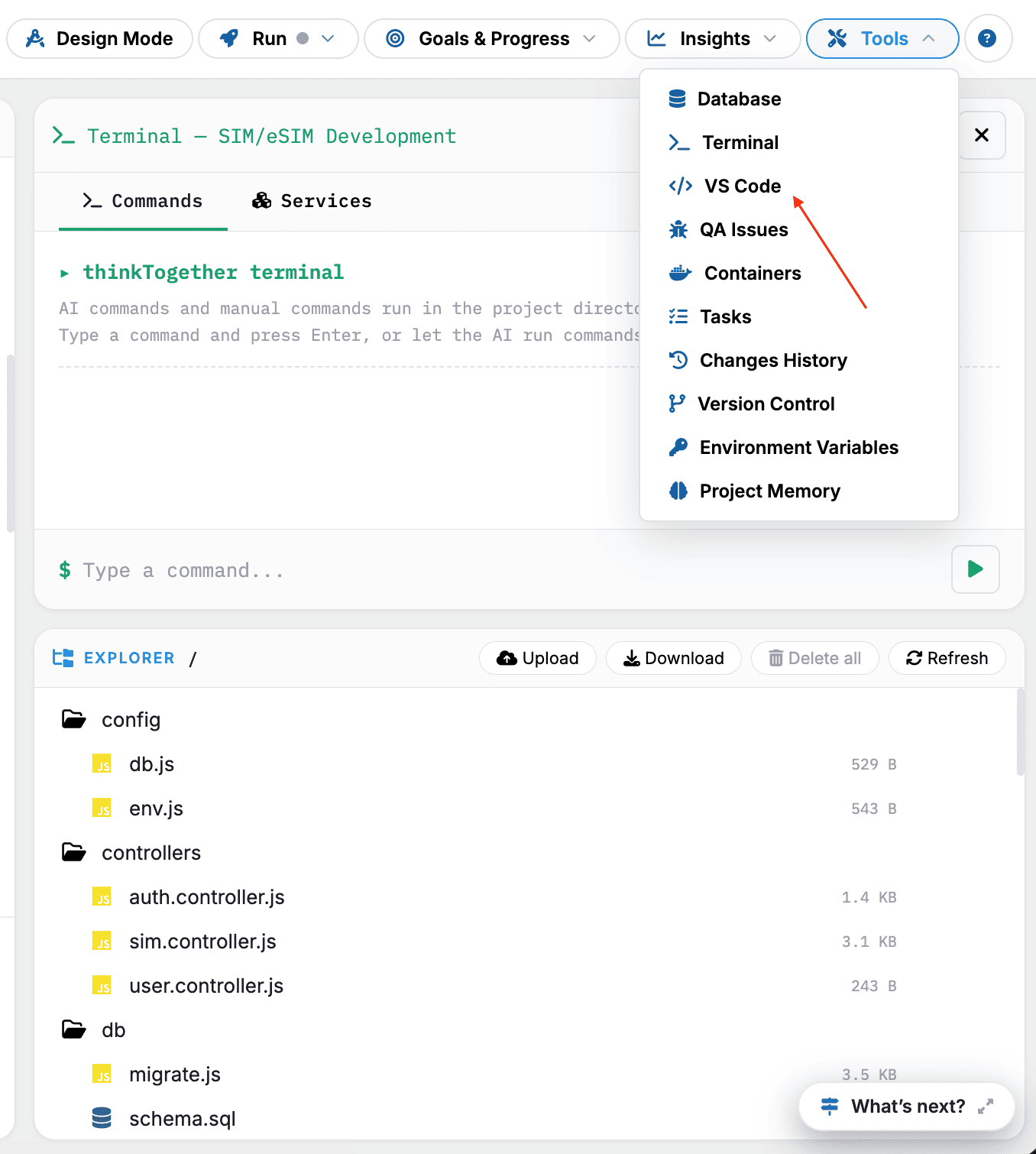
To connect your project to VS Code:
- Click the VS Code button (highlighted in the top-right corner).
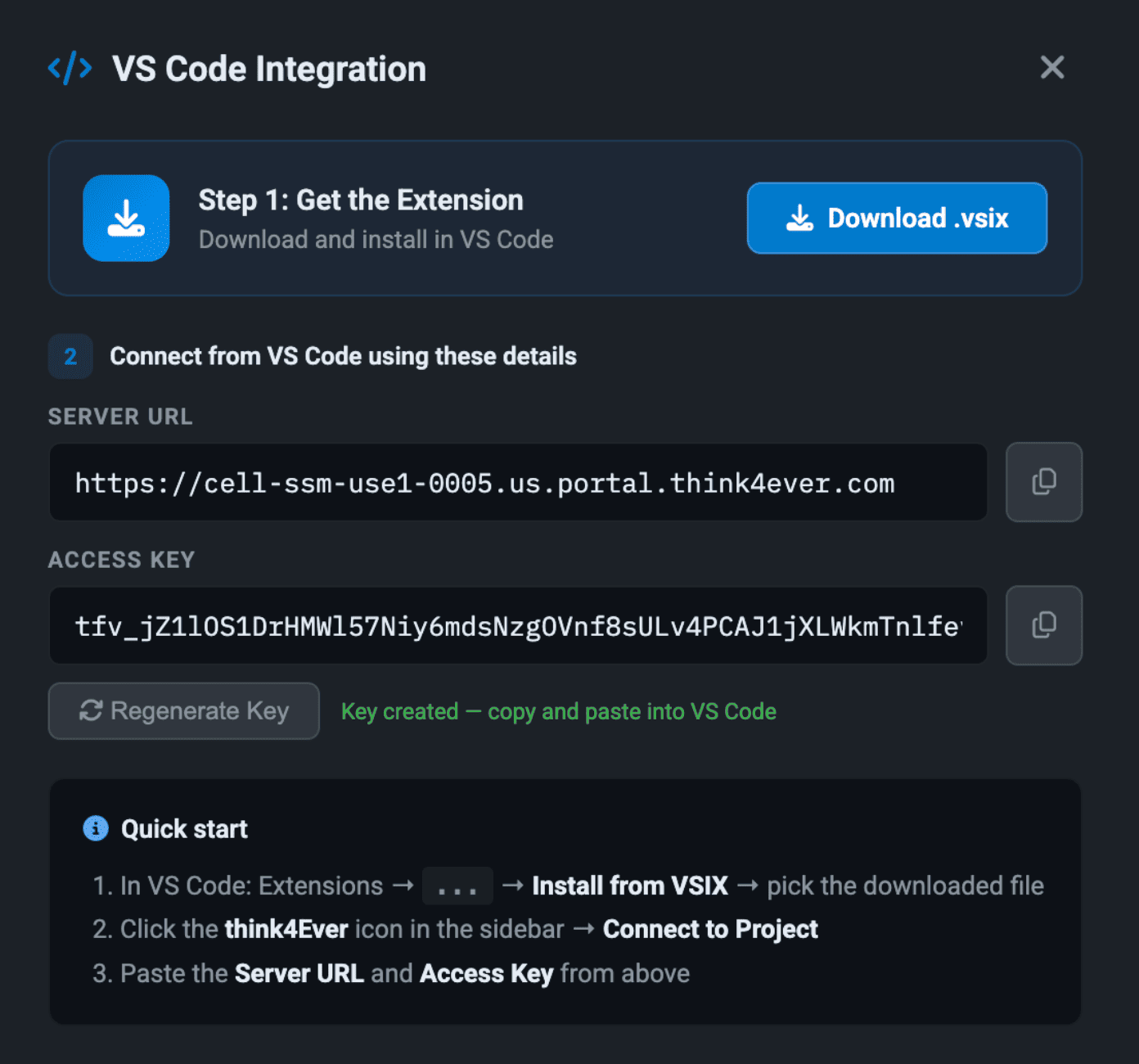
- VS Code Integration popup will be prompted.
 Click to enlarge
- Ensure the VS Code extension is installed on your browser. If not, click the Download.vsix button then install.
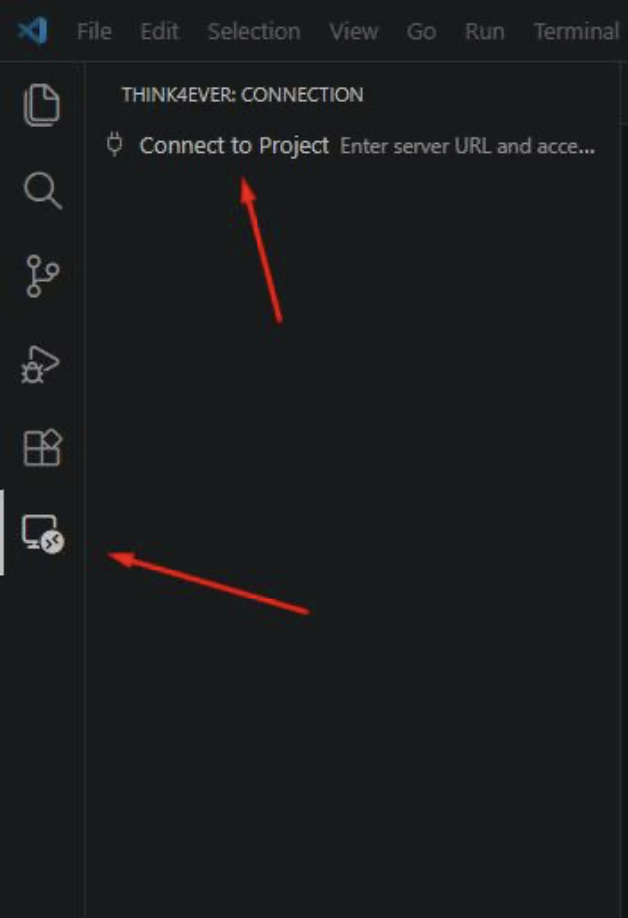
- Once installed, click on the extension icon in the sidebar, then select Think4Ever icon.
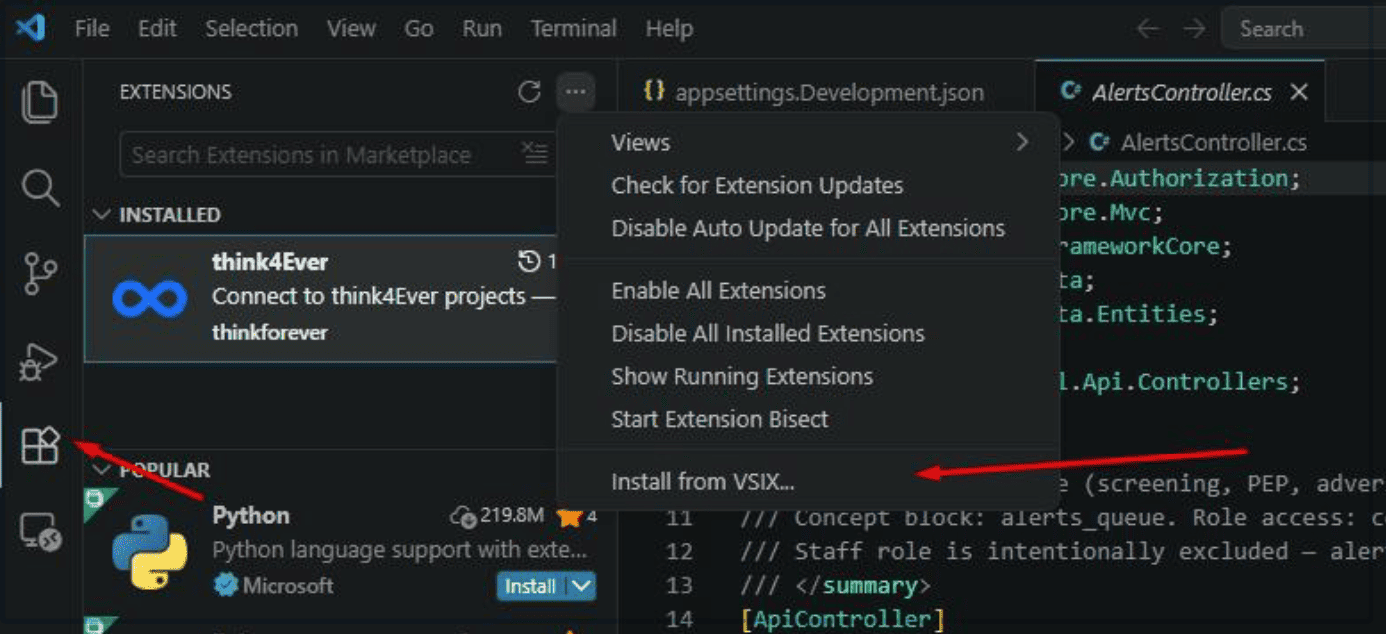
- Click the ... (More Actions) icon at the top of the Extensions pane.
- Click Install from VSIX
 Click to enlarge
- Choose your .vsix file from the file explorer to complete the installation.
- Once opened, your project files will appear in the Explorer panel on the left side.
 Click to enlarge
Troubleshooting: If VS Code does not open automatically#
Try these:
- Allow pop-ups in your browser
- Refresh the page and click the button again
- Check if your browser blocked the redirect
Optional: Open Terminal in VS Code#
Inside VS Code:
- Go to Terminal → New Terminal
- Or press:
Ctrl + (Windows) **Cmd +** (Mac)