
Think4ever Portal Dashboard
Overview & Navigation Sidebar#
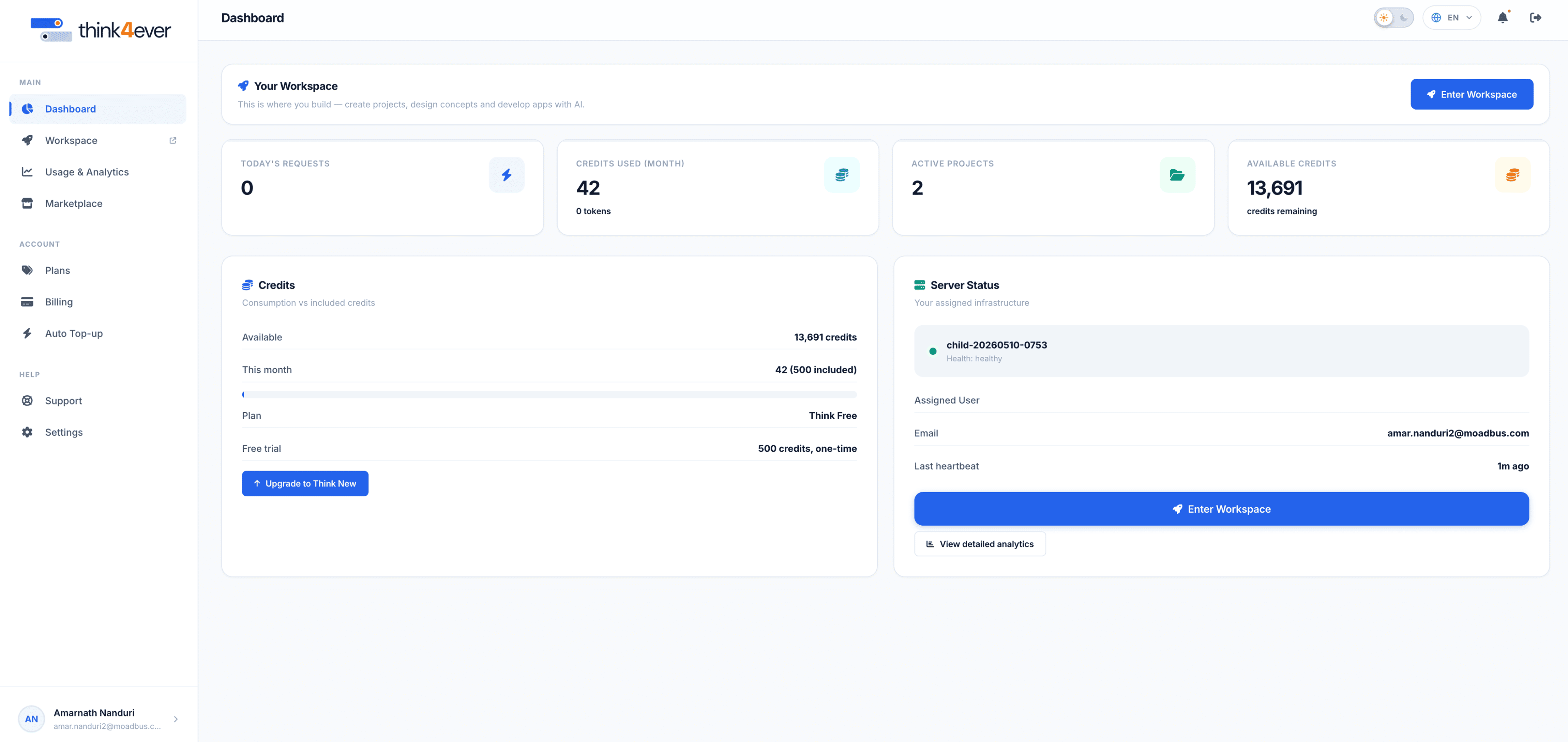
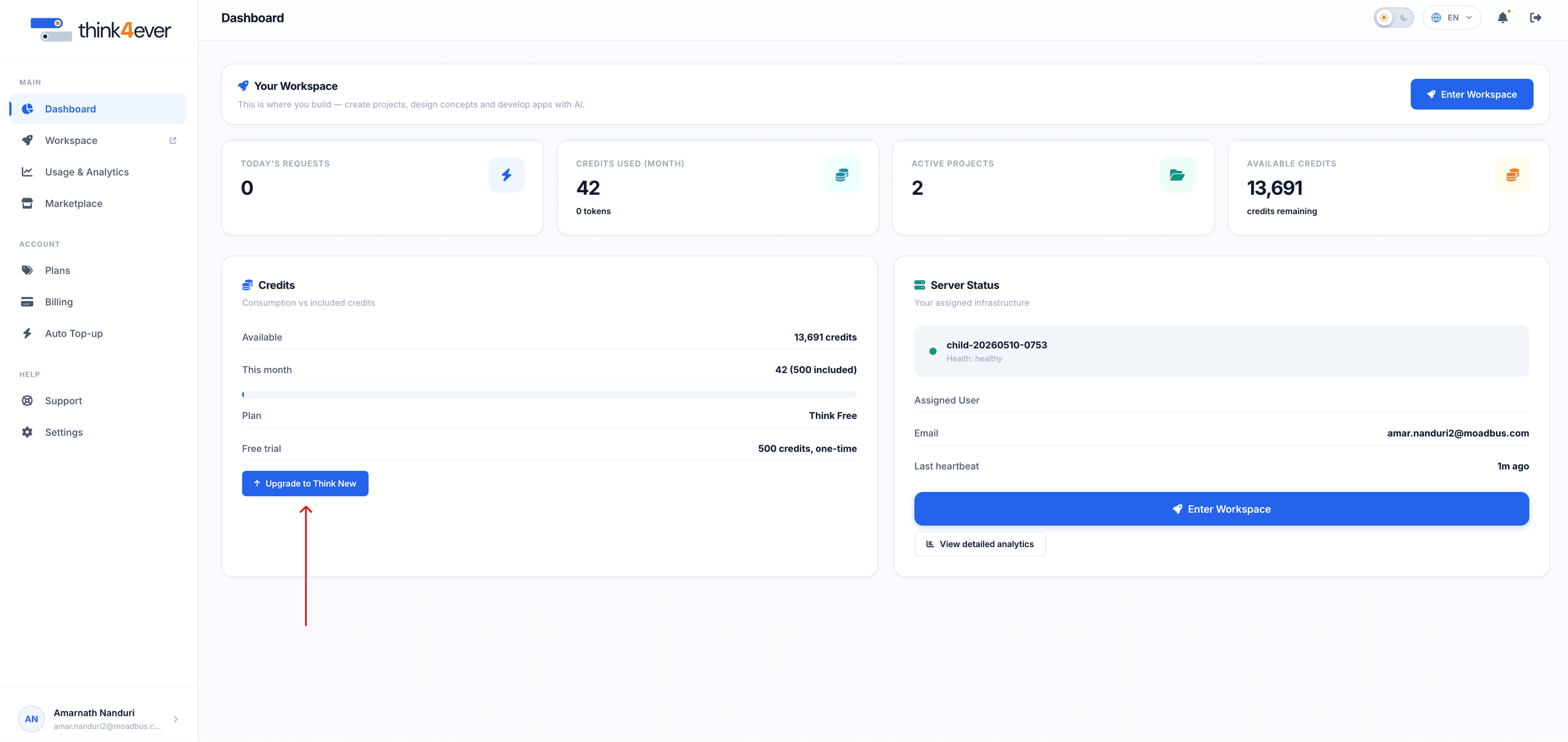
The main dashboard provides an operational summary of your workspace activities, available credits, and server status. Navigate using the left-hand menu bar:
 Click to enlarge
Main Navigation#
- Dashboard: Primary hub displaying real-time metrics, credit balances, and active workspace environments.
- Workspace: Dedicated workspace area to build projects, design concepts, and deploy AI applications.
- Usage & Analytics: Track resource usage, request volumes, and active process trends.
- Marketplace: Access pre-built templates, extensions, and AI tools.
Account & Support#
- Plans: View, upgrade, or modify subscription tiers.
- Billing: Manage payment methods, billing address, and invoice history.
- Auto Top-up: Configure automatic credit reloads when balances drop below threshold limits.
- Support: Access support tickets, help resources, and system documentation.
- Settings: Manage account preferences and security configurations.
Key Operational Metrics#
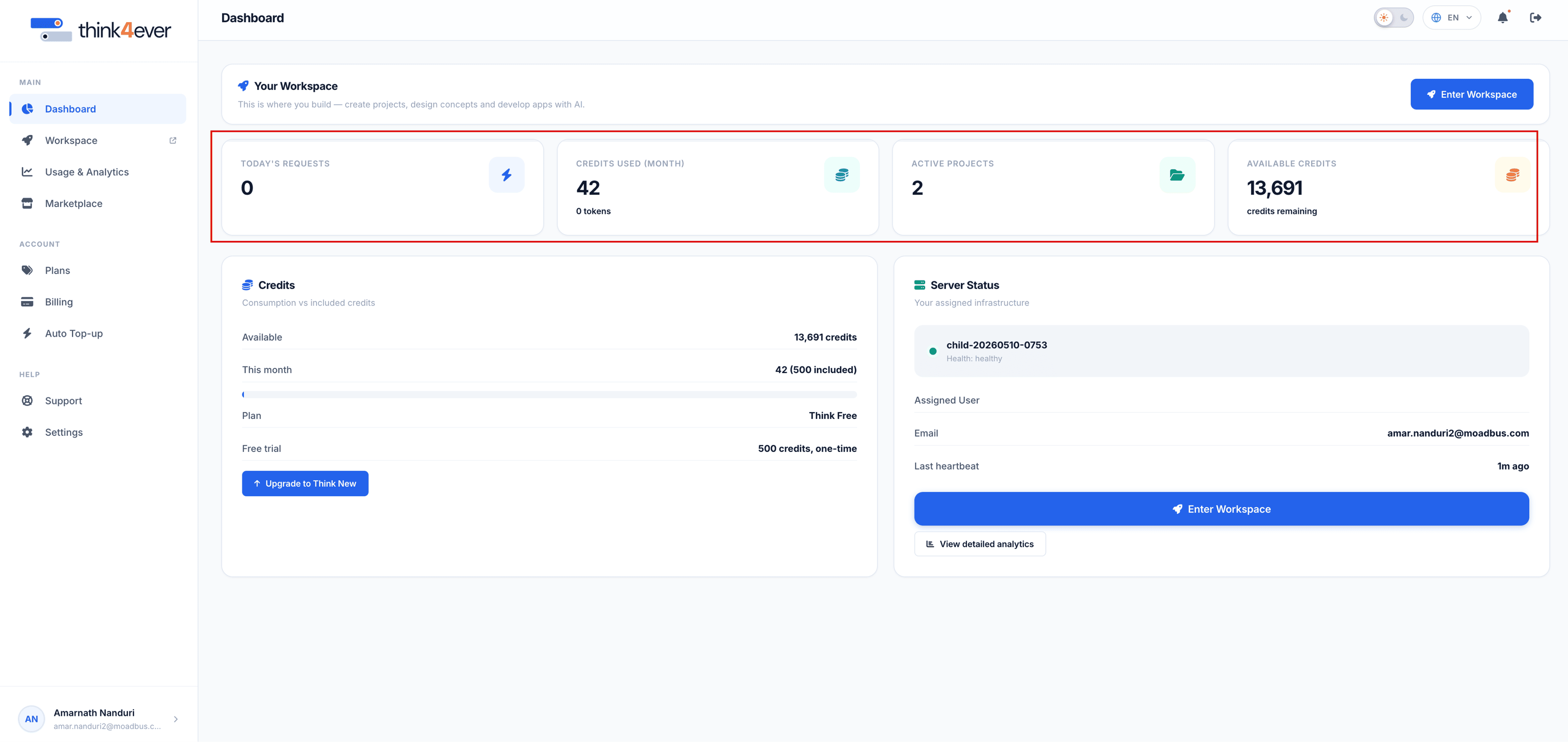
The top metrics panel displays quick-view key performance indicators (KPIs):
| Metric | Description |
|---|---|
| Today's Requests | Number of API calls or processing executions submitted today. |
| Credits Used (Month) | Total credits consumed during the current billing cycle. |
| Active Projects | Total number of ongoing deployments or workspace instances. |
| Available Credits | Remaining balance available for execution tasks. |
 Click to enlarge
Core Modules & Management#
Credits Breakdown#
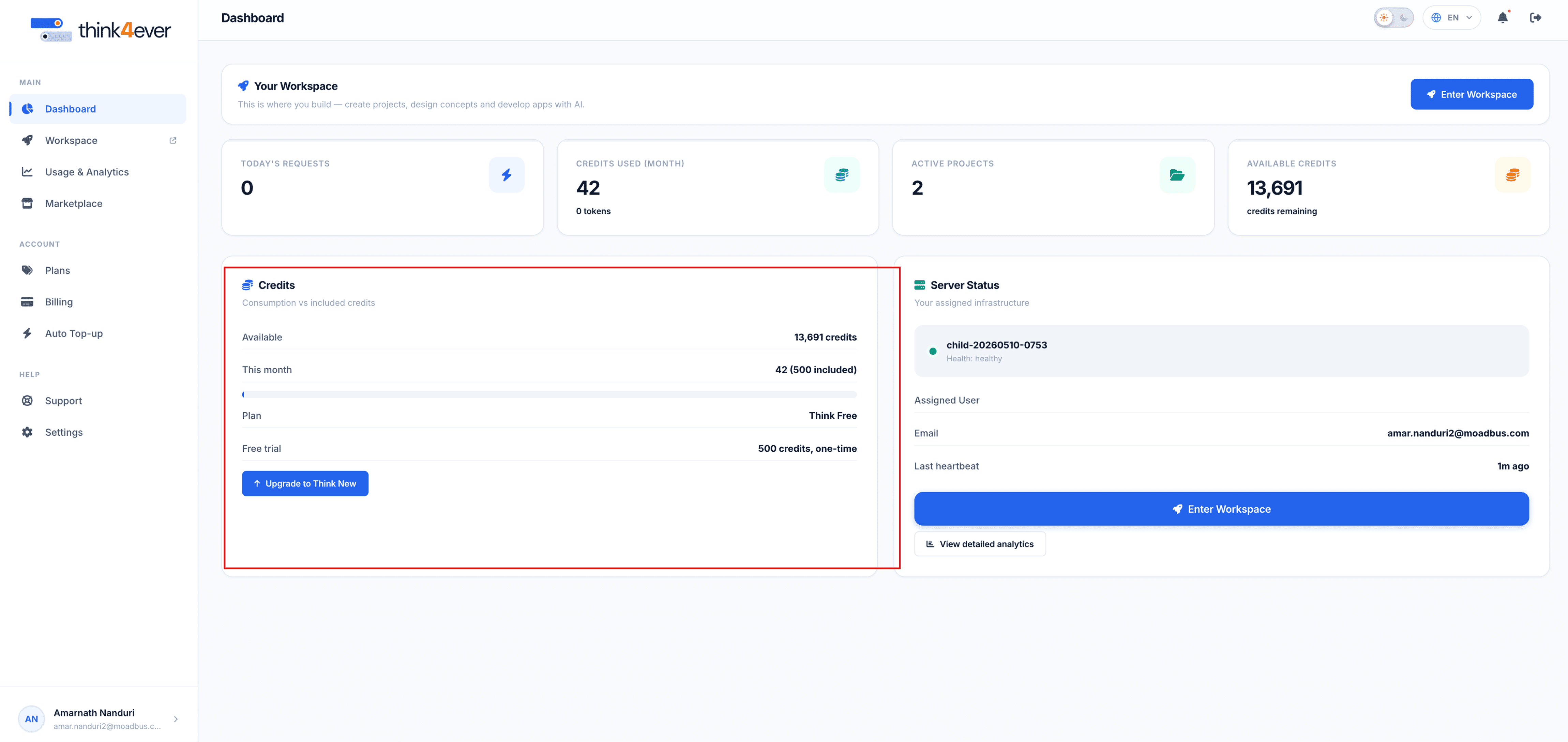
The Credits module outlines credit sources and usage breakdown:
- Available: Total usable credits.
- This Month: Usage counter showing monthly plan allotment consumption.
- Plan: Details of current active tier.
- Free Trial / Bonus: Promotional or one-time promotional credit balance.
- Upgrade Button: Quickly navigate to plan options to purchase additional capacity.
 Click to enlarge
Server Status & Workspace Access#
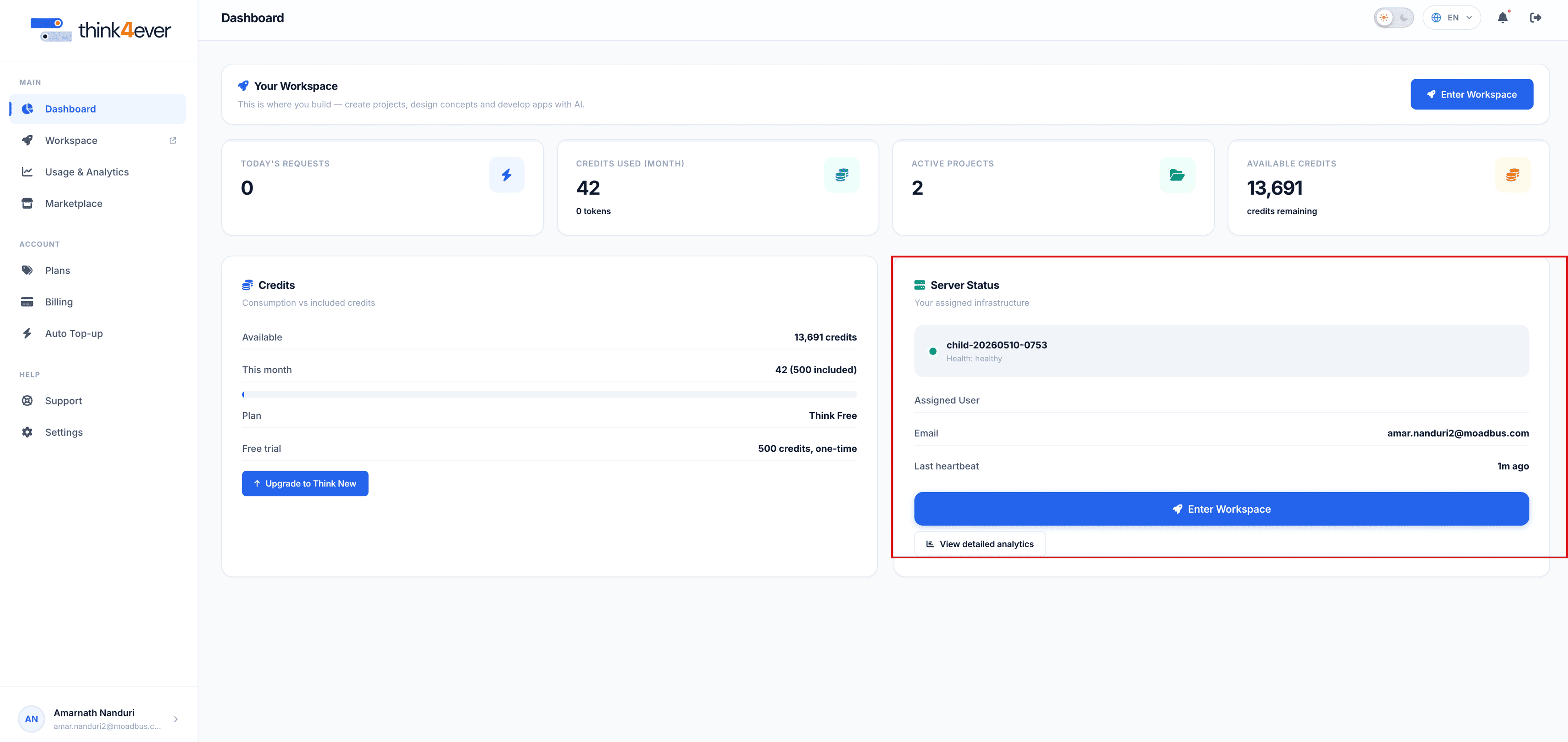
Monitors server instances and assigned workspace details:
- Instance ID / Name: Identifier of your assigned server instance.
- Assigned User: Linked user email associated with the instance.
- Last Heartbeat: Real-time health status and last server activity sync.
- Enter Workspace: Action button to launch directly into the AI development canvas.
- View Detailed Analytics: Expands full server metrics and logs.
 Click to enlarge
Subscription & Checkout Guide#
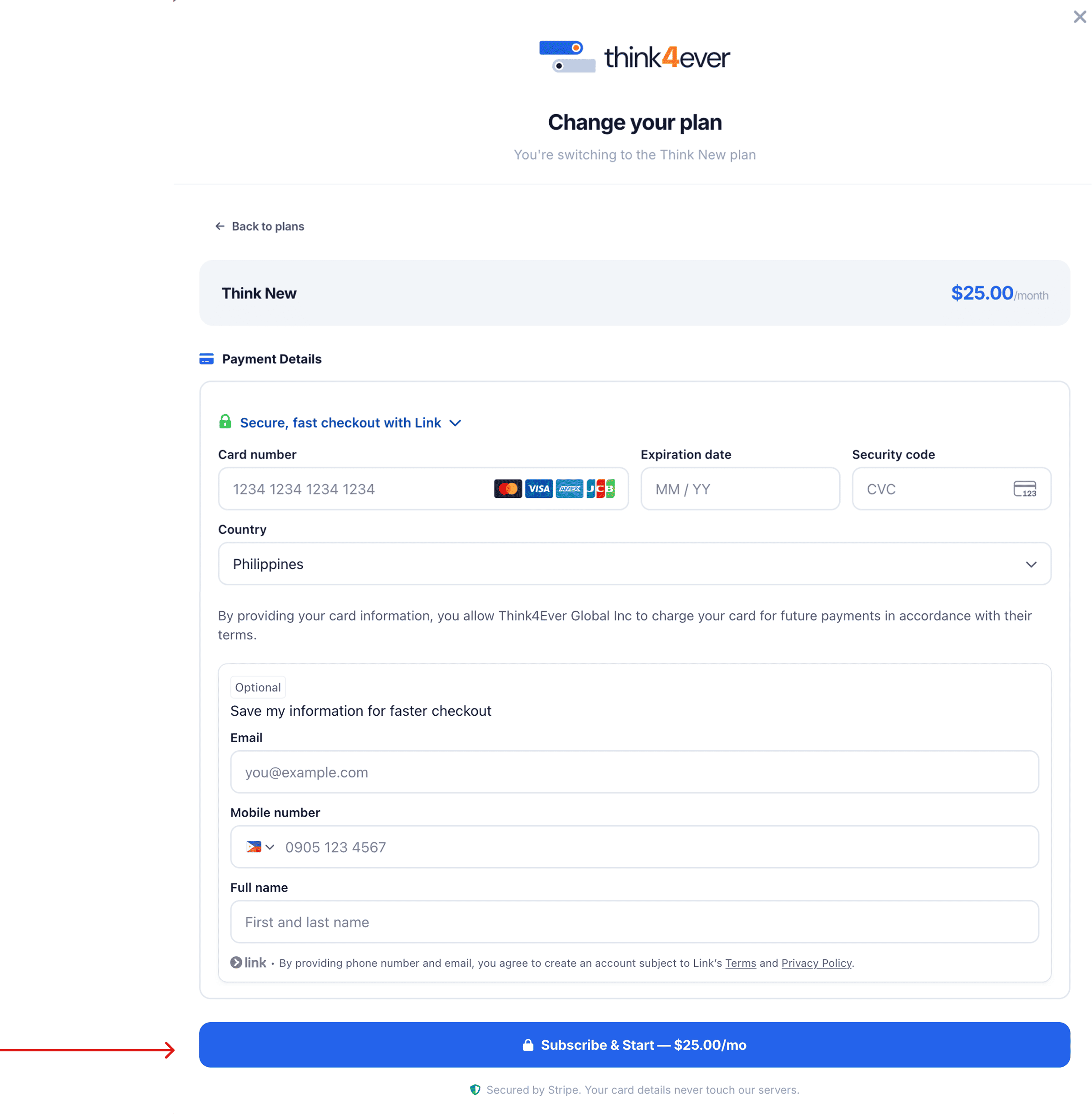
To upgrade your subscription plan (e.g., switching to Think New at $25.00/month):
Payment & Checkout Steps#
 Click to enlarge
- Click Upgrade from the Credits module or select Plans from the sidebar.
- Review chosen plan details in the modal checkout window.
- Payment Details:
- Enter Card Number, Expiration Date (MM/YY), and Security Code (CVC).
- Select your Country.
- Faster Checkout (Optional):
- Provide an Email, Mobile number, and Full Name to save details securely via Link.
- Click Subscribe & Start to complete payment and immediately release upgraded credit allowances.
 Click to enlarge