


How to: Use the Think4Ever Marketplace
Overview
The Think4Ever Marketplace lets you hire freelancers and agencies, and lets developers find paid work, without leaving Think4Ever. It is built into the Think4Ever platform, so a hired freelancer can start work inside your project with no repo sharing or environment setup.
The Marketplace supports two ways of working:
- Task freelancing. Turn a backlog item, a custom enterprise application, a module refactor or any other task into a job listing and hire a specialist for it.
- Full-project outsourcing. Hand an entire design and development project to an outside team. You keep full visibility, audit trails and control over what they can access.
Think4Ever's AI assistant, ThinkBrain, helps at each stage. It writes the job description and screening questions from a short prompt, and it scores the proposals you receive.
This guide covers:
- For clients: how to post a job and hire a freelancer
- For freelancers: how to register, find jobs and send proposals
- For both: how access, contracts and delivery work
How it works
A job becomes a contract, and access ends when the contract does.
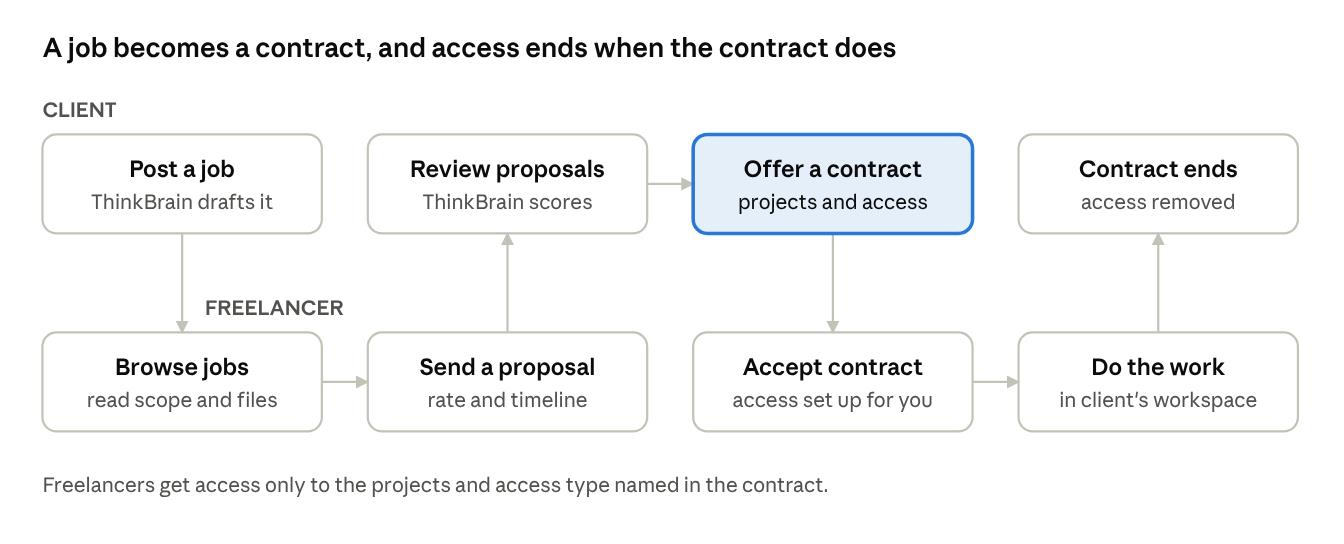
The client posts a job, the freelancer applies, and the client offers a contract that sets exactly which projects and tools the freelancer can reach. The work happens in the client's workspace, and access ends with the contract.
For clients: post a job
You can post a job in a few minutes. ThinkBrain writes most of it for you.
- Open the Marketplace. Use Marketplace in the Think4Ever account sidebar, the Marketplace tab on your Projects page, or the Marketplace link in a project's toolbar.
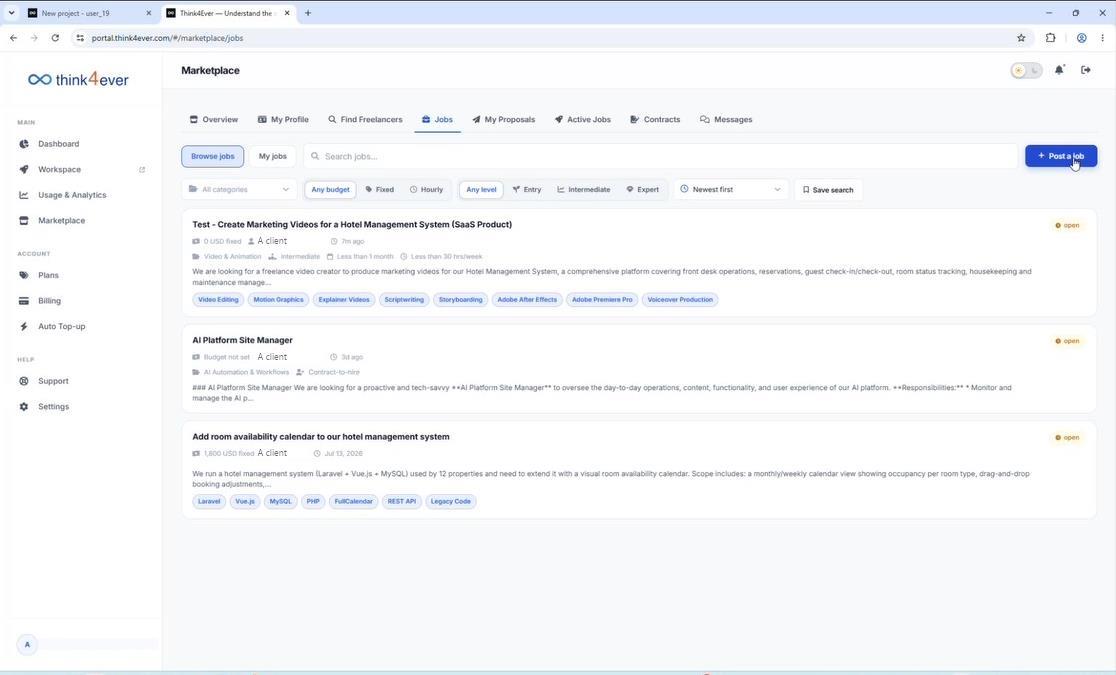
- Start a job. Go to the Jobs tab and click Post a job.
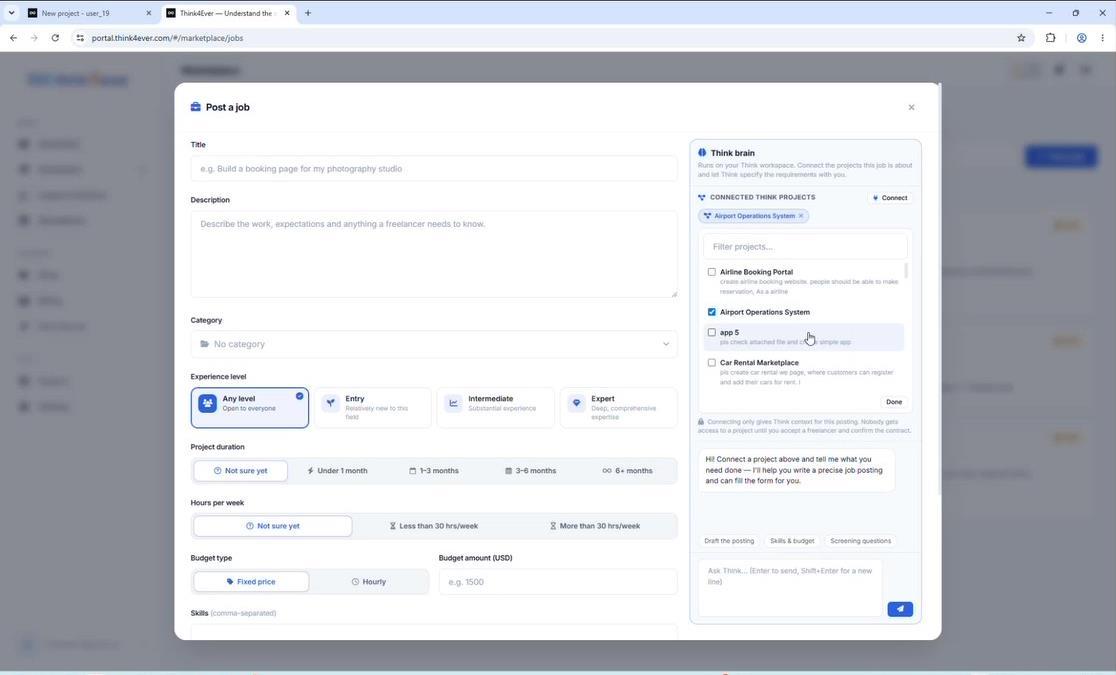
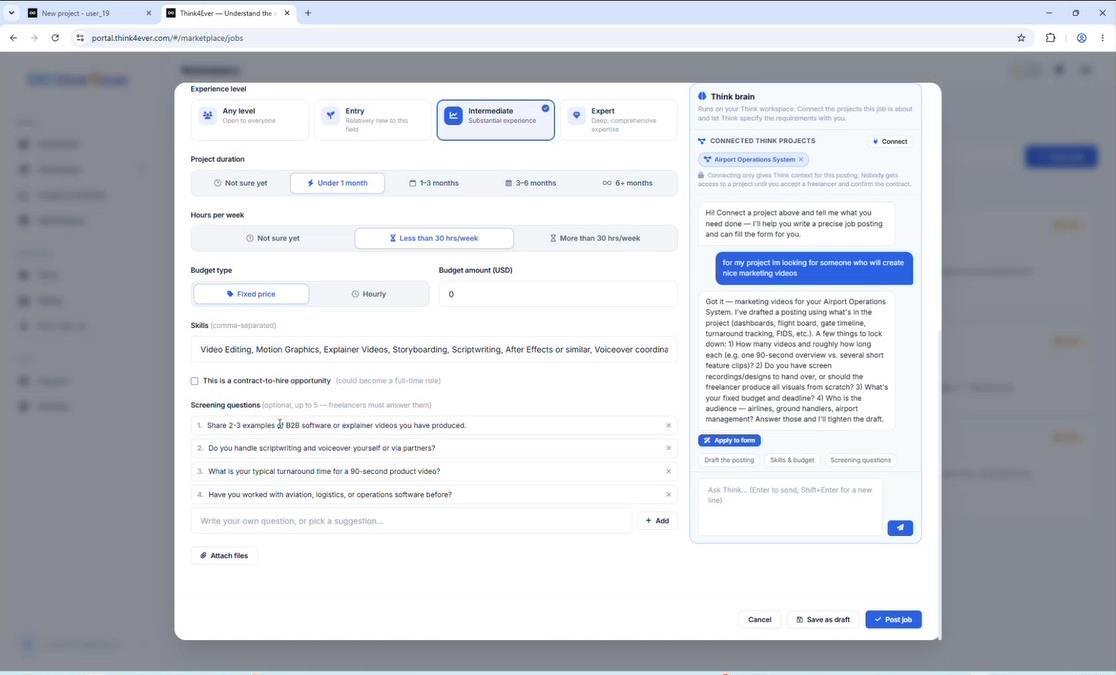
- Connect your Think4Ever projects (optional). In the ThinkBrain panel, click Connect and tick one or more projects, then click Done. This gives ThinkBrain context about the project so it can write a precise posting. It does not give anyone access. Access is granted only when you accept a freelancer and they accept your contract.
- Describe what you need. Type a short request to ThinkBrain, for example "For my project I'm looking for someone who will create marketing videos." ThinkBrain drafts the posting and asks a few follow-up questions to sharpen it. Shortcuts under the chat help with Draft the posting, Skills & budget and Screening questions.
- Click Apply to form. ThinkBrain fills in the job form for you.
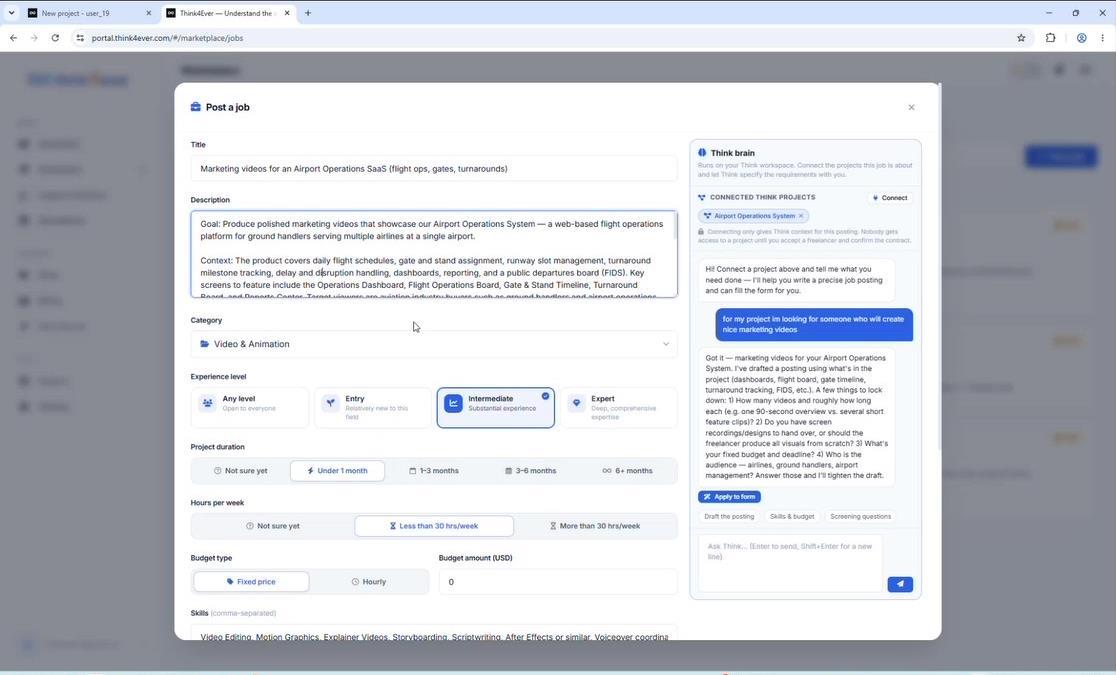
- Review and edit the form:
- Title and Description (goal, context, scope, deliverables and acceptance criteria)
- Category, such as Video & Animation
- Experience level: Any level, Entry, Intermediate or Expert
- Project duration and Hours per week
- Budget type (Fixed price or Hourly) and Budget amount (USD)
- Skills, separated by commas
- This is a contract-to-hire opportunity, if the role could become full-time
- Screening questions: up to 5, and freelancers must answer them
- Attach files. Click Attach files to add a product requirements document (PRD), statement of work, designs or anything else freelancers need to read.
- Click Post job. Or click Save as draft to finish later.
No Think4Ever project yet? You can still post a job. Skip the Connect step and describe the work yourself, or attach your PRD. Before you give a freelancer access, create a project in your workspace so their work lands there.
For freelancers: register
To work on the Marketplace, you need a Think4Ever account. Everything happens through it: browsing jobs, sending proposals, messaging clients and getting access to their projects.
- Sign up for Think4Ever. The free plan (Think Free) is enough to use the Marketplace.
- Open the Marketplace. Click Marketplace in the account sidebar.
- Set up your profile. Open the My Profile tab and add your headline, skills and experience. Clients see your headline next to every proposal you send, along with your rate, your reviews and the number of jobs you've completed.
A strong profile helps when ThinkBrain scores proposals for a client. The score weighs your profile and your answers against the job's requirements.
To confirm before publishing: the exact fields on the My Profile tab. The demo recording does not show the profile setup screen.
For freelancers: find jobs and send proposals
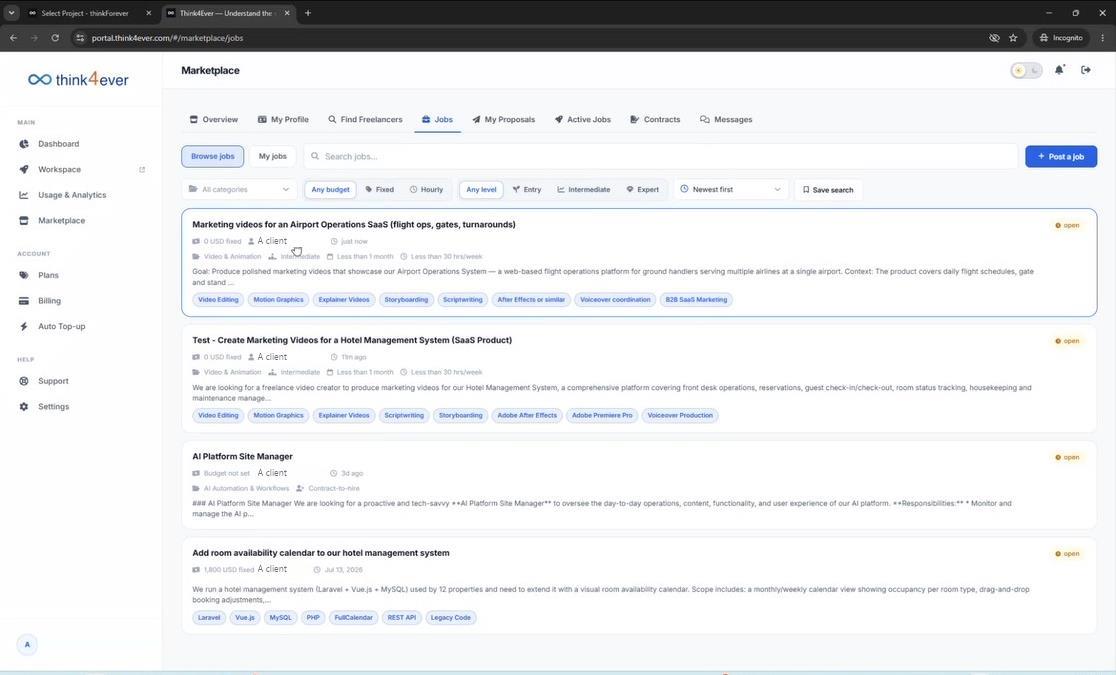
- Browse jobs. In the Marketplace, open Jobs -> Browse jobs. Search by keyword, or filter by category, budget (Fixed or Hourly), experience level (Entry, Intermediate or Expert) and newest first. Click Save search to keep a filter.
- Read the job. Open a listing to see the goal, scope, deliverables, acceptance criteria, skills and any attached files. Jobs written with ThinkBrain usually describe the real product, its screens and its stack, so you know what you're bidding on.
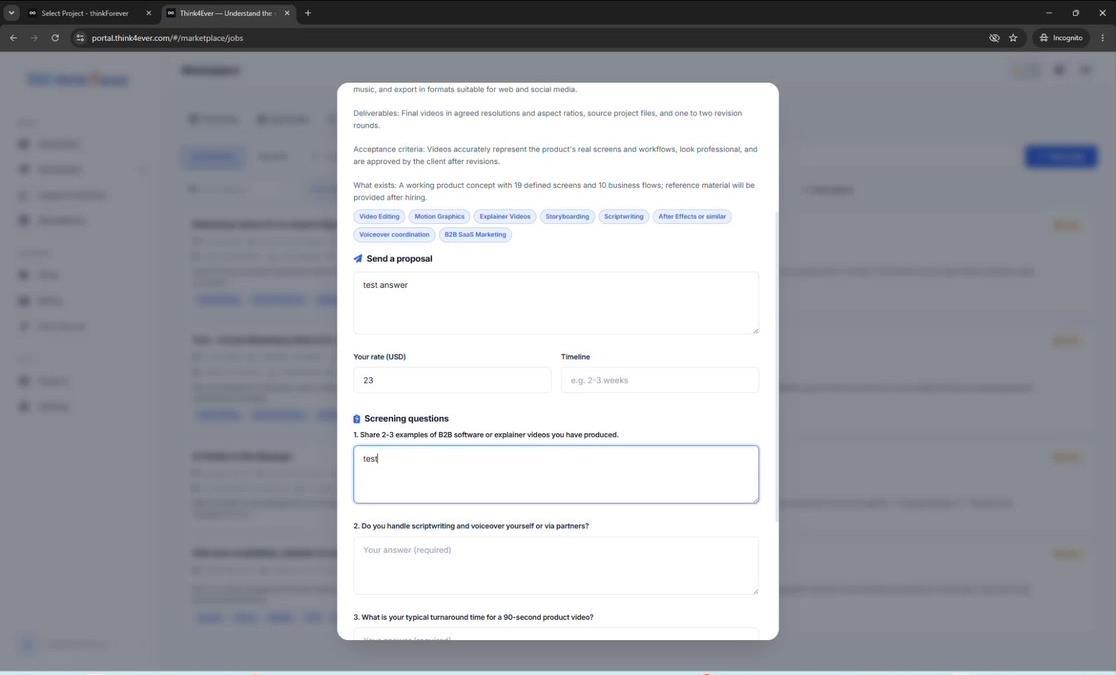
- Send a proposal. Under Send a proposal, fill in:
- your message to the client: your approach and relevant experience
- Your rate (USD)
- Timeline, for example 2-3 weeks
- an answer to every screening question. All answers are required.
- Submit the proposal. Track it under My Proposals, and reply to clients under Messages.
Set your own estimate. Think4Ever doesn't calculate timelines or prices for you. You know how fast you work with AI coding tools, so price and schedule the job on that basis.
Hire, give access and deliver
Clients: review proposals
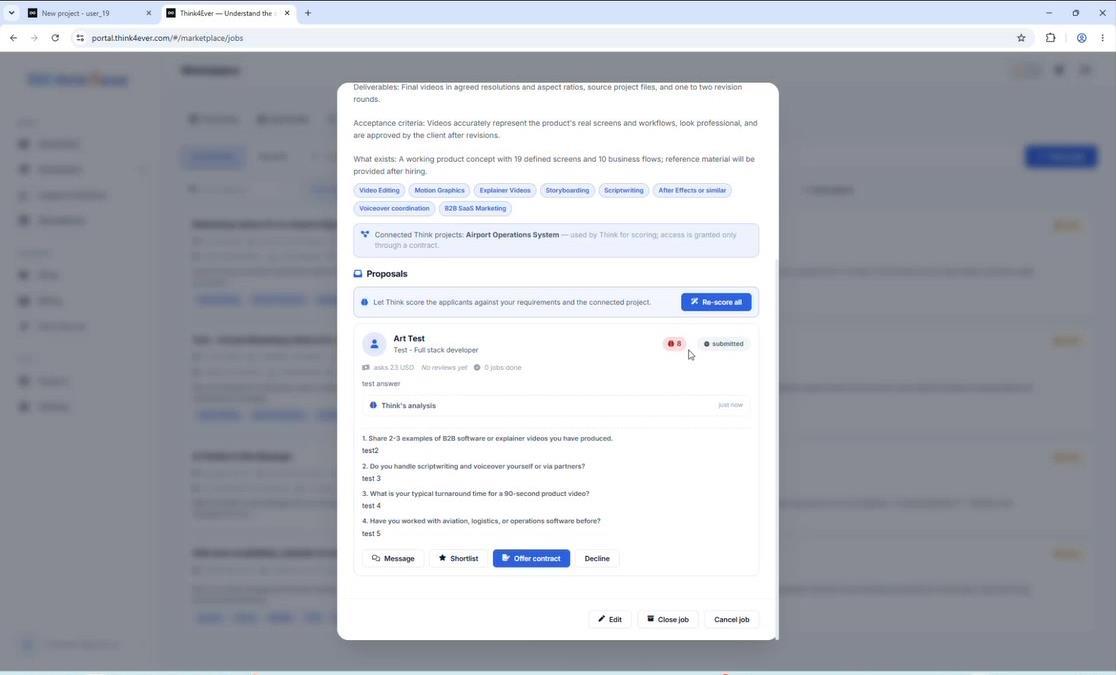
- Open Jobs -> My jobs and click your job. Proposals are listed under Proposals.
- Click Re-score all to have ThinkBrain score every applicant against your requirements and connected project. Each proposal shows a score and Think's analysis, so you can go straight to the best fits instead of reading every one.
- For each applicant you can Message them, Shortlist them, Offer contract or Decline.
Clients: offer a contract
When you click Offer contract, choose exactly what the freelancer gets:
| Setting | What it controls |
|---|---|
| Role on your server | The freelancer's role in your workspace, for example Business Designer |
| Projects the freelancer needs | Which projects they can reach. The projects connected to the job are pre-selected; add or remove others |
| Type of access | Workspace user access: they log into your Think4Ever workspace, limited to the selected projects and role. MCP access: a project-scoped MCP token so they can work from Claude Code, Codex, Cursor or any MCP client. Pick one or both |
| Contract message / terms | Scope, deliverables, deadlines and payment arrangement |
| Amount and currency | For your records only |
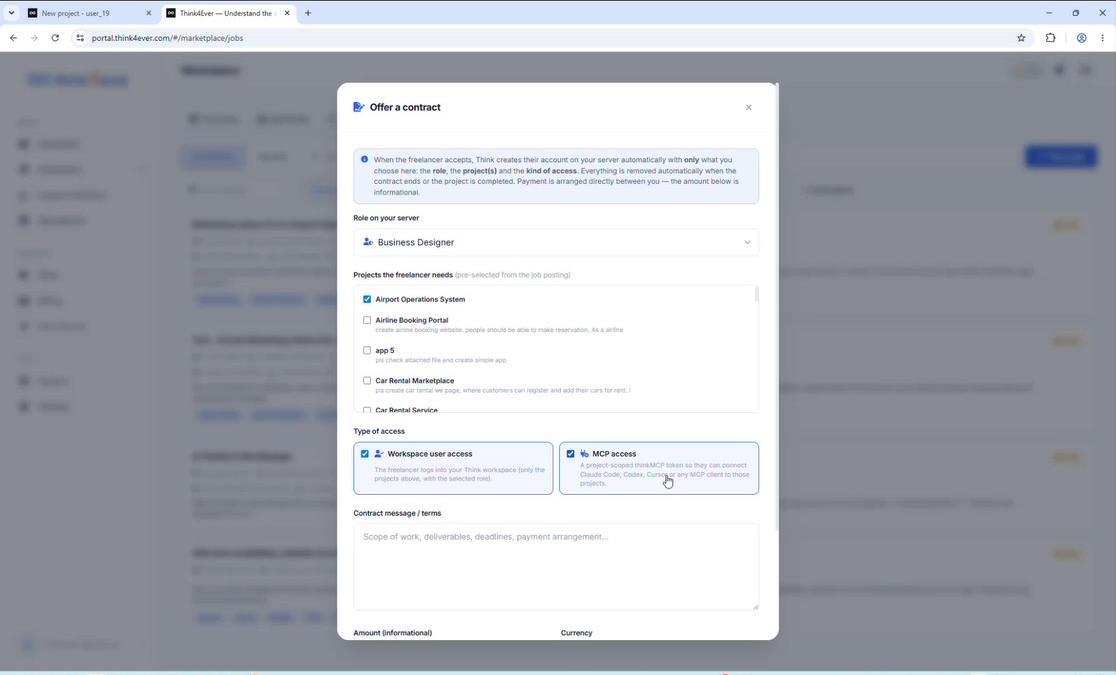
Access is optional. For work that doesn't touch your project, such as a marketing video, you can offer a contract with no access.
Payment happens outside Think4Ever. You and the freelancer agree on payment directly. The amount on the contract is informational.
Freelancers: accept and start work
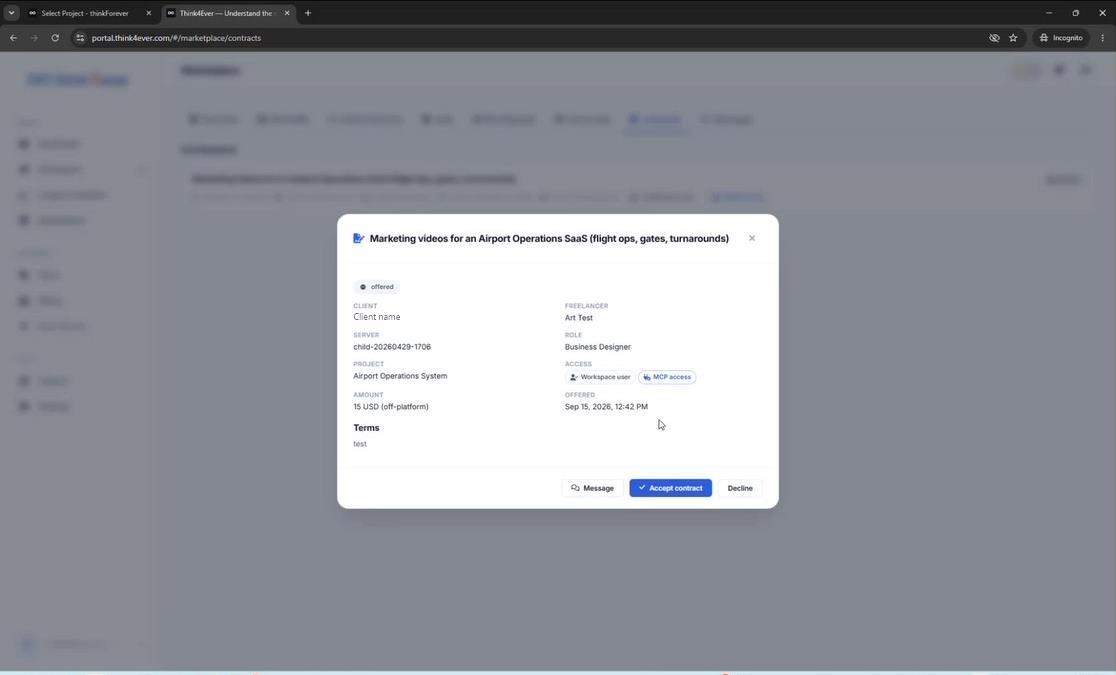
- Open Contracts, review the offer and click Accept contract. You can also Message the client or Decline.
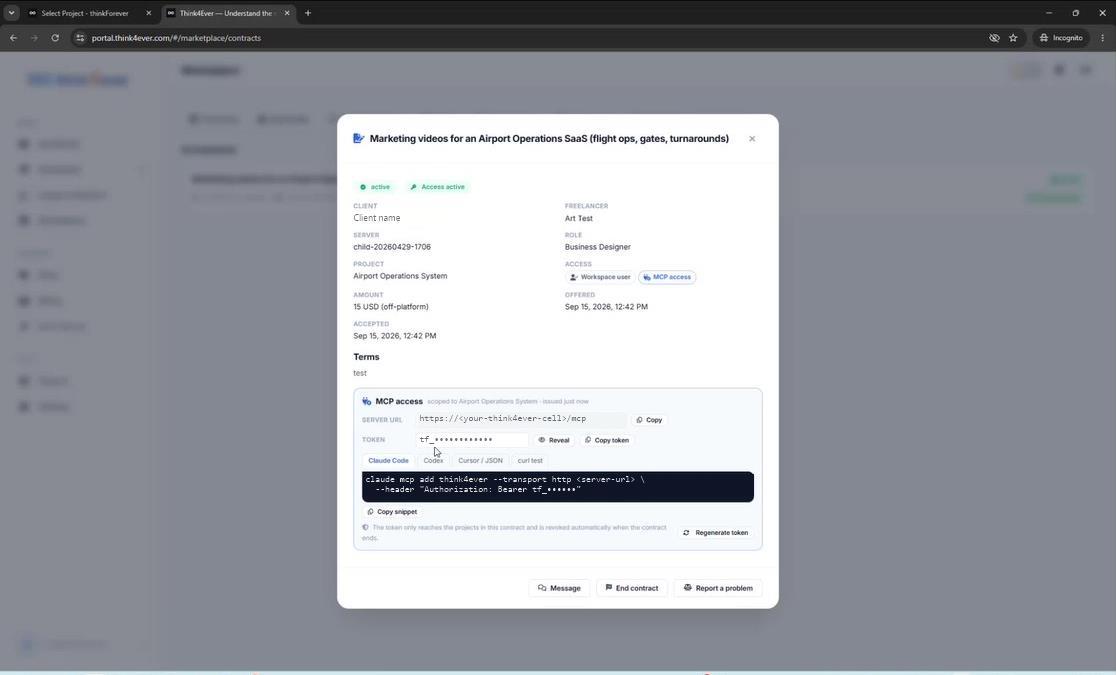
- Think4Ever creates your access on the client's server automatically, with only the role, projects and access type the client chose.
- Workspace user access: enter the client's workspace from your Think4Ever dashboard.
- MCP access: open the contract to find the server URL, your token and ready-made setup snippets for Claude Code, Codex, Cursor and curl. Copy the snippet into your tool to connect to the client's project.
Where the work lives
Everything a freelancer builds stays in the client's workspace and project, not the freelancer's. When the contract ends or the project is done, Think4Ever removes the freelancer's access and revokes their token automatically. Either side can End contract or Report a problem from the contract.
FAQ
Do both clients and freelancers need a Think4Ever account?
Yes. Posting, applying, messaging and contracts all run through Think4Ever accounts. Freelancers can start on the free plan.
Can I post a job without a Think4Ever project?
Yes. Describe the work or attach your PRD and post it. To give a freelancer access to build something, first create a project in your own workspace. Their work is then saved there, and it belongs to you.
Does connecting a project to a job share it with applicants?
No. Connecting a project only lets ThinkBrain read it to write the posting and score proposals. Nobody gets access until you offer a contract with access and the freelancer accepts it.
I have a PRD or statement of work. How do I use it?
Attach it with Attach files when you post the job. Freelancers read it and come back with their approach, rate and timeline.
How are prices and timelines set?
By the freelancer. Freelancers know their own speed with AI coding tools, so they give their own estimates rather than a generic AI calculation.
How does payment work?
Directly between client and freelancer. The amount on the contract is a record, not a charge.
What happens to access when the work is done?
It is removed automatically when the contract ends or the project is completed, and the freelancer's MCP token is revoked.