
Agent Skills
The Agent Skills page is where your company writes standing instructions once and has them applied automatically across think4ever. Instead of repeating the same rules in every chat or every project, you record them as skills. Each skill is added on top of the normal task instructions the AI receives, so agents and builders follow your company standards by default.
Skills can be targeted by agent, by concept layer (for example UI Screens or Data Structure), or by kind of work. Once saved, a skill applies to every project and every team member in your company.
Key facts
- Skills are applied automatically to every project and every team member.
- Each skill can hold up to 12,000 characters.
- Only company administrators can see and edit this page.
- A skill never overrides an explicit request made in a chat. The agent follows the request and tells you which company rule it set aside.
2. Page layout
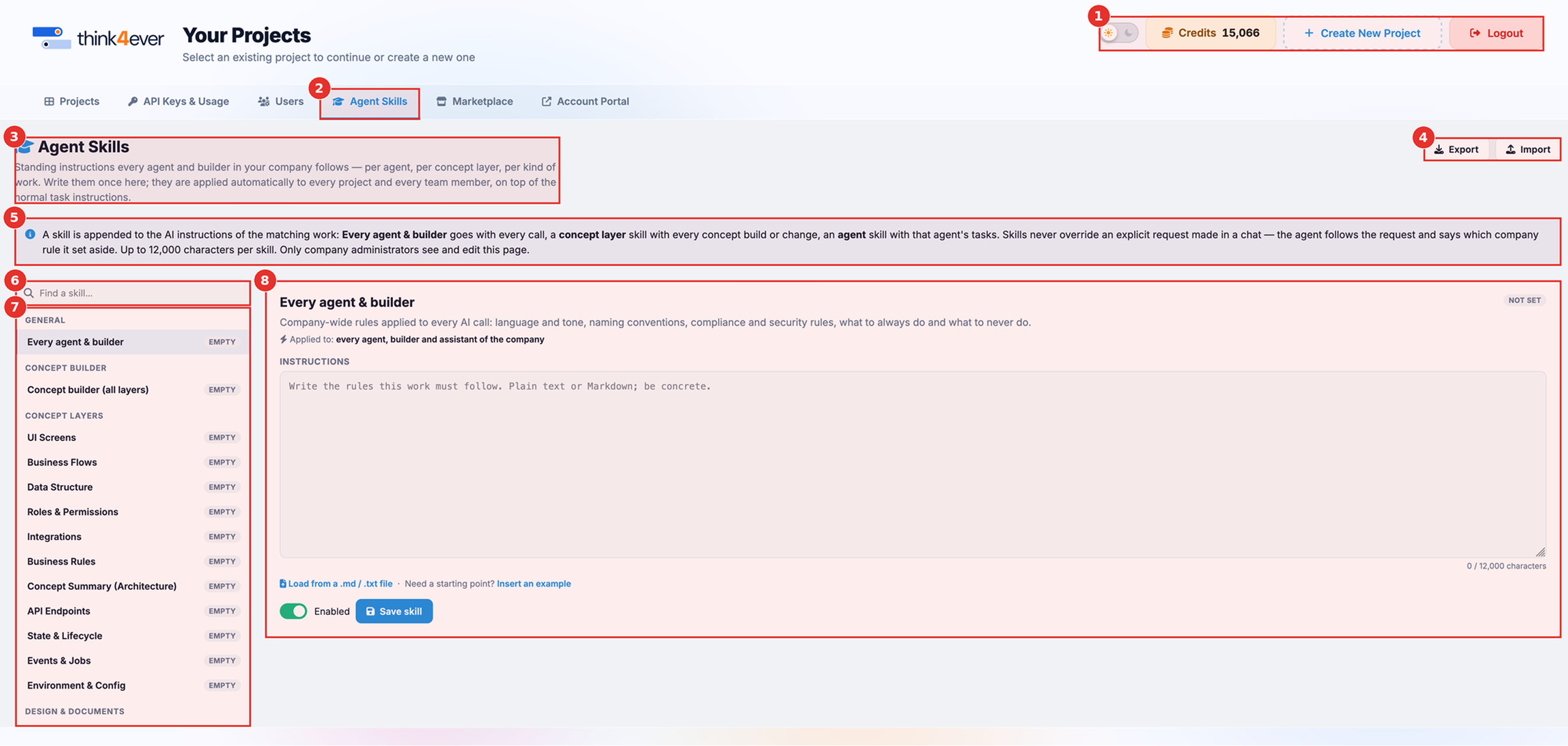
The Agent Skills page is opened from the tab bar of the Your Projects screen. Figure 1 shows the page as it appears when no skill has been selected yet.
 Click to enlarge
Figure 1. The Agent Skills page with numbered callouts
| # | Area | What it does |
|---|---|---|
| 1 | Account bar | Theme switch, credit balance, Create New Project and Logout. |
| 2 | Agent Skills tab | Highlighted when you are on this page. |
| 3 | Page title and description | Summarizes the purpose of the page. |
| 4 | Export / Import | Buttons for moving your skills out of, and into, the page. |
| 5 | Information banner | Explains how skills are applied, the 12,000 character limit and administrator-only access. |
| 6 | Find a skill | Search box that filters the skill list. |
| 7 | Skill list | All skills grouped by category. Each row shows an EMPTY badge until instructions are written. |
| 8 | Editor area | Where the selected skill’s instructions are written or changed. |
3. How skills are applied
A skill is appended to the AI instructions of the matching work. The scope you choose decides when the skill is used.
| Skill scope | When it is applied |
|---|---|
| Every agent & builder | With every call, for all agents and builders. |
| Concept builder (all layers) | Whenever a concept is built or changed, regardless of layer. |
| A concept layer (e.g. UI Screens, Business Flows) | Only when that specific layer is built or changed. |
| An individual agent | With that agent’s tasks only. |
Put rules that always apply (tone, naming conventions, language) in Every agent & builder, and keep layer-specific rules in the matching layer skill.
4. Step-by-step instructions
4.1 Open the Agent Skills page
- Sign in to think4ever. You land on the Your Projects screen.
- Click the Agent Skills tab in the tab bar (Figure 2).
- The page opens with the skill list on the left and an empty editor area on the right.
 Click to enlarge
Figure 2. The Agent Skills tab
If you do not see the Agent Skills tab, your account is probably not a company administrator. Ask an administrator for access.
4.2 Find a skill
- Look at the skill list on the left. Skills are grouped under General, Concept Builder, Concept Layers and Design & Documents.
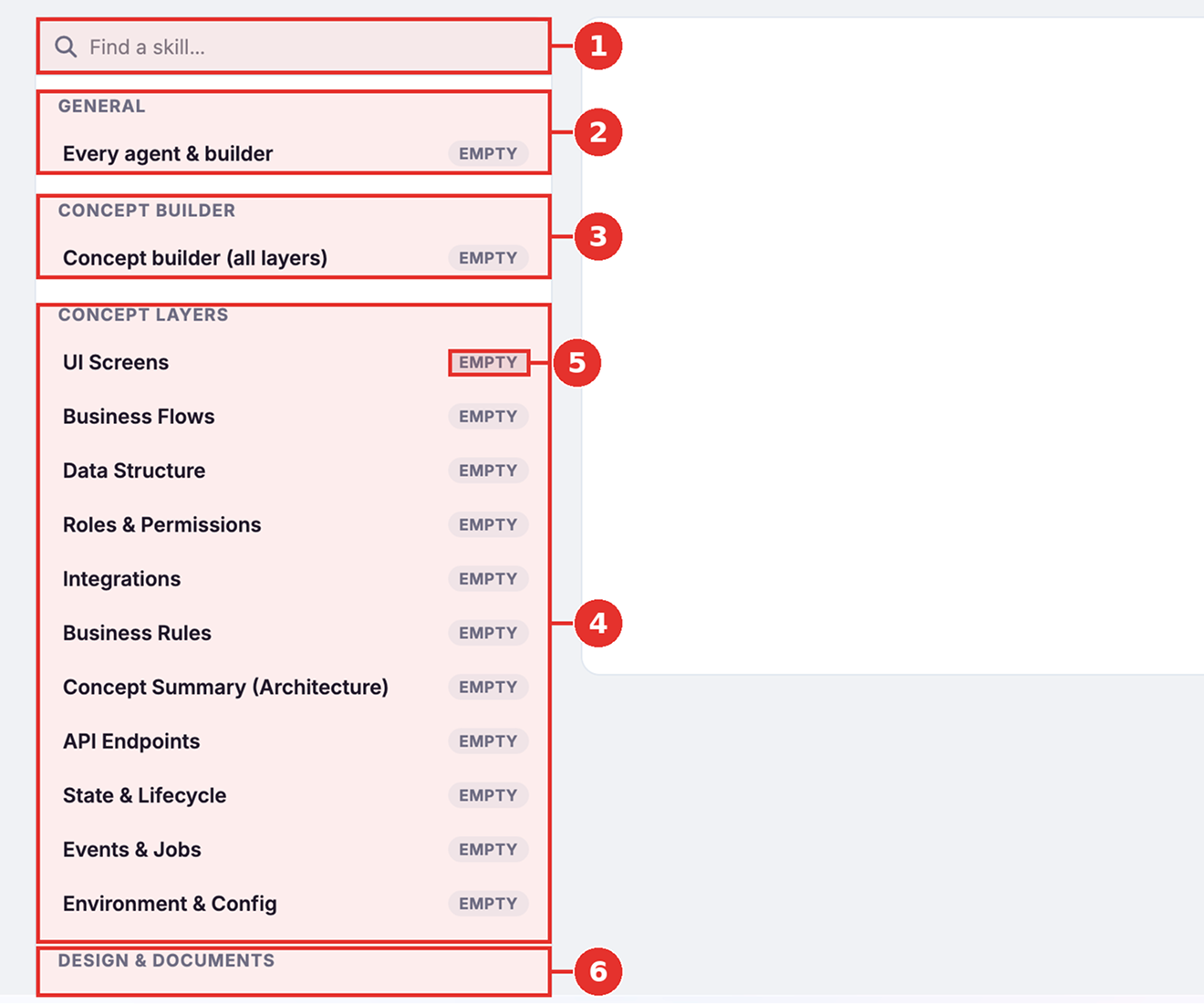
- To jump to a skill, type part of its name in the Find a skill box (marker 1, Figure 3). The list narrows as you type.
- Scroll the list to see further groups below Design & Documents.
 Click to enlarge
Figure 3. The skill list and its groups
| # | Element | Description |
|---|---|---|
| 1 | Find a skill | Search box for filtering skills by name. |
| 2 | General | Contains Every agent & builder, used with every call. |
| 3 | Concept Builder | Contains Concept builder (all layers). |
| 4 | Concept Layers | One skill per layer: UI Screens, Business Flows, Data Structure, Roles & Permissions, Integrations, Business Rules, Concept Summary (Architecture), API Endpoints, State & Lifecycle, Events & Jobs, Environment & Config. |
| 5 | EMPTY badge | No instructions have been written for this skill yet. |
| 6 | Design & Documents | Further group of skills below the concept layers. |
4.3 Write or change a skill
- Click the skill you want in the list, for example UI Screens.
- The editor area on the right replaces the prompt "Pick a skill on the left to write or change its instructions."
- Type or paste your instructions in plain language, written as direct rules.
- Keep the text within 12,000 characters.
- Save your changes using the on-screen save control in the editor.
- Check the skill in the list. Once it contains instructions, its EMPTY badge no longer applies.
Skills do not override an explicit request made in a chat. The agent follows the request and states which company rule it set aside.
4.4 Export and import skills
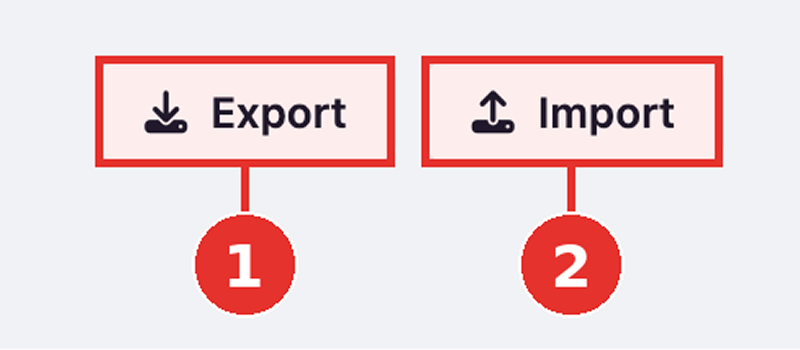
- Export: click Export at the top right (marker 1, Figure 4) and save the downloaded file as a backup.
- Import: click Import (marker 2), choose a previously exported skills file, then review the list to confirm the instructions loaded.
 Click to enlarge
Figure 4. Export and Import buttons
Importing may replace instructions that already exist in a skill. Export your current skills first.
5. Account bar
The top right of every think4ever page contains the account tools shown in Figure 5.
 Click to enlarge
Figure 5. Account bar
| # | Control | Description |
|---|---|---|
| 1 | Theme switch | Toggles between light and dark mode. |
| 2 | Credits | Displays your remaining credit balance. |
| 3 | Create New Project | Starts a new project. |
| 4 | Logout | Signs you out of think4ever. |
6. Writing effective skills
- Be specific. "Use sentence case for all button labels" works better than "Make the UI consistent."
- Write one rule per line so instructions are easy to scan and update.
- Put universal rules in Every agent & builder and layer rules in the matching layer.
- Avoid contradictions between skills.
- Stay well below the 12,000 character limit.
- Review skills regularly and remove out-of-date instructions.
7. Troubleshooting and FAQ
| Question | Answer |
|---|---|
| I cannot see the Agent Skills tab. | Only company administrators can see and edit this page. Ask an administrator for access. |
| Why does the agent ignore my skill? | A skill never overrides an explicit request in a chat. Also check the skill is in the right scope. |
| Do skills apply to existing projects? | Yes. Skills apply to every project and every team member. |
| What does EMPTY mean? | No instructions have been saved for that skill yet. The editor shows NOT SET for the same reason. |
| What does the Enabled switch do? | It turns the skill on or off. Leave it on for the skill to be applied. |
| I need a starting point. | Click Insert an example in the editor, or Load from a .md / .txt file. |
| Is there a size limit? | Yes. Up to 12,000 characters per skill. |
| How do I back up my skills? | Use Export at the top right of the page. |