
Users
1. Overview
The Users page (titled Company Users) is where you manage the people who work in your company’s think4ever account. It shows how many seats your plan includes, lists every user with their roles, status, monthly credit usage and last login, and gives you actions to edit or delete users.
The page also lists freelancers hired through the Marketplace. Freelancers have contract access to your projects but do not take up a seat on your plan.
Key facts
- Use this page to see who has access, what role each person holds and when they last signed in.
- The summary line shows the number of users, your plan and its seats, and the number of Marketplace freelancers.
- Administrator and freelancer accounts are marked with an ADMIN or FREELANCER badge next to the username.
- If your plan has a limited number of seats, a banner explains how to add more users.
2. Page layout
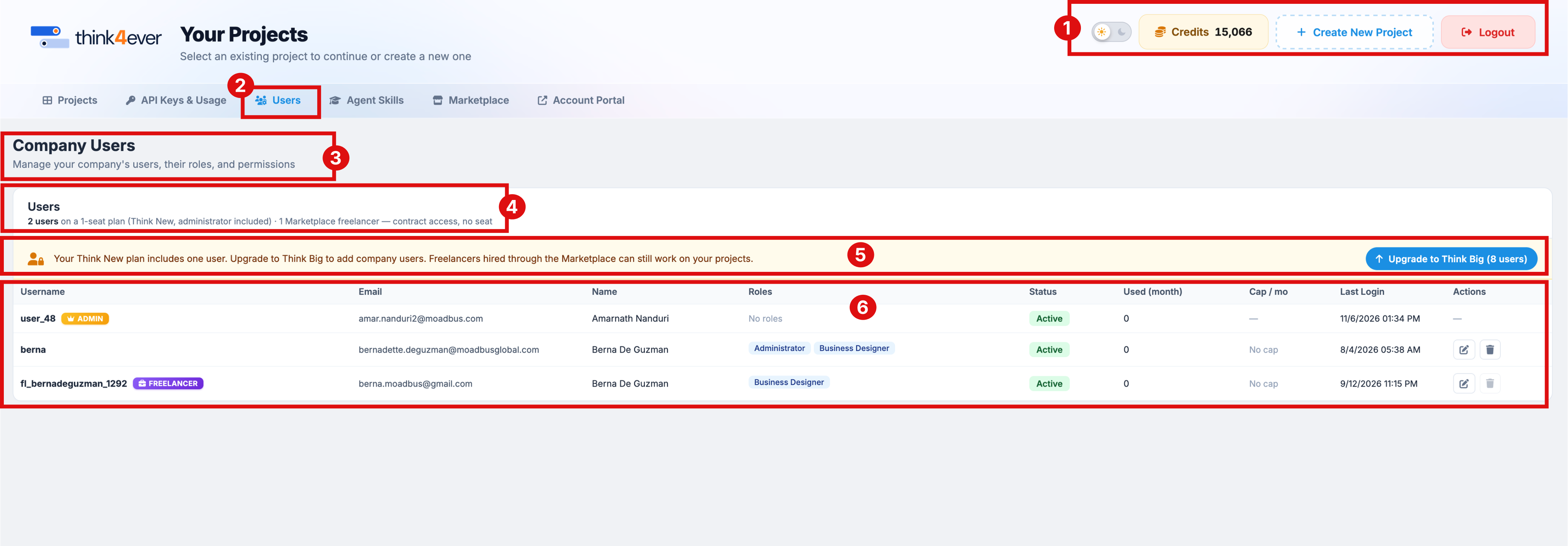
Open the Users page from the tab bar of the Your Projects screen. Figure 1 shows the page and its main areas.
 Click to enlarge
Figure 1. The Users page with numbered callouts
| # | Area | What it does |
|---|---|---|
| 1 | Account bar | Theme switch, credit balance, Create New Project and Logout. |
| 2 | Users tab | Highlighted when you are on this page. |
| 3 | Page title | Company Users, with the description "Manage your company’s users, their roles, and permissions". |
| 4 | Users summary | Shows the user count, your plan and seats, and the number of Marketplace freelancers. |
| 5 | Plan banner | Explains the seat limit of your plan and offers an upgrade. |
| 6 | Users table | Lists every user with their details and the actions available. |
3. Step-by-step instructions
3.1 Open the Users page
- Sign in to think4ever. You land on the Your Projects screen.
- Click the Users tab in the tab bar (marker 1, Figure 2).
- The Company Users page opens with the summary, plan banner and users table.
 Click to enlarge
Figure 2. The Users tab
3.2 Check your plan and seats
- Read the summary line under the Users heading (marker 1, Figure 3). It shows the number of users, your plan name and seat count, and how many Marketplace freelancers have contract access.
- Read the banner below it (marker 2). It tells you how many users your plan includes and what freelancers can still do.
- Note that freelancers hired through the Marketplace do not use a seat.
 Click to enlarge
Figure 3. Users summary and plan banner
Example: "2 users on a 1-seat plan (Think New, administrator included) · 1 Marketplace freelancer — contract access, no seat".
3.3 Upgrade your plan to add users
- Click the Upgrade to Think Big (8 users) button on the right side of the banner (Figure 4).
- Follow the on-screen steps to complete the upgrade.
- Return to the Users page to see the new seat count in the summary line.
 Click to enlarge
Figure 4. Upgrade button
The upgrade button and the seat limit depend on your current plan. On a plan with more seats, the banner may not appear. The screens after you click Upgrade are not covered in this manual.
3.4 Review a user
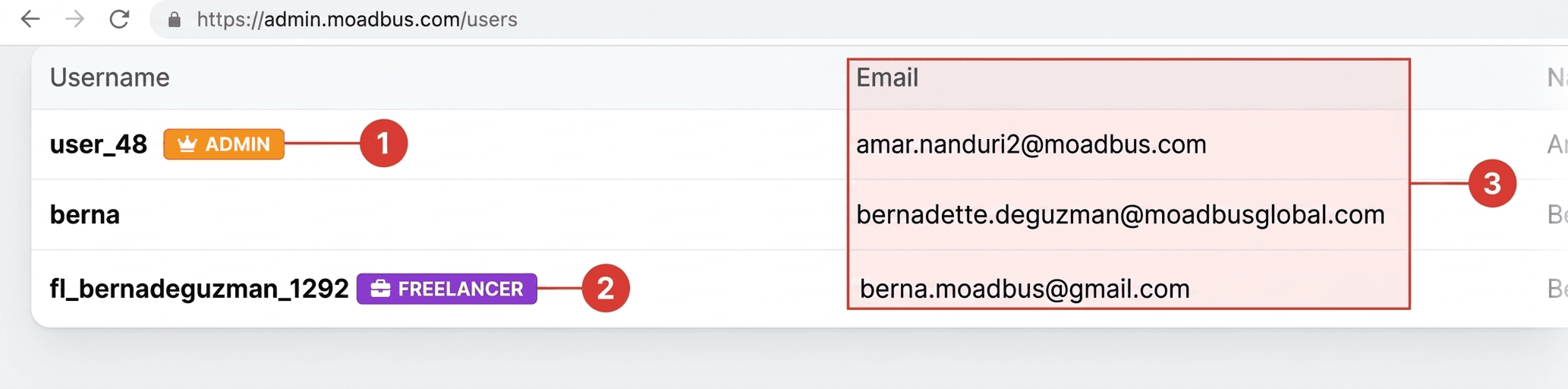
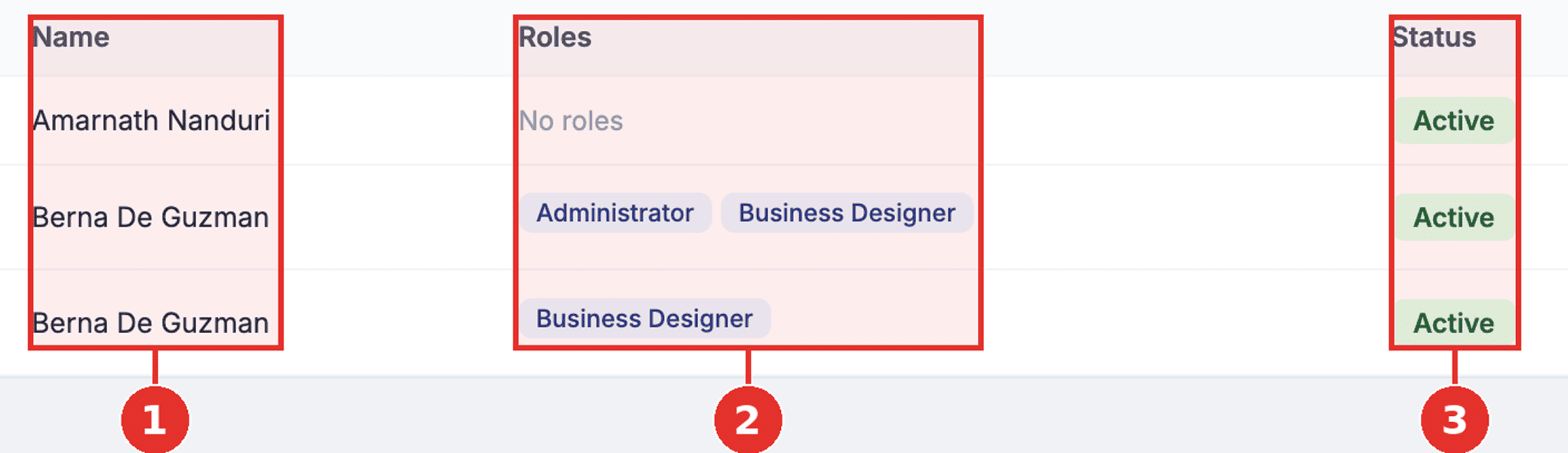
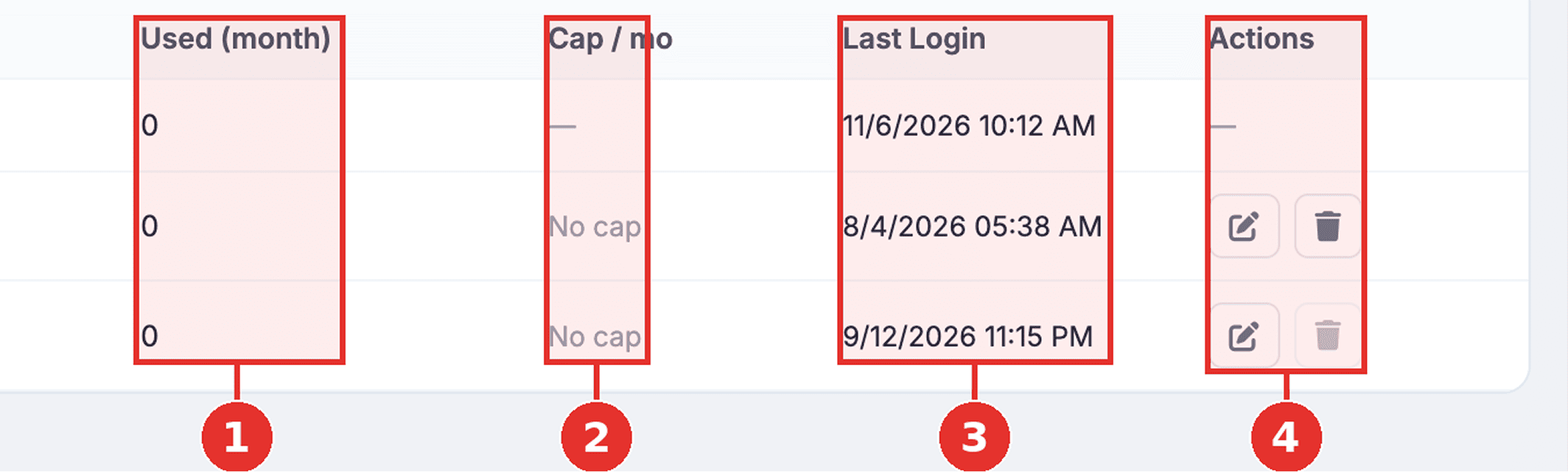
Each row of the users table describes one user. Read across the row to see who they are, what they can do and how they use credits. The table is shown in three parts below.
 Click to enlarge
Figure 5. Username and Email columns
| # | Element | Description |
|---|---|---|
| 1 | ADMIN badge | Marks the company administrator account. |
| 2 | FREELANCER badge | Marks a freelancer hired through the Marketplace. The username is generated automatically. |
| 3 | Email column | The email address registered for the user. |
 Click to enlarge
Figure 6. Name, Roles and Status columns
| # | Column | Description |
|---|---|---|
| 1 | Name | The user’s full name. |
| 2 | Roles | The roles assigned to the user, for example Administrator or Business Designer. Shows "No roles" if none are assigned. |
| 3 | Status | Shows whether the user is Active. |
 Click to enlarge
Figure 7. Usage, cap, login and actions columns
| # | Column | Description |
|---|---|---|
| 1 | Used (month) | Credits the user has used this month. |
| 2 | Cap / mo | The monthly credit cap for the user. "No cap" means no limit is set. A dash means a cap does not apply. |
| 3 | Last Login | Date and time of the user’s most recent sign-in. |
| 4 | Actions | Edit and delete buttons. A dash means no actions are available for that user. |
3.5 Edit a user
- In the users table, find the user you want to change.
- Click the edit icon in the Actions column (the pencil and square icon).
- Make your changes in the window that opens, for example roles or the monthly cap.
- Confirm or save the change.
- Check the row in the table to see the updated information.
The edit window was not visible in the screenshot used for this manual, so the fields listed above are examples. Update this step once you have captured that screen.
3.6 Delete a user
- In the users table, find the user you want to remove.
- Click the trash icon in the Actions column.
- Confirm the deletion if you are asked to.
Deleting a user removes their access. The delete button is greyed out for some accounts, such as the freelancer in the example, and no actions are shown for the administrator account. Freelancer contracts are likely managed through the Marketplace instead.
4. Account bar
The top right of every think4ever page contains the account tools shown in Figure 8.
 Click to enlarge
Figure 8. Account bar
| # | Control | Description |
|---|---|---|
| 1 | Theme switch | Toggles between light and dark mode. |
| 2 | Credits | Displays your remaining credit balance. |
| 3 | Create New Project | Starts a new project. |
| 4 | Logout | Signs you out of think4ever. |
5. Troubleshooting and FAQ
| Question | Answer |
|---|---|
| Why can’t I add more users? | Your plan has a fixed number of seats. Use the Upgrade button in the banner to get more. |
| Do freelancers use a seat? | No. Freelancers hired through the Marketplace have contract access and no seat. |
| What does "No roles" mean? | The user has no role assigned yet. Edit the user to add one. |
| What does "No cap" mean? | No monthly credit limit is set for that user. |
| Why is the delete button greyed out? | Some accounts, such as Marketplace freelancers, cannot be deleted from this page. |
| Why are there no actions for the administrator? | The administrator account shows a dash in the Actions column because it cannot be edited or deleted from here. |