
Claude Code
Claude Code natively supports remote HTTP MCP servers, allowing it to interface directly with your Think4Ever project architecture without requiring a local bridge.
Technical Integration#
Follow these configuration steps to connect the platform context directly to Claude Code via your terminal or repository settings.
Add the Server via Terminal#
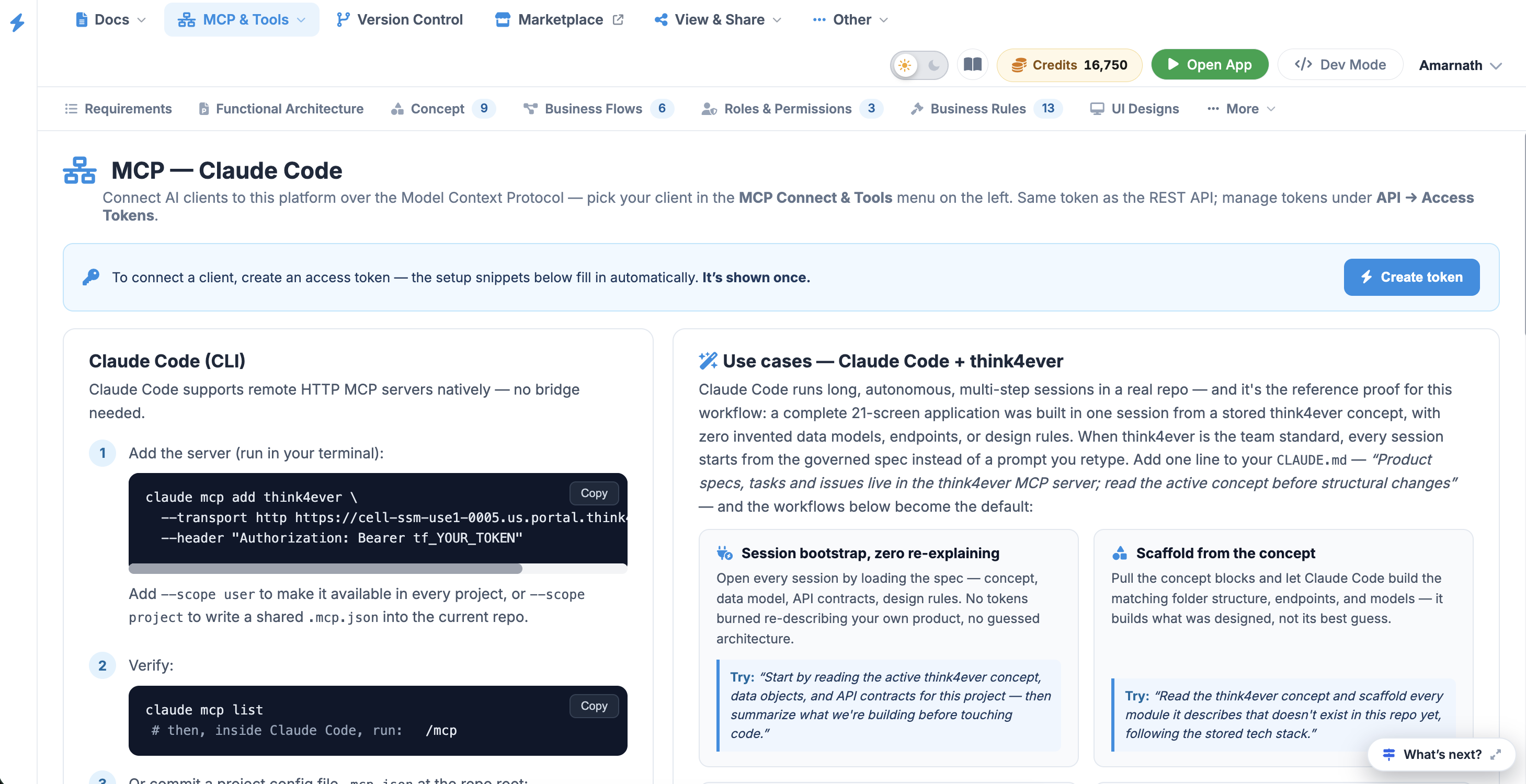
Run the following initialization command in your terminal to register the Think4Ever MCP server globally or locally:
 Click to enlarge
Claude Code (CLI)#
Claude Code supports remote HTTP MCP servers natively — no bridge needed.
Step 1#
Add the server (run in your terminal):
claude mcp add Think4Ever \
  --transport http https://cell-ssm-use1-0005.us.portal.think4ever.com/mcp \
--header "Authorization: Bearer tf_71b84ebb8284f86491f24b85311a55dfd2b0c9e74c678c7e"- Global Access: Append
--scope userto make the Think4Ever tools available across all of your projects. - Project Specific: Append
--scope projectto write a shared.mcp.jsonfile into your active repository root.
Step 2#
Verify:
claude mcp list

# then, inside Claude Code, run:
/mcp
Step 3#
Or commit a project config file .mcp.json at the repo root:
{
  "mcpServers": {
    "Think4Ever": {
      "type": "http",
      "url": "https://cell-ssm-use1-0005.us.portal.think4ever.com/mcp",
      "headers": {
        "Authorization": "Bearer tf_71b84ebb8284f86491f24b85311a55dfd2b0c9e74c678c7e"
      }
    }
  }
}Mention the Think4Ever project by name (or ID) in your first prompt so the agent calls list_projects / get_project and anchors itself. You can also add a line to your CLAUDE.md like "Project specs live in Think4Ever project #163 — read the active concept before large changes."