Lock Design
Freeze your concept, UI screens and requirements so nothing changes by accident.
Design ProtectionWhat is Lock Design?
Lock Design freezes the core of your project. While it is on, nobody can change the Concept, the UI Designs or the Requirements. That includes team members, marketplace developers, the AI assistant and connected tools. Any request to change them is refused and nothing is modified.
Use it when
- The design is approved and development is starting
- You want to protect a baseline before a review or demo
- Several people work in the project and you want to prevent accidental edits
What is frozen and what still works
Frozen
- Concept: blocks and relationships
- UI Designs: screens
- Requirements
Still available
- Viewing the project
- Exporting
- Sharing
- Discussions and comments
- Tasks
- Coding work in Dev Mode
NoteThe assistant can still answer your questions while the design is locked. It just cannot change the concept, the UI screens or the requirements.
Who can unlock
Once the design is locked, only two roles can unlock it.
Project owner
The person who owns the project.Company administrator
An admin of your company account.TipKnow who your company administrator is before you lock, so you can ask them if the owner is unavailable.
To confirmThis manual does not yet say who is allowed to lock the design. Check with your administrator and update this page.
How to lock the design
Steps 1 and 2
1
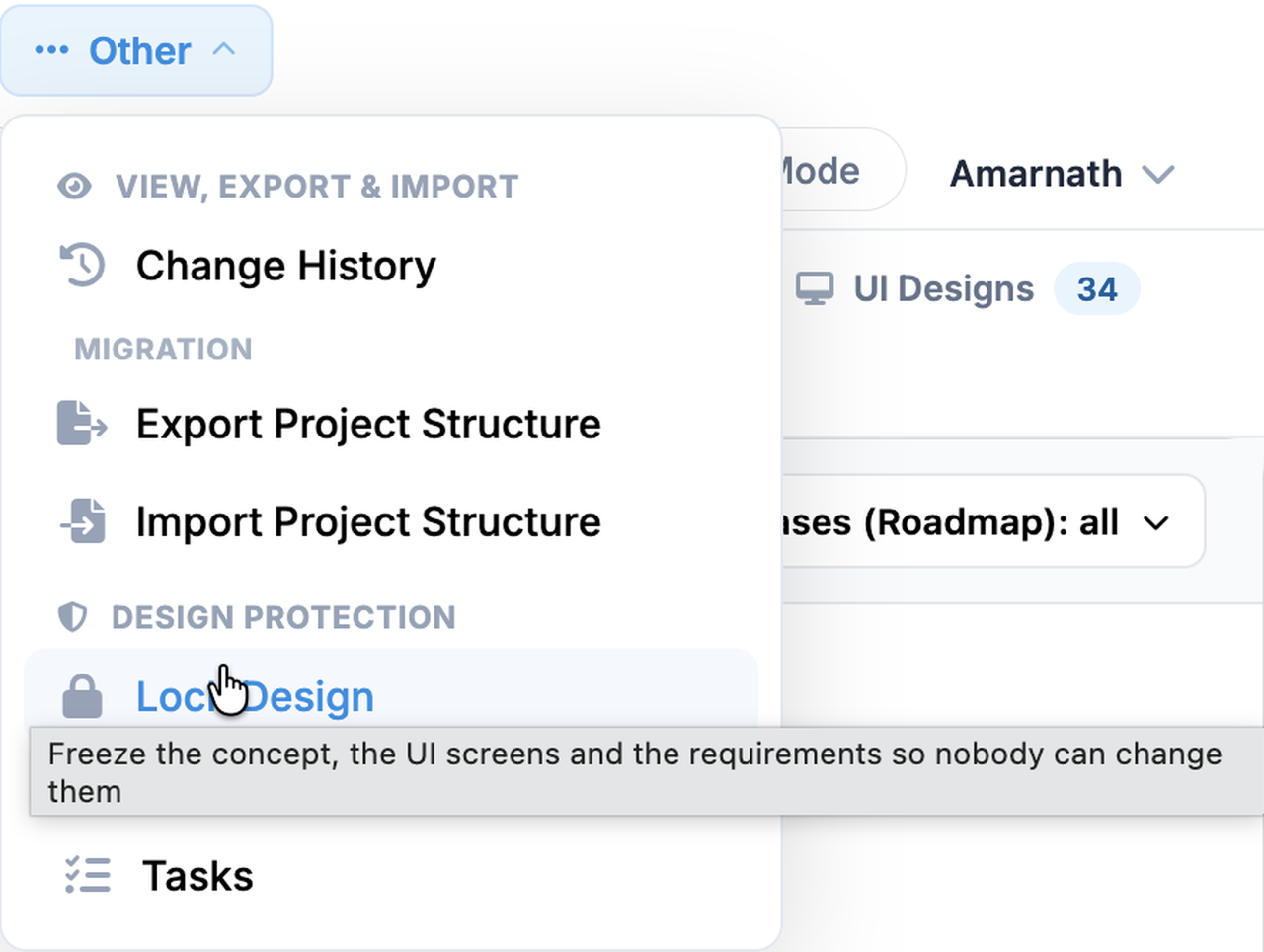
Open the Other menu
In the top navigation bar, click Other.2
Choose Lock Design
Under Design Protection, click Lock Design. A hint appears: "Freeze the concept, the UI screens and the requirements so nobody can change them."TipReview Concept, Business Flows, Roles & Permissions, Business Rules and UI Designs before you lock. You cannot refine them afterwards.
 Click to enlarge
Steps 3 to 5
3
Read the confirmation
A dialog titled "Lock the design of this project?" explains what will be frozen and who can unlock it.4
Confirm
Click Lock Design to confirm, or Cancel to go back without changes.5
Check the result
A green message appears: "Design locked. The concept, the UI screens and the requirements can no longer be changed."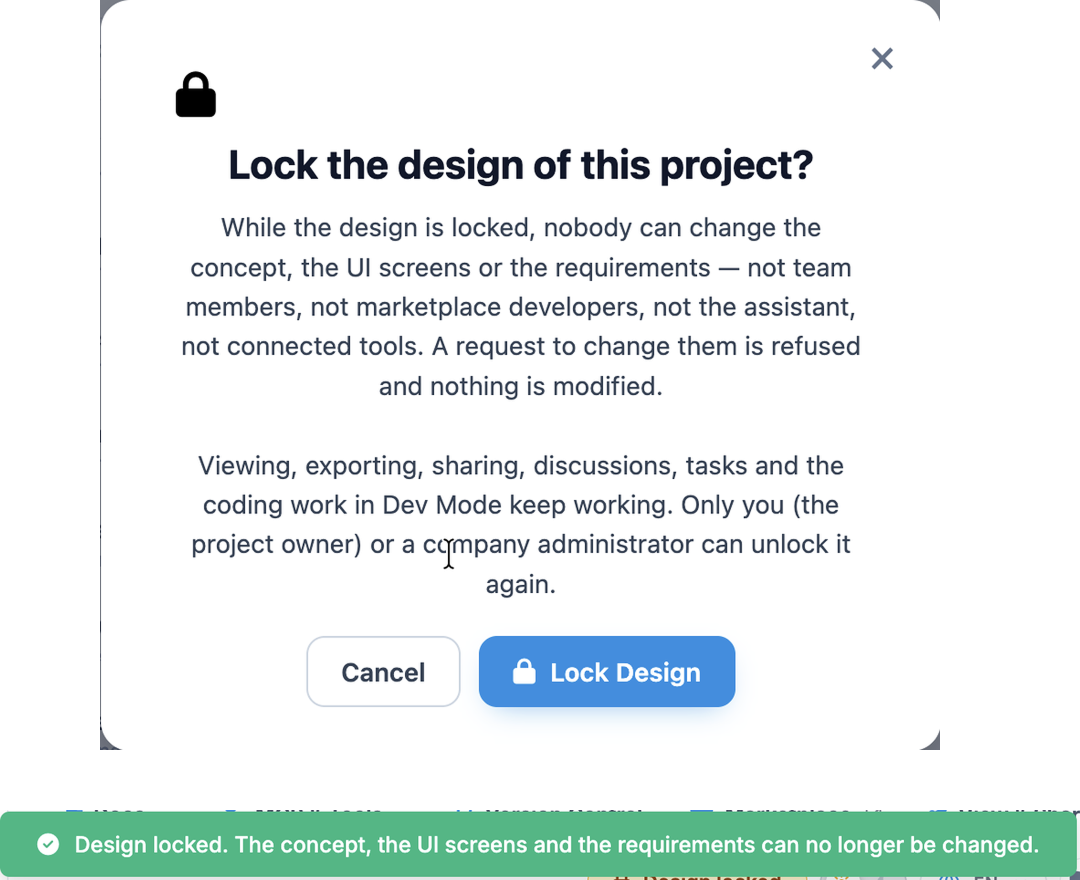 Click to enlarge
How to tell the design is locked
1
"Design locked" badge
Appears in the top bar, next to the theme toggle.2
Assistant notice
A yellow banner above the chat box says the assistant can answer questions but cannot change the design.3
Confirmation message
The green message shown right after you lock.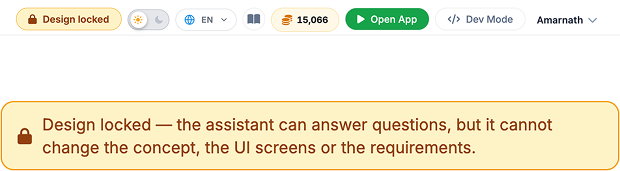 Click to enlarge
How to unlock the design
Only the project owner or a company administrator can do this.
To confirmThese steps are inferred. The unlock menu was not captured in the screenshots. Check the exact labels and update this page.
TipAfter unlocking, anyone with edit access can change the concept, UI screens and requirements again.
1
Open the Other menu
Click Other in the top navigation bar.2
Choose the unlock option
Under Design Protection, click the unlock option (likely labeled Unlock Design).3
Confirm
Confirm in the dialog that appears.4